Using OpenWebUI with PayPerQ
Connect a self-hosted Open WebUI to PayPerQ with one connection, then pick a model and, optionally, set up image generation and editing.
What is OpenWebUI?
Open WebUI is an extensible, feature-rich, and user-friendly self-hosted AI interface.
Prerequisites
- A PayPerQ account and API key. Your key is on ppq.ai/api-docs; more keys can be created at ppq.ai/api-keys.
- Docker. The Open WebUI quick start says the Docker route is "Officially supported and recommended for most users. Requires Docker installed."
Step by Step Set Up
1. Install and start Open WebUI
This is the command from the Open WebUI quick start. Replace your-secret-key with a random string (the quick start generates one with openssl rand -hex 32):
bashdocker run -d -p 3000:8080 --add-host=host.docker.internal:host-gateway \ -v open-webui:/app/backend/data -e WEBUI_SECRET_KEY=your-secret-key \ --name open-webui --restart always ghcr.io/open-webui/open-webui:main
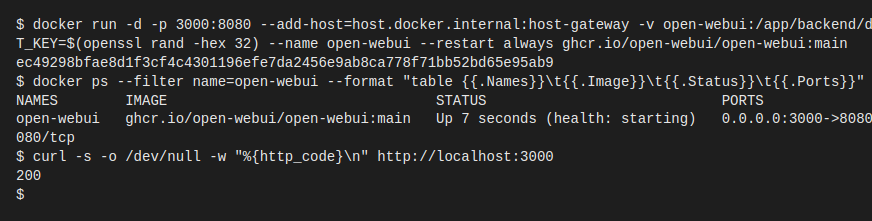
The first start can take about a minute. Then open http://localhost:3000.
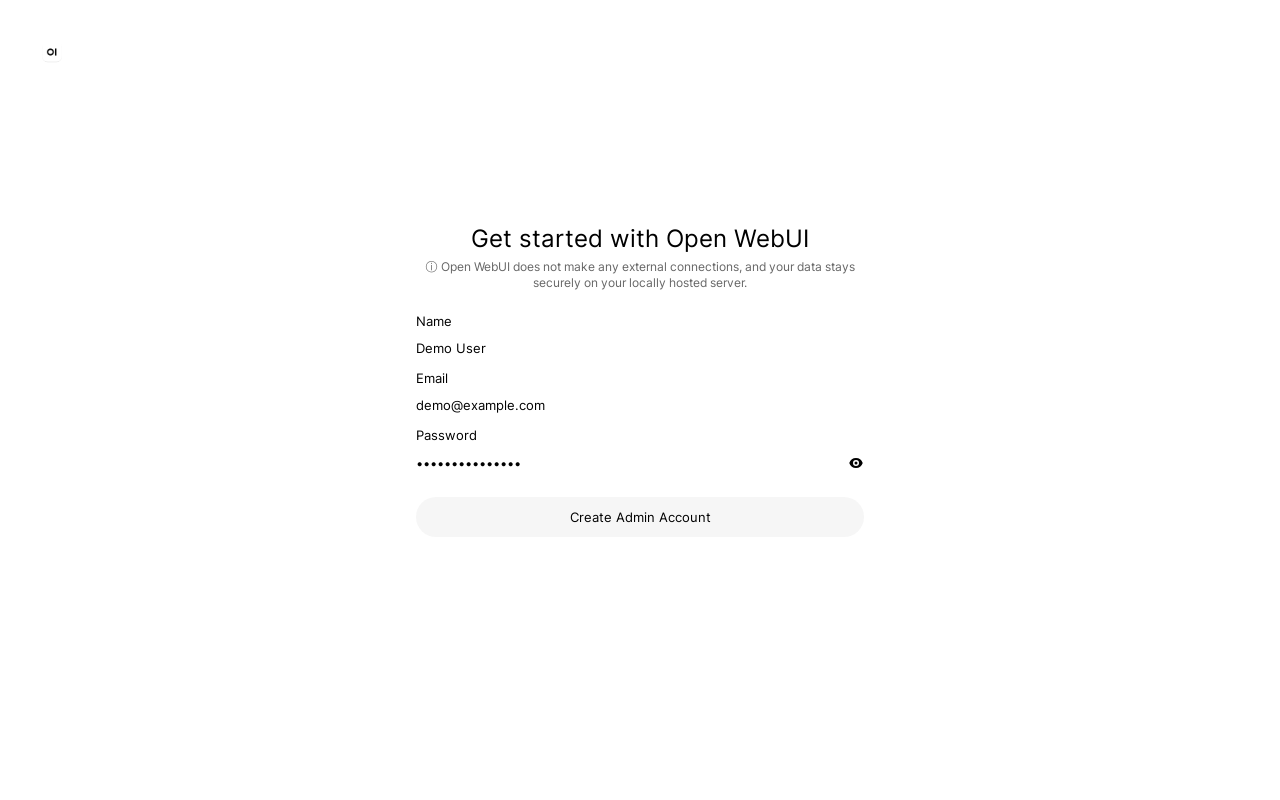
2. Create the admin account
Click Get started. The page "Get started with Open WebUI" asks for a name, an email and a password; click Create Admin Account. The first account becomes the administrator. A "What's New in Open WebUI" window may open; click Okay, Let's Go!.
3. Open the admin settings
Click your avatar at the bottom left and choose Admin Panel.
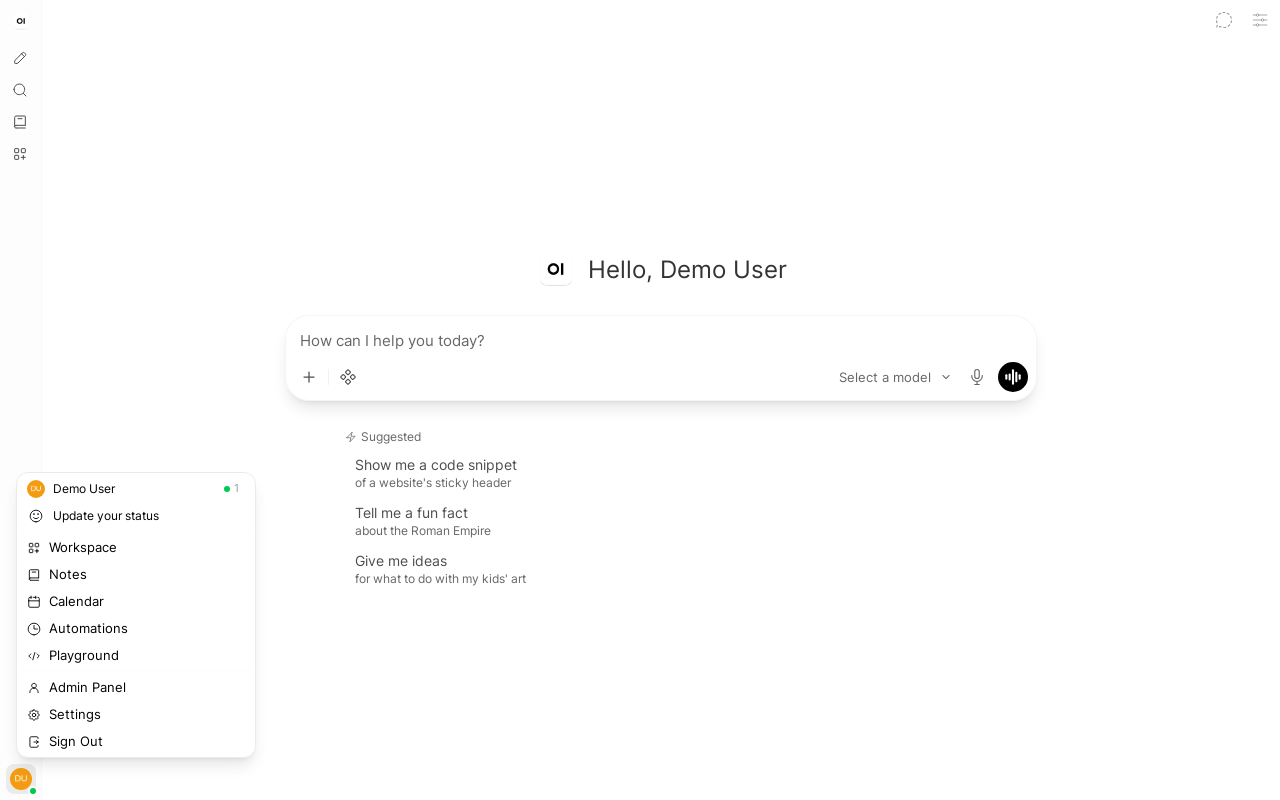
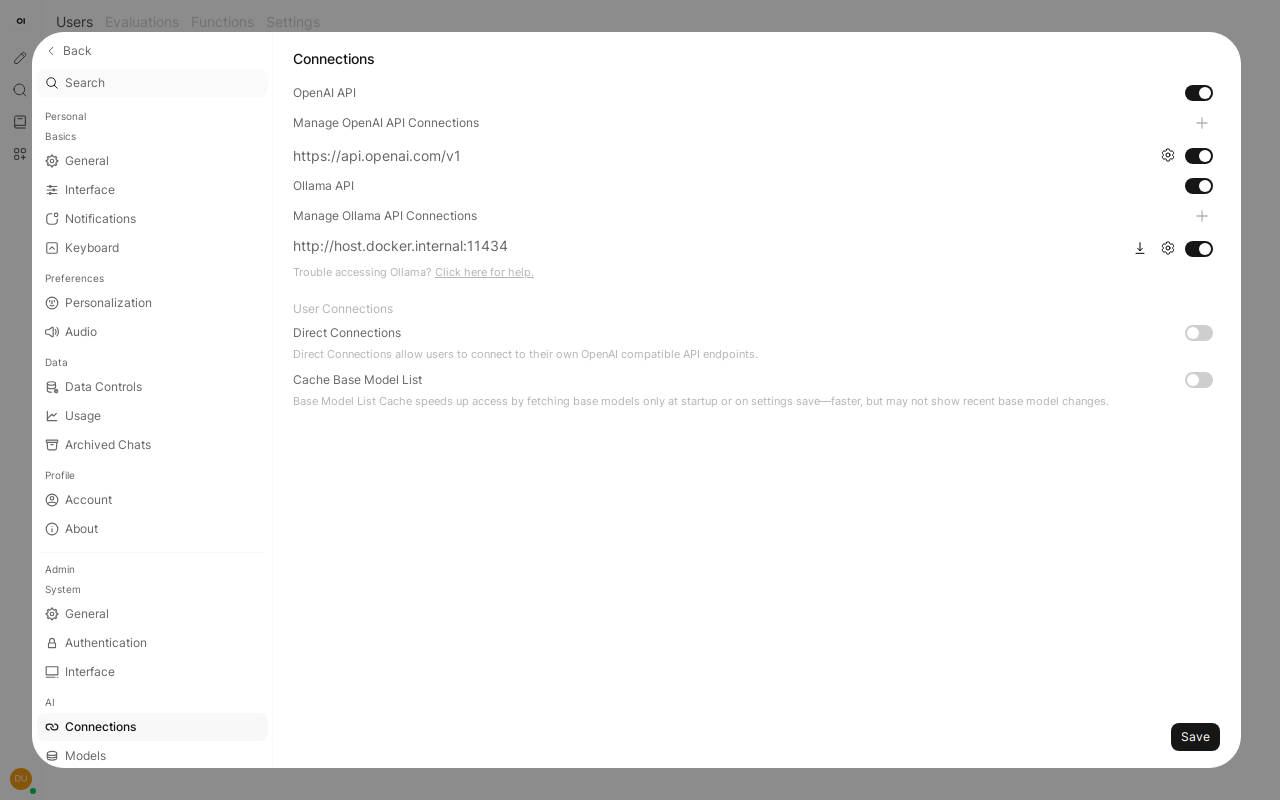
In the Admin Panel, click Settings in the top bar, then Connections in the list on the left. The OpenAI API section has a + button next to "Manage OpenAI API Connections".
4. Add PayPerQ as a connection
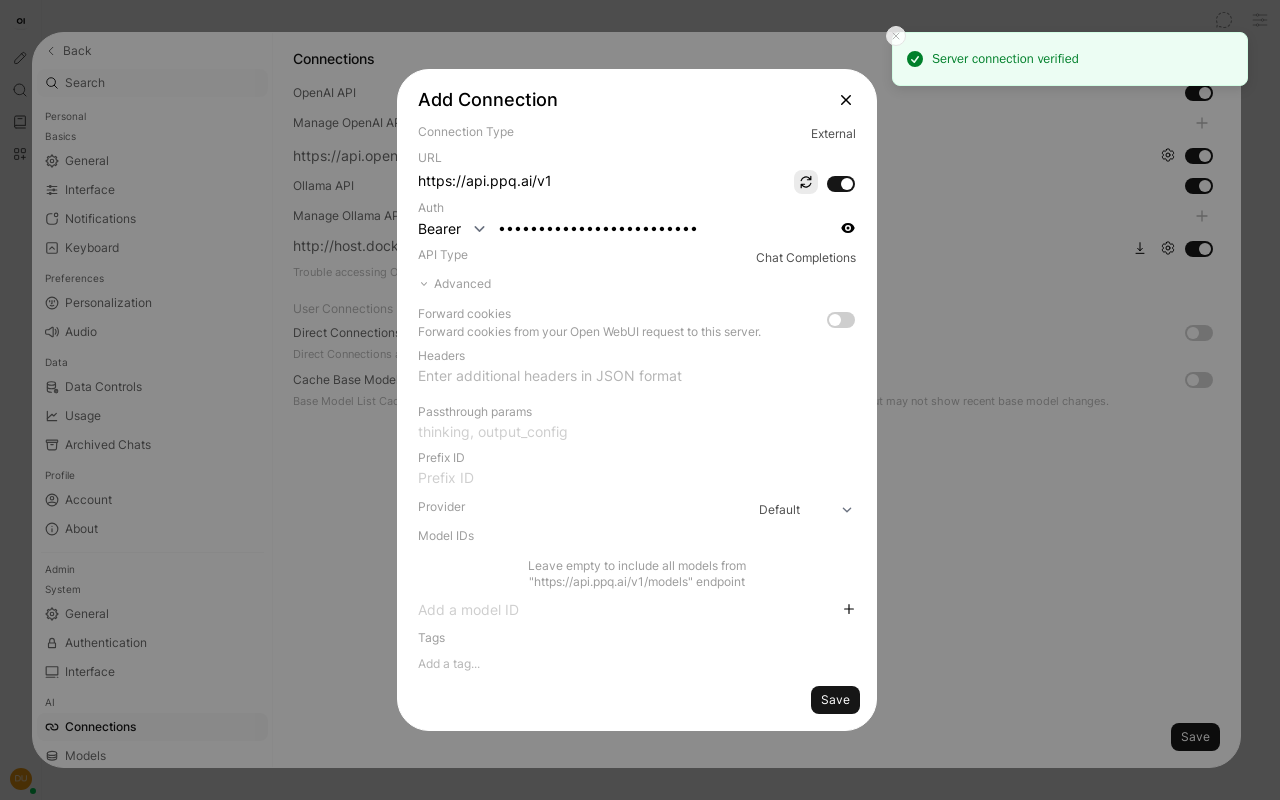
Click the +. In the Add Connection window:
- URL:
https://api.ppq.ai/v1(the Open WebUI docs say connections need the/v1path) - Auth:
Bearer - API Key:
<your PayPerQ API key> - API Type: leave
Chat Completions
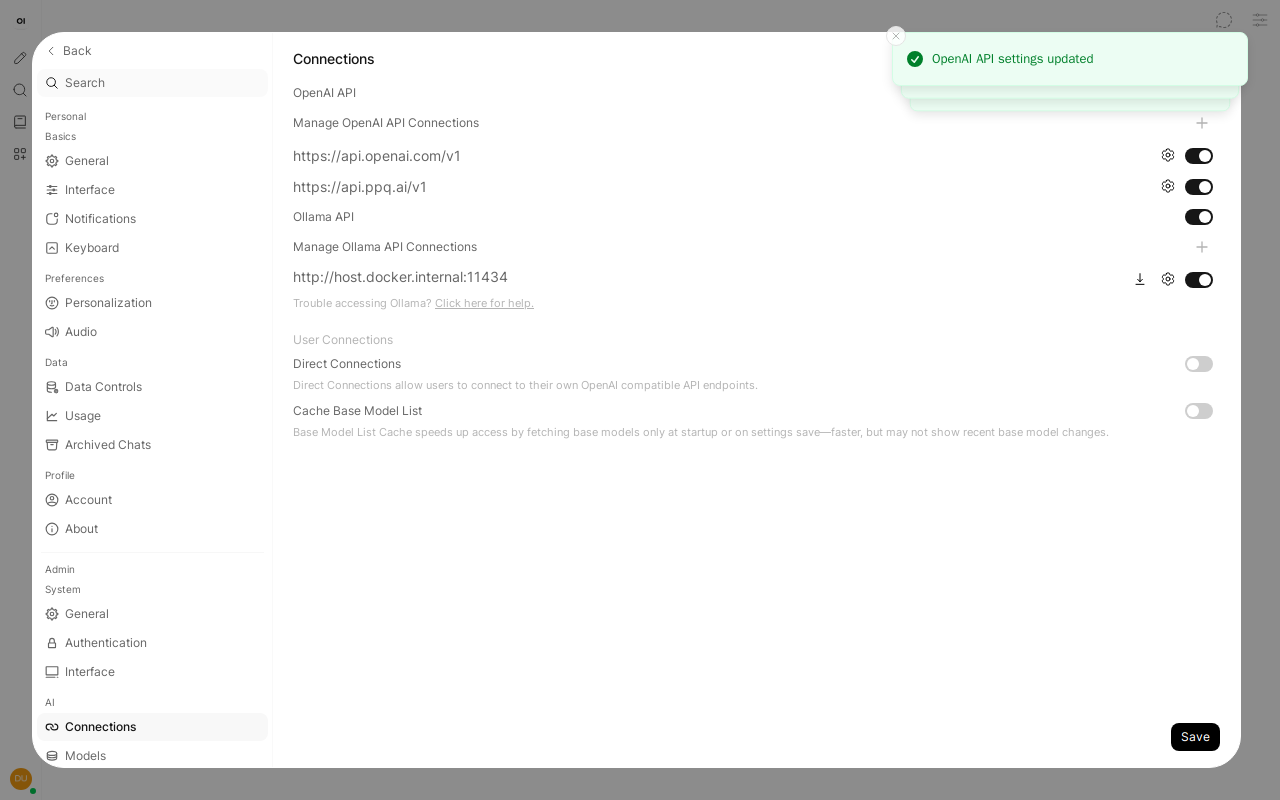
Click the refresh icon next to the URL ("Verify Connection"); a "Server connection verified" message should appear. Under Advanced, Model IDs can stay empty: Open WebUI then loads all models from https://api.ppq.ai/v1/models. Click Save in the window, then Save at the bottom right of the Connections page; "OpenAI API settings updated" appears.
Note: Open WebUI stores this key in its own data (the
open-webuivolume from step 1). Its documentation says that for settings that are persisted, "After the initial launch, if you restart the container,ConfigVarenvironment variables will no longer use the external environment variable values. Instead, they will use the internally stored values." So if a connection was also set through environment variables, check the saved connection in this window.
5. Choose a model
Open a new chat and click the model name above the send button. The list shows PayPerQ models by name, with a search box. Choose GLM Flash Latest (model ID ~z-ai/glm-flash-latest), a low-cost model that accepts text and images and supports tool calling.
Note:
~z-ai/glm-flash-latestcosts $0.0273245 per 1M input tokens and $0.109931 per 1M output tokens at the time of writing. See https://api.ppq.ai/v1/models for current prices.
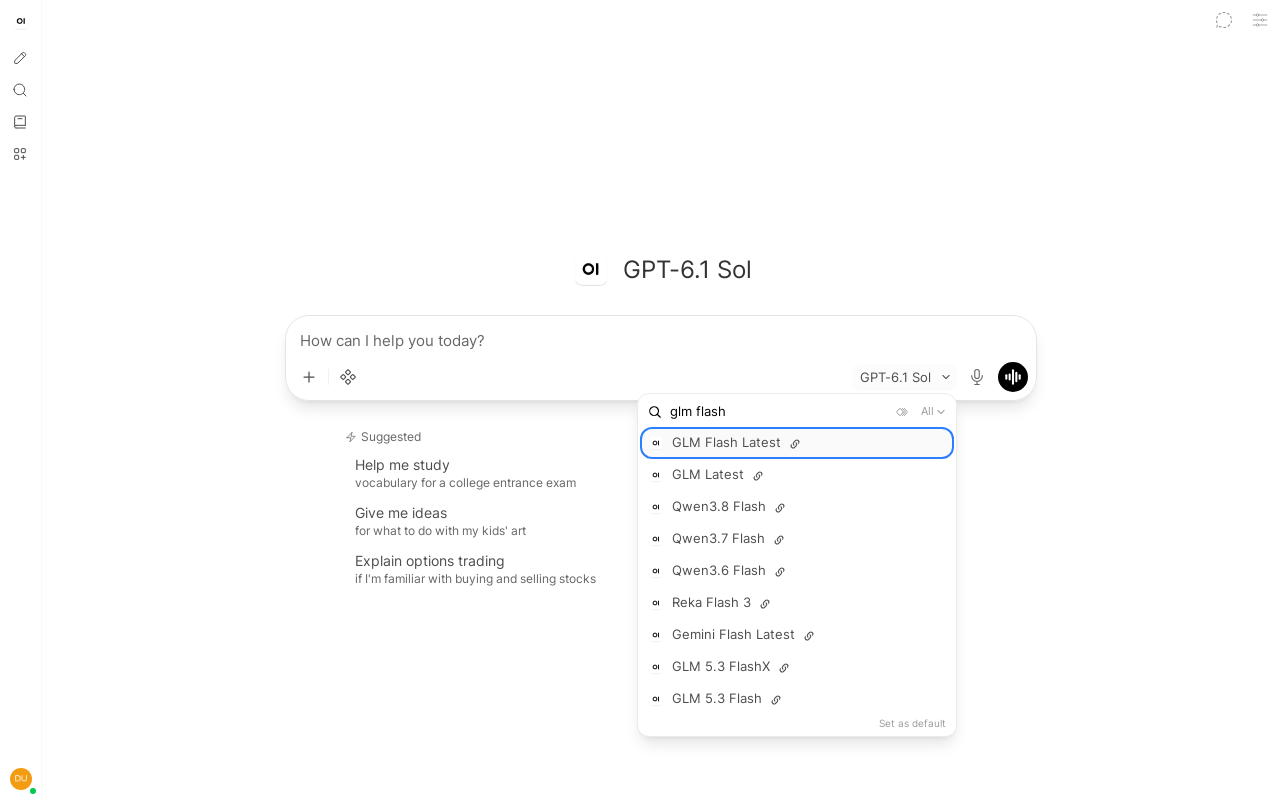
The chat opens with the first model of the list already selected, which can be a high-priced model, so check that the selector shows the model you want before you send anything. The names in the selector come from the name field of the full catalog, and the model ID is the catalog id; the catalog has many more models than this example.
6. Send a test prompt
With GLM Flash Latest shown in the selector, type Reply with the word OK and press Enter. The answer is OK.
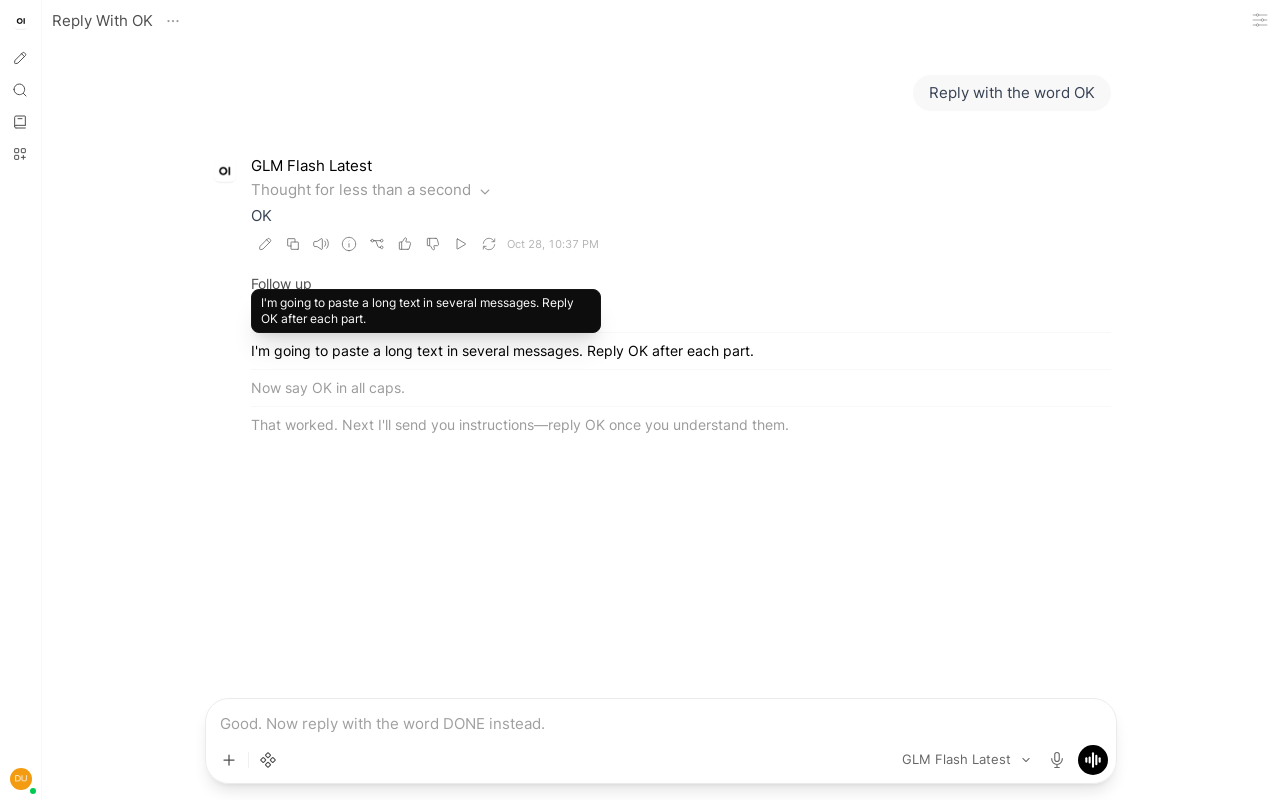
Open WebUI may also send short background requests with the same model, for example to title the chat and suggest follow-up questions.
Image Generation & Editing
Open WebUI sends image generation and editing requests in the OpenAI Images API format. PayPerQ exposes both /v1/images/generations and /v1/images/edits.
Enabling Image Generation
- Click your avatar, choose Admin Panel, then Settings → Images.
- Turn on Image Generation.
- Leave Image Generation Engine on Default (Open AI). (The other options in this version are ComfyUI, Automatic1111 and Gemini.)
- Set Model to an image model ID from the image generation section of the API docs, for example
nano-banana-2. - Set API Base URL to
https://api.ppq.ai/v1(the field starts with the OpenAI URL). - Enter
<your PayPerQ API key>in API Key, then click Save.
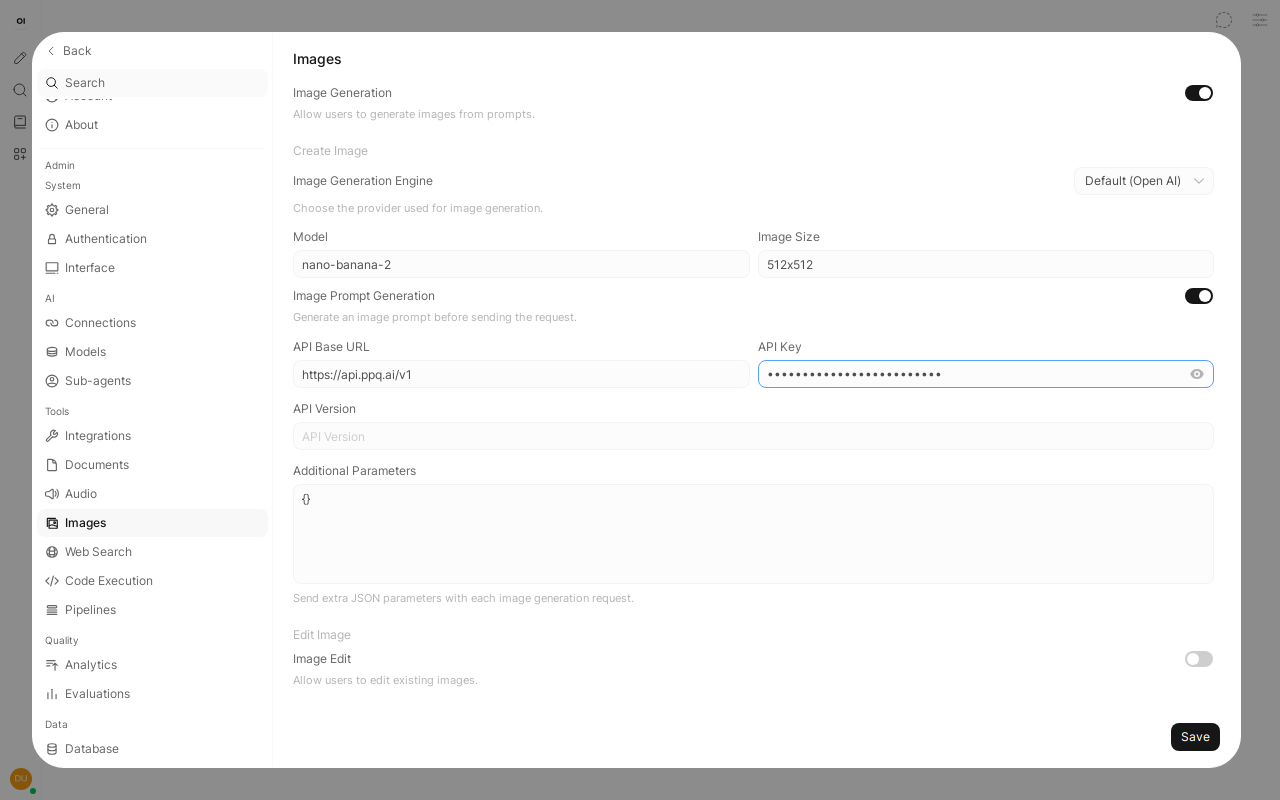
With these settings, an image request from Open WebUI to PayPerQ returned a PNG. See the API docs for the image models.
Image Editing
Editing has its own section on the same page, Edit Image, with its own fields:
- Turn on Image Edit.
- Leave Image Edit Engine on Default (Open AI).
- Set Model to
nano-banana-2, API Base URL tohttps://api.ppq.ai/v1and API Key to<your PayPerQ API key>, then click Save.
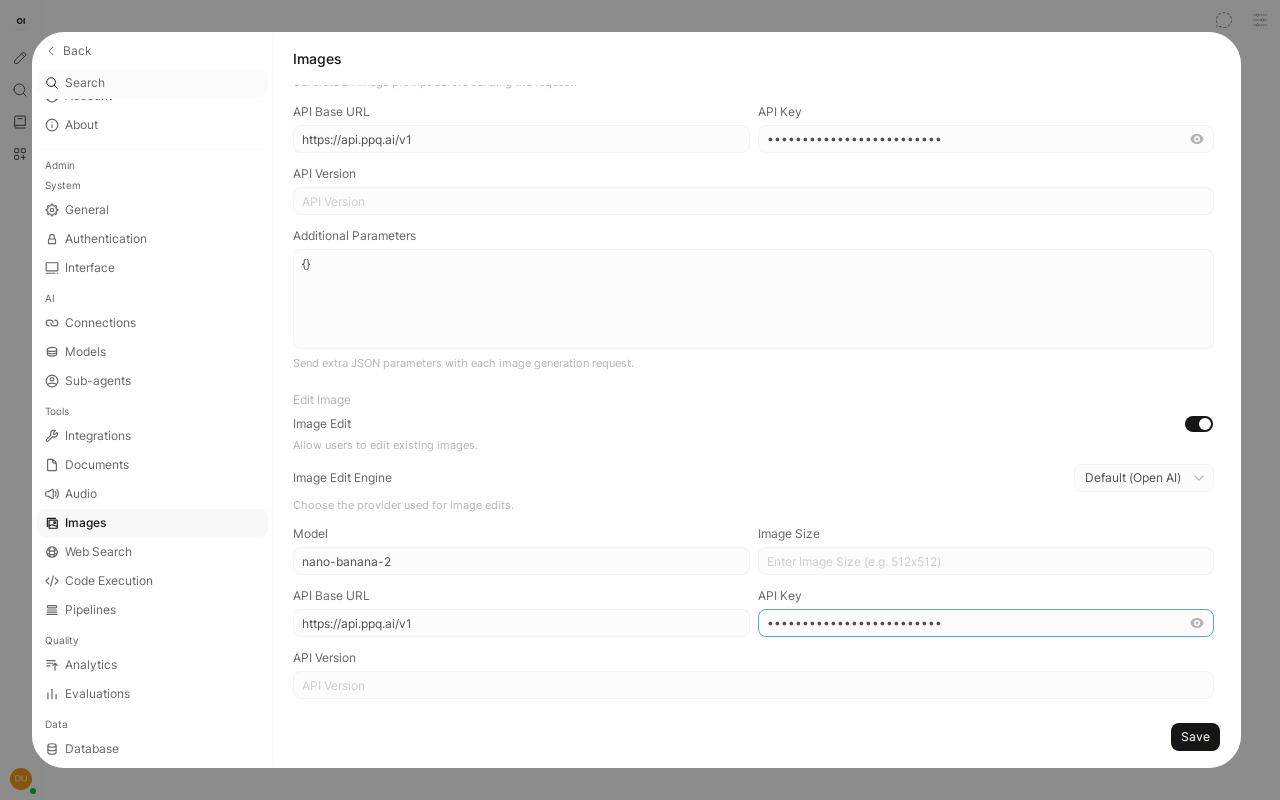
With these settings, an edit request (an existing image plus the prompt "make the circle blue") returned a new PNG. See the API docs for current image pricing.
Troubleshooting
- 401 or "Invalid API key": copy the key again from ppq.ai/api-docs into the connection and click the refresh icon (Verify Connection). If you also set the connection through environment variables, remember that the saved value in the window is the one Open WebUI uses after the first launch (see the note in step 4).
- Image requests fail: the Images page has its own URL and key (and the Edit Image section another pair); fill each one.
Problems?
Please contact us through the customer communication chatbot in the bottom right of the PayPerQ site, in our Telegram channel or on Discord.
This guide is open source. If a step no longer works, open the guide on GitHub and use the pencil icon to propose a fix, or open an issue; changes go live after a PayPerQ maintainer reviews them.
What is PayPerQ?
PayPerQ is the private way to use AI. You get the big-name models from Anthropic, OpenAI, Google and xAI, the best open-source models, and TEE models that run inside a hardware enclave where not even the model's host can see your data. Chat, image, video and audio, all in one place, with no account and no subscription. You top up a balance with crypto or a card, from as little as 10 cents, and pay only for what you use. Most users spend about $4 a month, against $20+ for a single ChatGPT subscription.
Privacy is built in rather than bolted on. Every chat request is served inside a secure enclave that PayPerQ's servers, staff and logs cannot read into, so PayPerQ never sees your prompts or responses. Choose a TEE model and the model's host cannot read them either.
Why Use PayPerQ?
- Private by default - chats are served inside a secure enclave PayPerQ cannot read, and every chat model shows its privacy tier (Anon, ZDR or TEE)
- No account needed - no sign-up and no email; a credit id is all it takes
- Pay with crypto or card - Bitcoin, Lightning, Monero, stablecoins and more, or a credit card
- Hundreds of AI models from every major provider in one place
- Pay per use - no subscriptions; top up from 10 cents and pay only for what you use, about 1 cent per query on average
- Your history stays yours - conversations are stored on your device by default
Getting Started
- Visit ppq.ai
- Top up your balance with crypto or a card (as little as 10 cents)
- Pick a model, check its privacy tier, and start chatting
No account, no sign-up. Fund and go.