Using Hermes Agent with PayPerQ
Learn how to configure Hermes Agent by Nous Research to use PayPerQ's API for pay-per-use access to hundreds of AI models across Telegram, Discord, Slack, and more.
What is Hermes Agent?
Hermes Agent is an open-source autonomous AI system developed by Nous Research, similar to OpenClaw. It runs persistently on your infrastructure, connecting to platforms like Telegram, Discord, Slack, WhatsApp, Signal, Email, and the command line — serving as a personal AI assistant and task automator across all of them.
Key features include:
- Persistent memory — learns from past interactions and builds up knowledge over time
- Task scheduling — automate reports, backups, and briefings using natural language
- Subagent delegation — spin up isolated subagents for parallel task execution
- Flexible sandboxing — run in local, Docker, SSH, or Modal terminal backends, among others
- Extended capabilities — web search, browser automation, image generation, text-to-speech, and multi-model reasoning
You can learn more at the Hermes Agent website, browse the GitHub repository, or read the documentation.
Prerequisites
- A PayPerQ account with a funded balance and an API key (from ppq.ai/api-docs).
- Linux, macOS on Apple Silicon (the Hermes docs: "macOS on x86 (Intel) processors is not a supported platform"), or Windows. The Hermes docs give one install command for Linux, macOS and WSL2 and another for native Windows (PowerShell).
- Git, curl, tar and a SHA-256 utility on Linux and macOS: the Hermes docs say "For the POSIX source script, provide Git, curl, tar, and SHA-256 utilities."
- A model with at least 64,000 tokens of context that supports tool calling: the Hermes docs say "Hermes Agent requires at least 64,000 tokens of context for agent use with tools."
Step by Step Configuration
Already have Hermes installed? Skip to Adding PayPerQ to an existing Hermes installation →
1. Get Your PayPerQ API Key
Navigate to ppq.ai/api-docs and copy your API key from the "Your API Key" box. It starts with sk-. The same page shows the Base URL: https://api.ppq.ai. If you want a separate key for Hermes, use the "Manage your API keys" link on that page (ppq.ai/api-keys).
2. Install Hermes Agent
On Linux, macOS or WSL2, run the Hermes installer:
bashcurl -fsSL https://hermes-agent.nousresearch.com/install.sh | bash
Windows: the Hermes docs give this command for native Windows. Run it in PowerShell:
iex (irm https://hermes-agent.nousresearch.com/install.ps1)
The installer adds ~/.local/bin to your shell profile's PATH. After it finishes, open a new terminal (the Hermes docs say source ~/.bashrc, or source ~/.zshrc) so the hermes command is found.
Shell profile: on macOS the default shell is zsh and the profile is
~/.zshrc; on most Linux distributions it is bash and~/.bashrc; on Windows, PowerShell loads the file named by$PROFILE. Open a new terminal after editing it.
The installer then starts a setup wizard. Its first question is "How would you like to set up Hermes?":
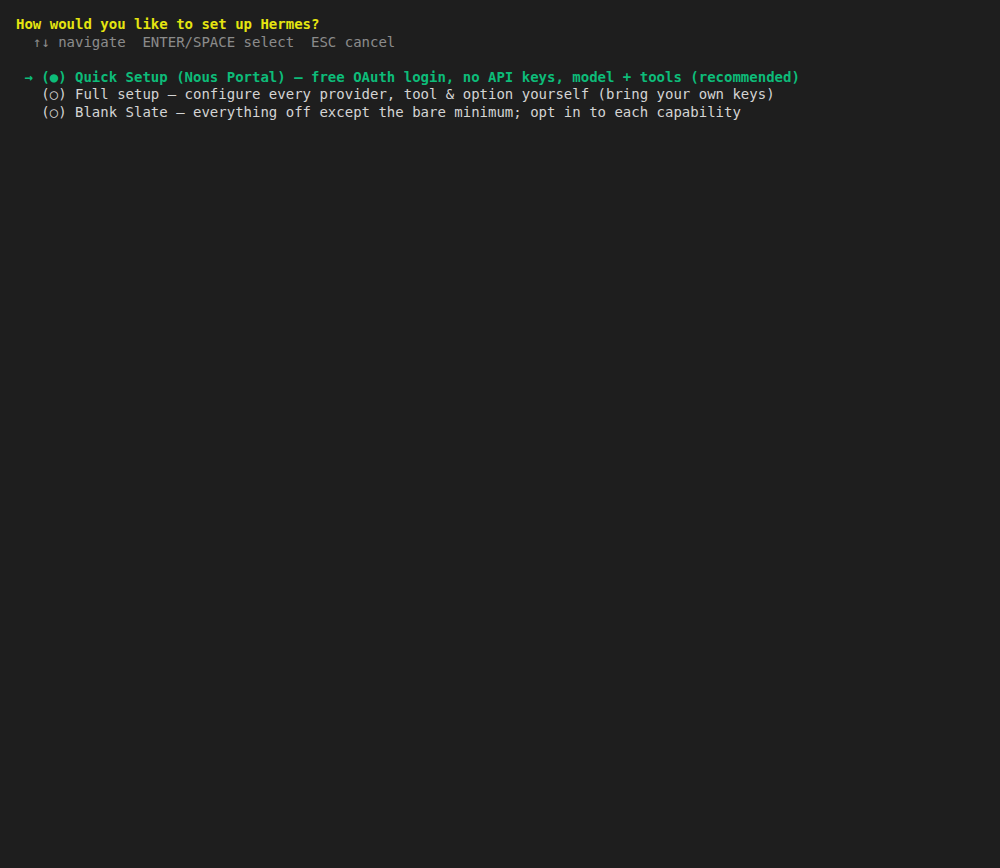
Choose Full setup — configure every provider, tool & option yourself (bring your own keys). The first option, Quick Setup (Nous Portal), is a free OAuth login with no API keys, so it is not the PayPerQ route.
Full setup then asks about the provider, the terminal backend, messaging platforms, tools and several tool providers. Answer them as you prefer; PayPerQ is configured in the next step. When it asks you to Select provider, you can pick Leave unchanged, and you can skip the optional tool providers.
If the installer stops with a message about libatomic.so.1 on a minimal Debian or Ubuntu system, install the package it names and run the installer again: sudo apt-get install -y libatomic1. The Hermes docs say the installer does this itself when it runs as root or with sudo -n.
3. Add PayPerQ as a Custom Endpoint
Hermes works with any OpenAI-compatible endpoint. The Hermes docs list this as the way to use a third-party API: hermes model, then "Custom endpoint". Open a new terminal and run:
bashhermes model
Scroll down to Custom endpoint (enter URL manually) (near the bottom of the provider list), select it, and answer the prompts:
| Prompt | What to enter |
|---|---|
API base URL | https://api.ppq.ai/v1 |
API key [optional] | <your PayPerQ API key> (the field is masked) |
Select API compatibility mode | press Enter (Auto-detect) |
Select model [1-378] or type name | mistralai/mistral-nemo |
Context length in tokens | press Enter (auto-detect) |
Display name | PayPerQ |
Select reasoning effort | Skip (keep current) |
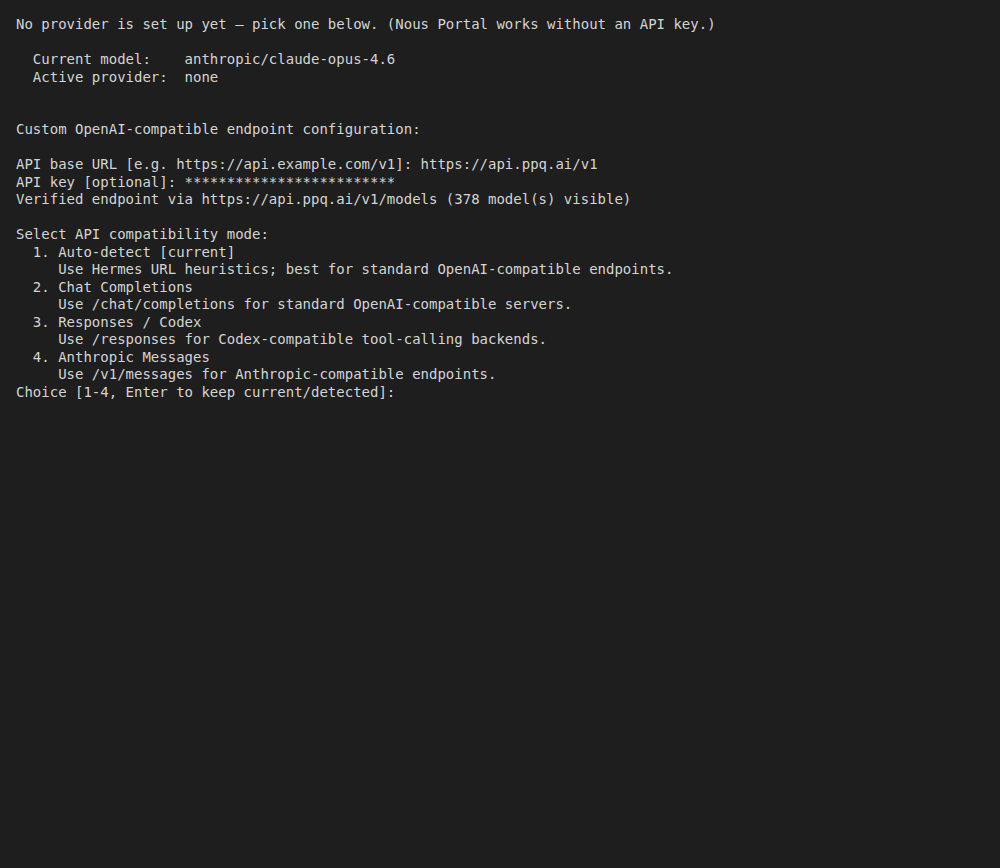
After you enter the key, Hermes checks the endpoint and prints Verified endpoint via https://api.ppq.ai/v1/models with the number of models it found. It then lists the whole live PayPerQ catalog, numbered. You can type a number or a model ID.
Note:
mistralai/mistral-nemocosts $0.030595 per 1M input tokens and $0.03165 per 1M output tokens at the time of writing, with a 131,072-token context andtoolsin itssupported_parameters. See api.ppq.ai/v1/models for current prices.
When it finishes you see this:
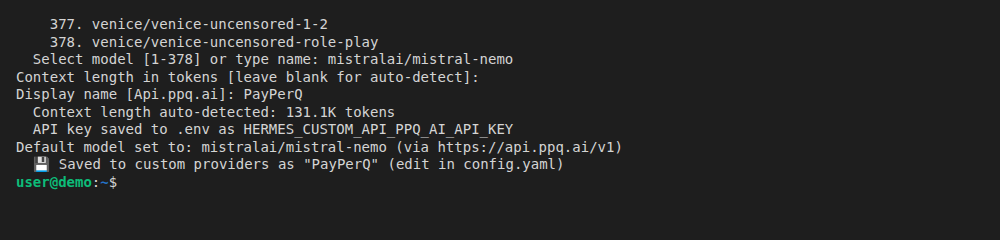
Hermes saves the key in its own .env file (the line API key saved to .env as HERMES_CUSTOM_API_PPQ_AI_API_KEY) and the provider and model in config.yaml, both in the Hermes data folder (~/.hermes/).
Windows: per the Hermes docs, "Native Windows install lives under
%LOCALAPPDATA%\hermes", so on native Windows these files are in that folder.
Note: if you also pass a key another way, the Hermes docs say: "an explicit --api-key flag still wins; otherwise key_cmd beats a static api_key/key_env on the same entry." The wizard stores the key under
key_env. If PayPerQ answers 401, check that no other key source is set on that entry.
Already Have Hermes Installed?
If Hermes is already on your machine you don't need to reinstall it. Run hermes model, choose Custom endpoint (enter URL manually), and enter https://api.ppq.ai/v1, your PayPerQ API key and a model ID, as in step 3 above.
Check That Hermes Uses PayPerQ
Before you send a prompt, check which provider and model Hermes will use:
bashhermes status
You should see these lines:
textModel: mistralai/mistral-nemo Provider: custom Providers: PayPerQ
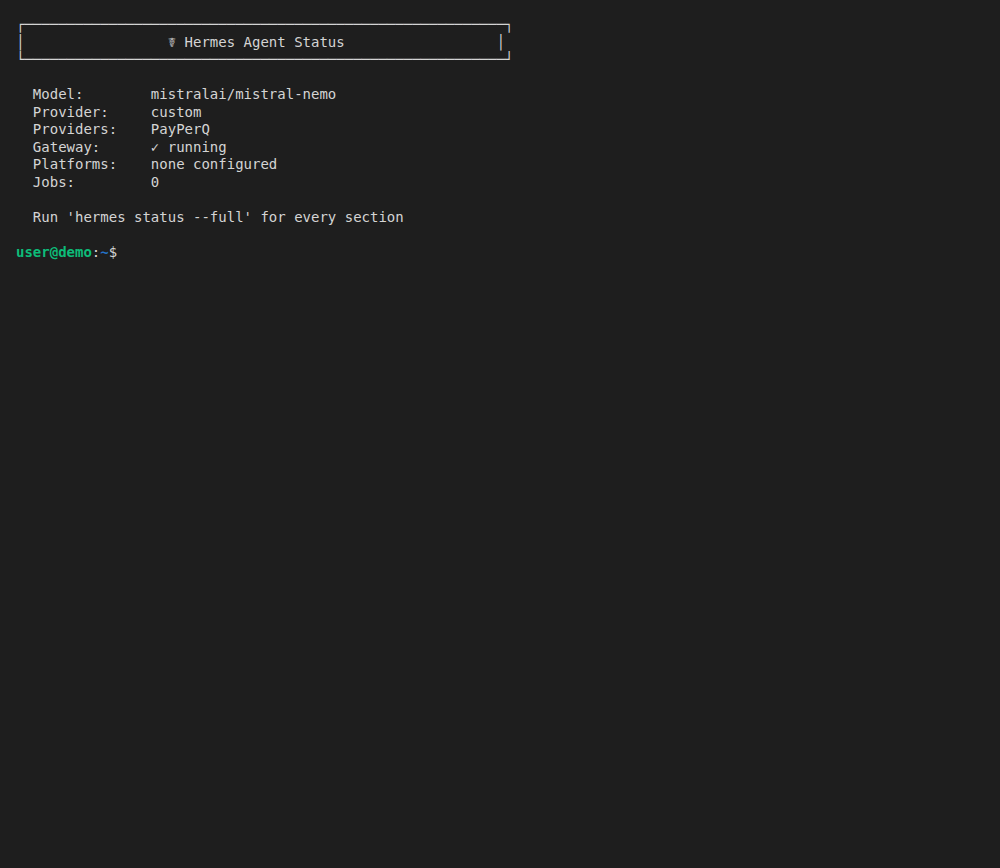
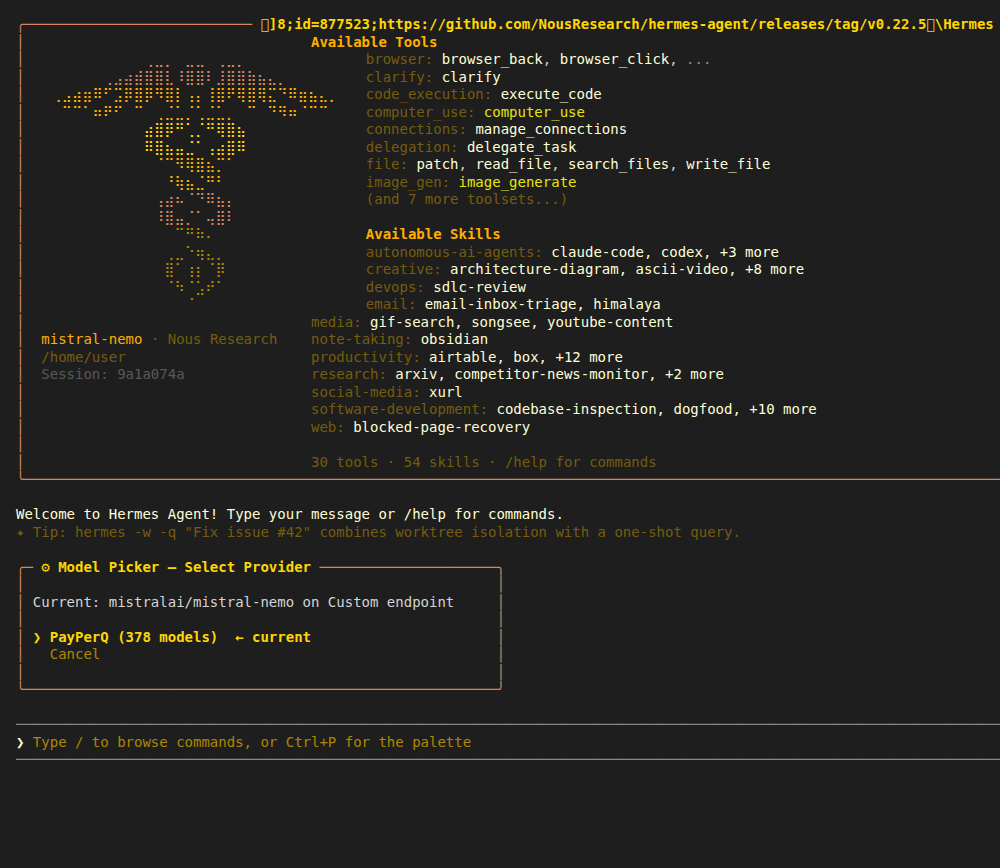
Then start Hermes and type /model. The picker shows Current: mistralai/mistral-nemo on Custom endpoint and PayPerQ (378 models) ← current (the model count changes as the catalog grows). Press Escape to close it.
bashhermes
Send a Test Prompt
In the Hermes chat, type:
textReply with the word OK
Hermes answers OK:
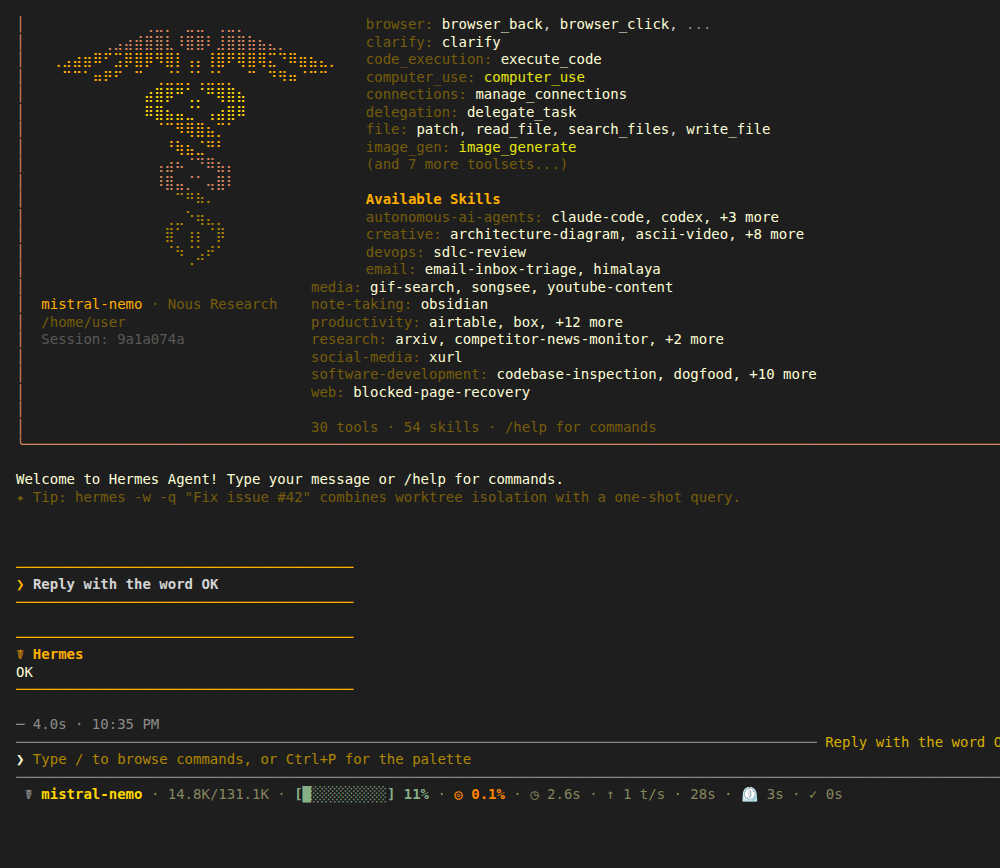
Each Hermes request carries its system prompt and tool list; the status bar in the screenshot shows about 14.8K tokens of context in use after this one-line prompt.
Some Good Models to Try
These are examples, not a complete or Hermes-specific list. PayPerQ gives you access to hundreds of models; the full catalog is at api.ppq.ai/v1/models. Hermes picks a model by its catalog id, and the catalog's JSON format is different from Hermes's own config.yaml format: the id field is what you type in hermes model, context_length is the context window Hermes needs to be at least 64,000, and supported_parameters must contain tools.
Each of these IDs is in the catalog today with tools in supported_parameters and a context of at least 64,000 tokens:
mistralai/mistral-nemo— the economical model used in this guidemoonshotai/kimi-k2.6mistralai/devstral-2512google/gemini-3-flash-previewz-ai/glm-4.7minimax/minimax-m2.1
To switch model for the current Hermes session, type /model custom:<model id>, for example /model custom:moonshotai/kimi-k2.6. Hermes then prints (session only — add --global to persist). To change the default, run hermes model again.
To see the live list, run:
bashcurl https://api.ppq.ai/v1/models
Verify Your Setup
You can also confirm that requests are being processed by checking your usage history at ppq.ai/account-activity.
Try AutoClaw — Smart Model Routing
Don't want to pick a model yourself? AutoClaw is our intelligent router that selects a model for each prompt. In Hermes, type /model custom:autoclaw and Hermes shows Model switched: autoclaw.
Private Models
Want maximum privacy? PayPerQ offers TEE (Trusted Execution Environment) models that encrypt your queries so neither PayPerQ nor anyone else can read them. Private models in the catalog include:
- private/kimi-k3
- private/gpt-oss-120b
- private/llama3-3-70b
- private/glm-5-3
- private/gemma4-31b
- private/deepseek-v4-1-flash
To use private models you need the PPQ Private Mode Proxy. See the full guide for setup instructions. Check each model's supported_parameters in the catalog for tools before using it with Hermes.
Troubleshooting
- The setup wizard logged me in to Nous Portal instead of asking for a key. You chose Quick Setup. Run
hermes modeland follow step 3. - 401 Invalid API key. Copy the key again from ppq.ai/api-docs and run
hermes modelagain. Also check for a second key source on the same entry (see the Note in step 3). hermes: command not found. Open a new terminal so the PATH change in your shell profile is loaded.- The model ID is not accepted. IDs come from api.ppq.ai/v1/models; type the
idexactly.
What is PayPerQ?
PayPerQ is the private way to use AI. You get the big-name models from Anthropic, OpenAI, Google and xAI, the best open-source models, and TEE models that run inside a hardware enclave where not even the model's host can see your data. Chat, image, video and audio, all in one place, with no account and no subscription. You top up a balance with crypto or a card, from as little as 10 cents, and pay only for what you use. Most users spend about $4 a month, against $20+ for a single ChatGPT subscription.
Privacy is built in rather than bolted on. Every chat request is served inside a secure enclave that PayPerQ's servers, staff and logs cannot read into, so PayPerQ never sees your prompts or responses. Choose a TEE model and the model's host cannot read them either.
Why Use PayPerQ?
- Private by default - chats are served inside a secure enclave PayPerQ cannot read, and every chat model shows its privacy tier (Anon, ZDR or TEE)
- No account needed - no sign-up and no email; a credit id is all it takes
- Pay with crypto or card - Bitcoin, Lightning, Monero, stablecoins and more, or a credit card
- Hundreds of AI models from every major provider in one place
- Pay per use - no subscriptions; top up from 10 cents and pay only for what you use, about 1 cent per query on average
- Your history stays yours - conversations are stored on your device by default
Getting Started
- Visit ppq.ai
- Top up your balance with crypto or a card (as little as 10 cents)
- Pick a model, check its privacy tier, and start chatting
No account, no sign-up. Fund and go.
Problems?
Please contact us through the customer communication chatbot in the bottom right of the PayPerQ site, in our Telegram channel or on Discord.
This guide is open source. If a step no longer works, open the guide on GitHub and use the pencil icon to propose a fix, or open an issue; changes go live after a PayPerQ maintainer reviews them.