Using Claude Desktop with PayPerQ
Learn how to point Claude Desktop at PayPerQ using the built-in Third-Party Inference Gateway, so you can pay per use with crypto and avoid a Claude subscription.
What is Claude Desktop?
Claude Desktop is Anthropic's official desktop application for Mac and Windows, with a Linux beta for Ubuntu and Debian. It gives you the Claude experience in a native app, outside the browser. Anthropic documents a third-party inference mode for it, which routes the app's requests to a gateway you configure instead of to Anthropic.
Why Use PayPerQ with Claude Desktop?
Claude Desktop normally requires a paid Claude subscription billed to a credit card. By pointing it at PayPerQ's API, you can:
- Skip the subscription — top up with crypto and pay for the tokens you use
- Keep using the Claude Desktop app you already know, with PayPerQ doing the inference
- Choose among the Claude models PPQ serves (Sonnet, Opus, Haiku and more) from the app's model picker
- Keep spending visible through your PPQ account activity page
Step by Step Setup
1. Install Claude Desktop
macOS and Windows: download Claude Desktop from claude.com/download and install it.
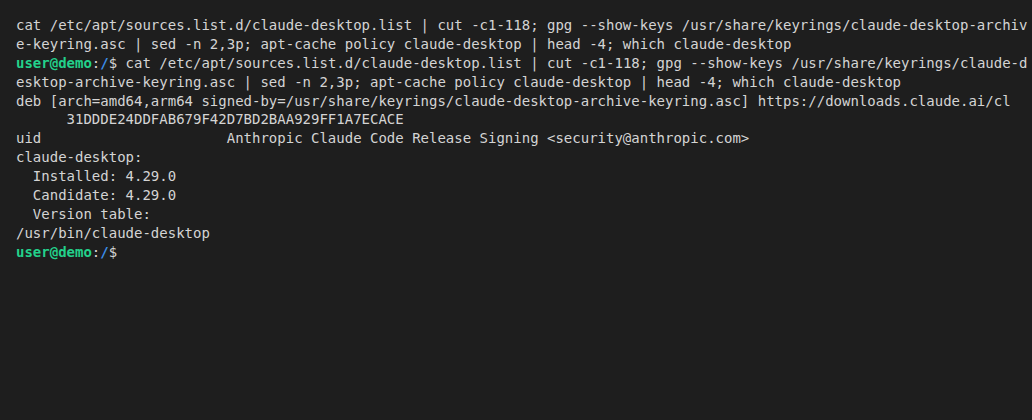
Linux (beta, Ubuntu 22.04 or later, or Debian 12 or later, x86_64 or arm64): Anthropic's Linux instructions install it from their apt repository. Run:
bashsudo curl -fsSLo /usr/share/keyrings/claude-desktop-archive-keyring.asc https://downloads.claude.ai/claude-desktop/key.asc gpg --show-keys /usr/share/keyrings/claude-desktop-archive-keyring.asc echo "deb [arch=amd64,arm64 signed-by=/usr/share/keyrings/claude-desktop-archive-keyring.asc] https://downloads.claude.ai/claude-desktop/apt/stable stable main" | sudo tee /etc/apt/sources.list.d/claude-desktop.list sudo apt update && sudo apt install claude-desktop
The gpg command should print the fingerprint 31DDDE24DDFAB679F42D7BD2BAA929FF1A7ECACE. After the install, claude-desktop is on your path:
Launch Claude Desktop, but do not sign in or create an Anthropic account: Anthropic's single-machine setup instructions say to configure the gateway first.
2. Get your PayPerQ API key
Navigate to ppq.ai/api-docs and copy your API key. It starts with sk-.
3. Enable Developer Mode
In Claude Desktop, open the Help menu, then Troubleshooting, and click Enable Developer Mode…. On Windows, the menu is under the application menu (☰) in the top-left of the sign-in screen, according to Anthropic's docs.
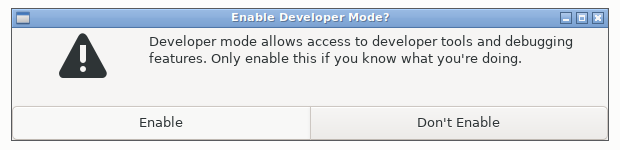
A confirmation dialog asks Enable Developer Mode? Click Enable.
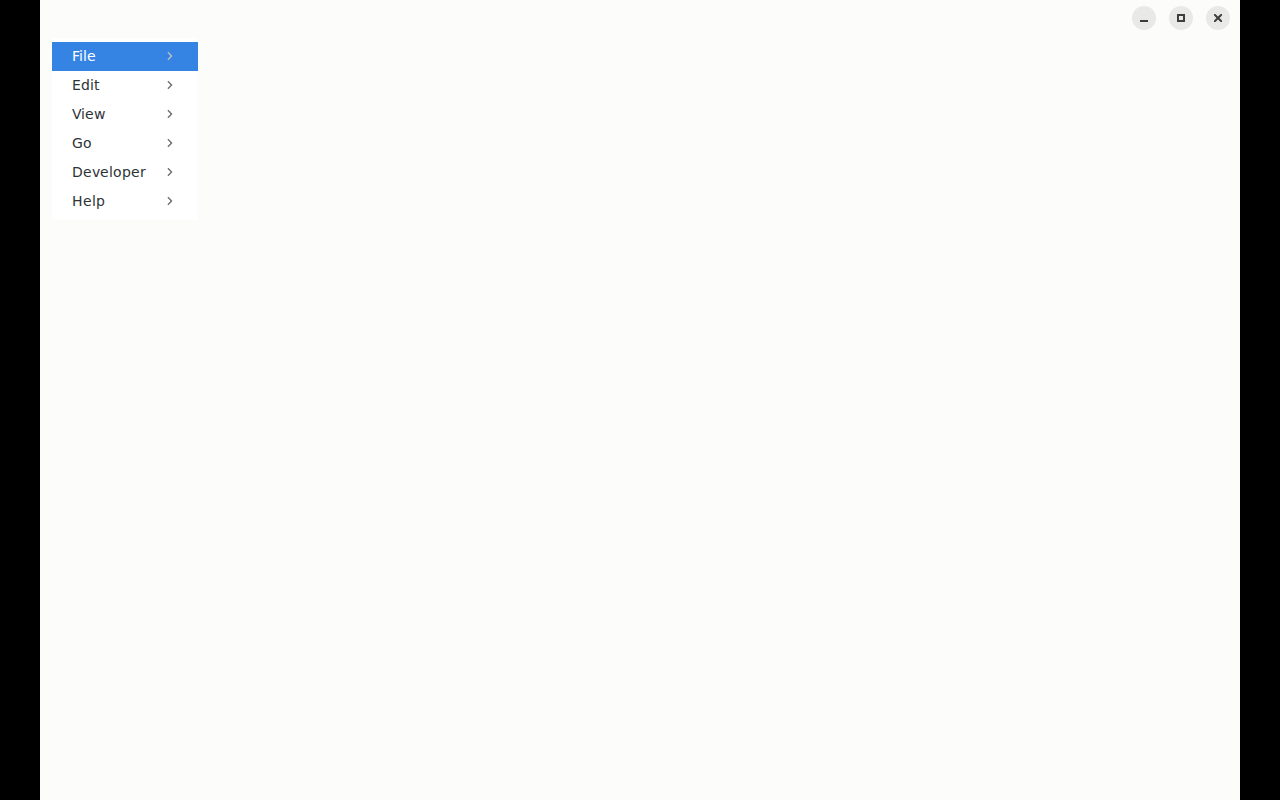
Claude Desktop restarts, and a new Developer menu appears in the menu bar.
4. Open the Third-Party Inference window
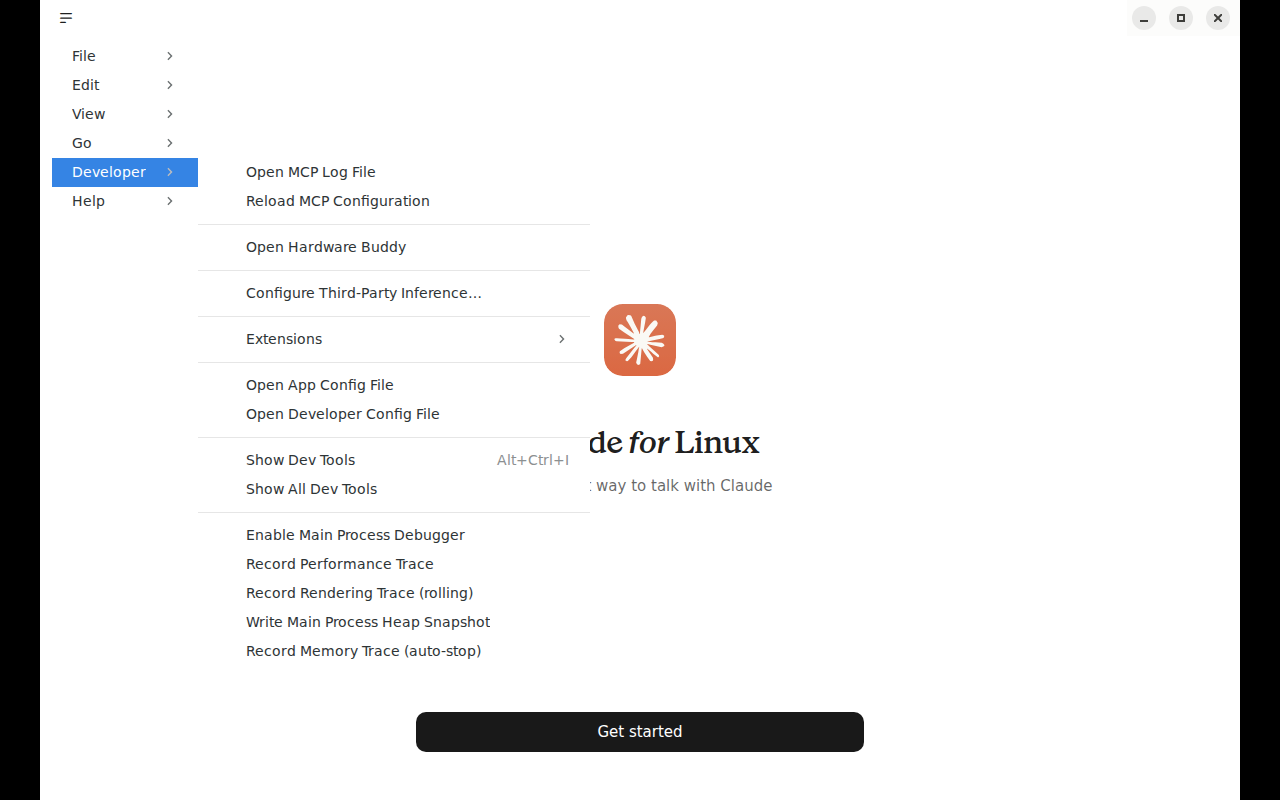
From the Developer menu, choose Configure Third-Party Inference….
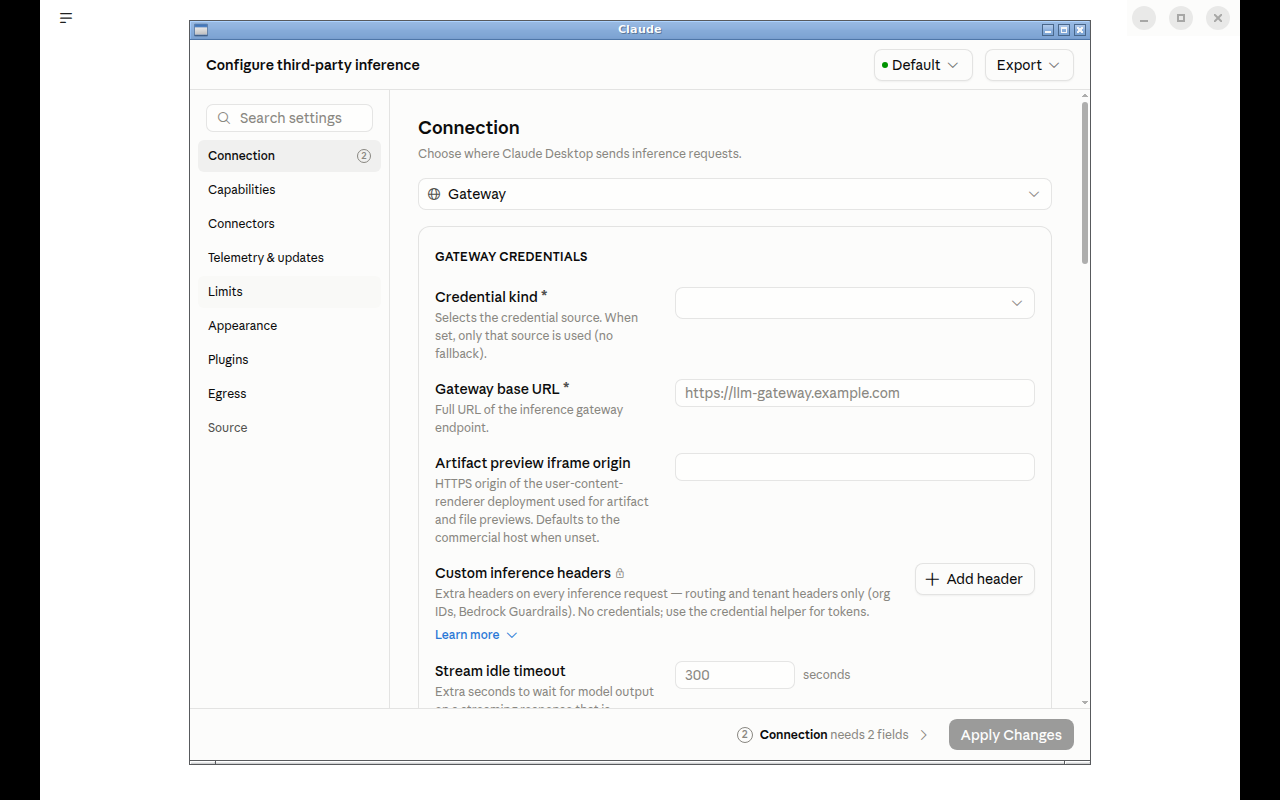
A window titled Configure third-party inference opens on the Connection section.
5. Enter your PayPerQ gateway credentials
In Connection, make sure the provider dropdown at the top shows Gateway. Under Gateway credentials, fill in the fields in this order:
- Credential kind:
Static API key - Gateway base URL:
https://api.ppq.ai - Gateway API key:
<your PayPerQ API key> - Gateway auth scheme:
bearer
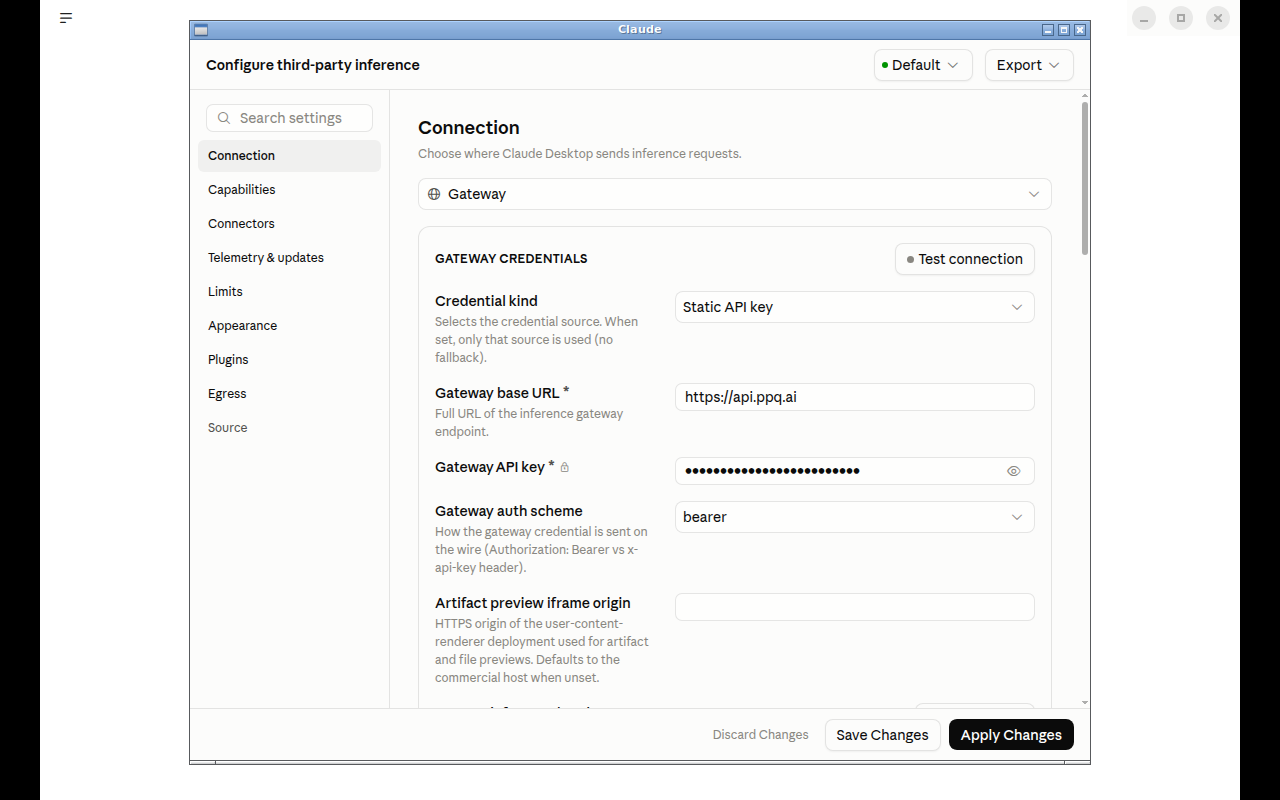
Note: Credential kind lets you pick where Claude Desktop gets its credential (Static API key, Interactive sign-in, Identity provider sign-in (OIDC) or Helper script). The field's help text says: "When set, only that source is used (no fallback)." For a PayPerQ key, choose Static API key.
6. Test the connection
Click Test connection. A result panel should show both lines below. The number of models can differ.
Model discovery — found <n> modelsInference — 1-token completion in <n> ms (<model ID>) · via static key
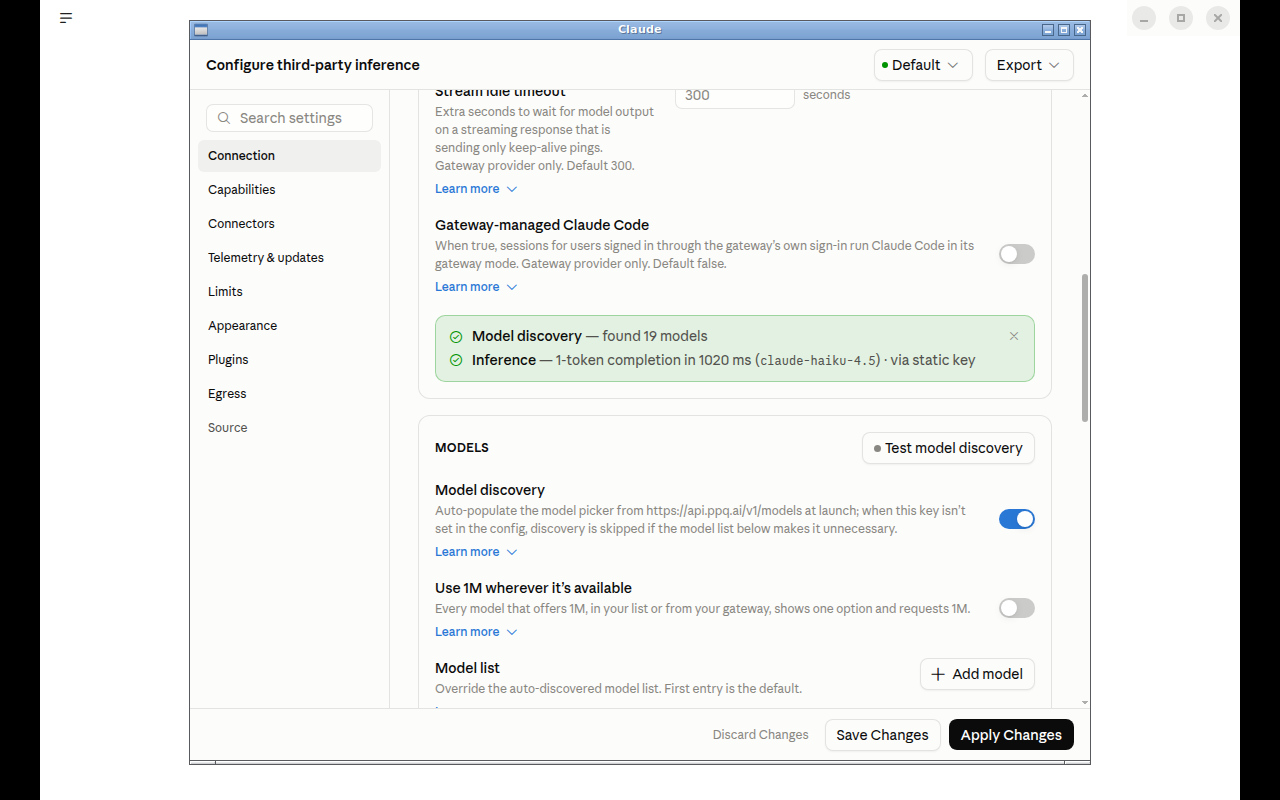
The inference line means PayPerQ answered a real (1-token) request with your key.
7. Apply the configuration and restart
Click Apply Changes, then Save & Restart in the dialog that asks "Save & Restart?".
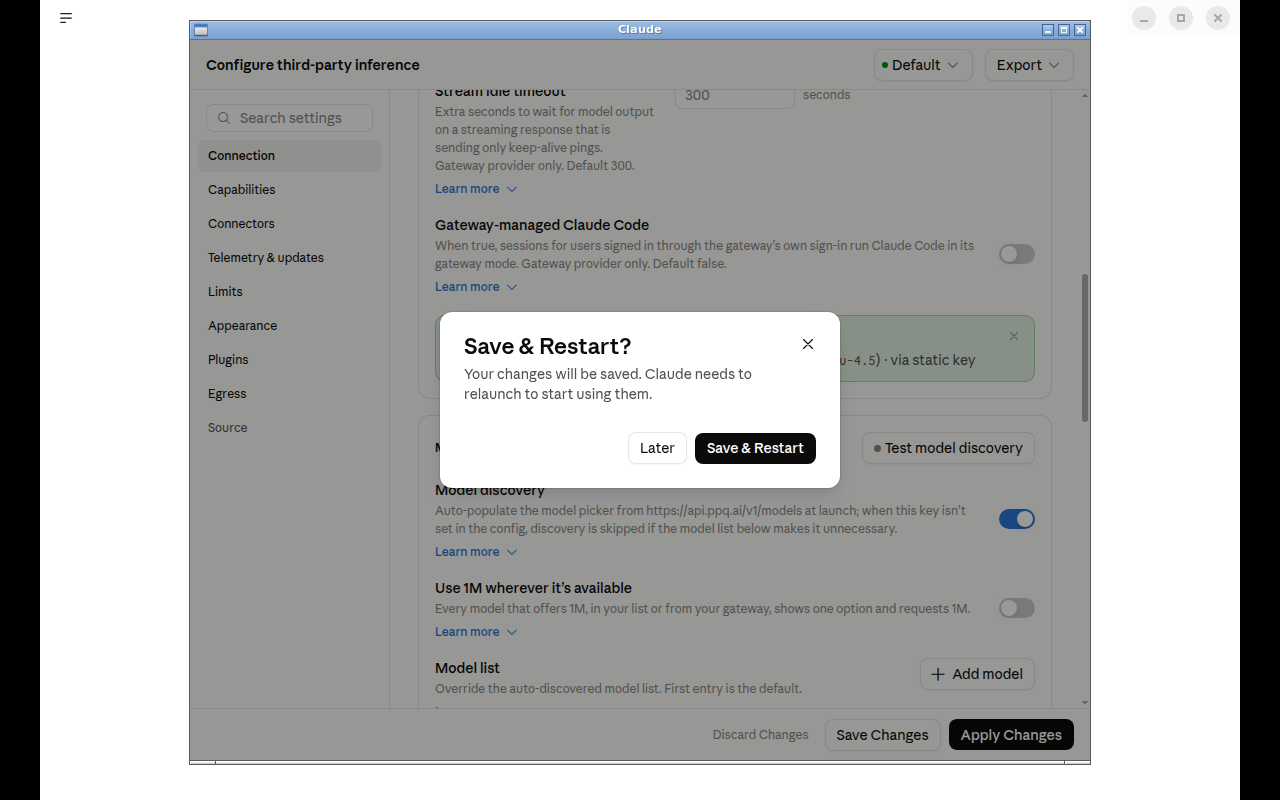
Claude Desktop relaunches. Per Anthropic's docs, "the sign-in screen now offers the option to start in Claude Desktop on 3P using the configuration you entered": choose that option if the sign-in screen appears. The main screen then shows You're using Gateway, and the account area at the bottom left reads Gateway.
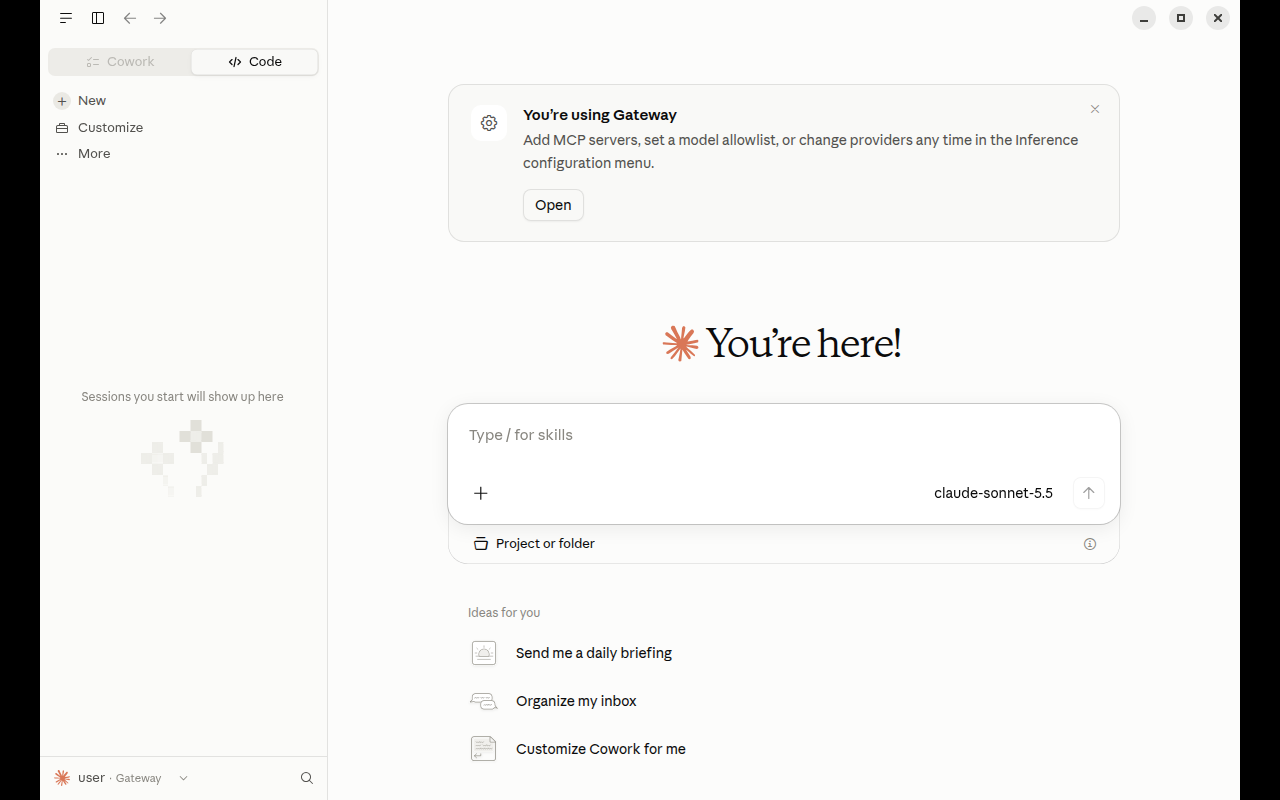
8. Check the model list and pick a model
Open the model picker in the message box. It lists the models Claude Desktop discovered from PayPerQ's model list at https://api.ppq.ai/v1/models, by their PayPerQ model ID. Look for anthropic/claude-haiku-5.5 in the list.
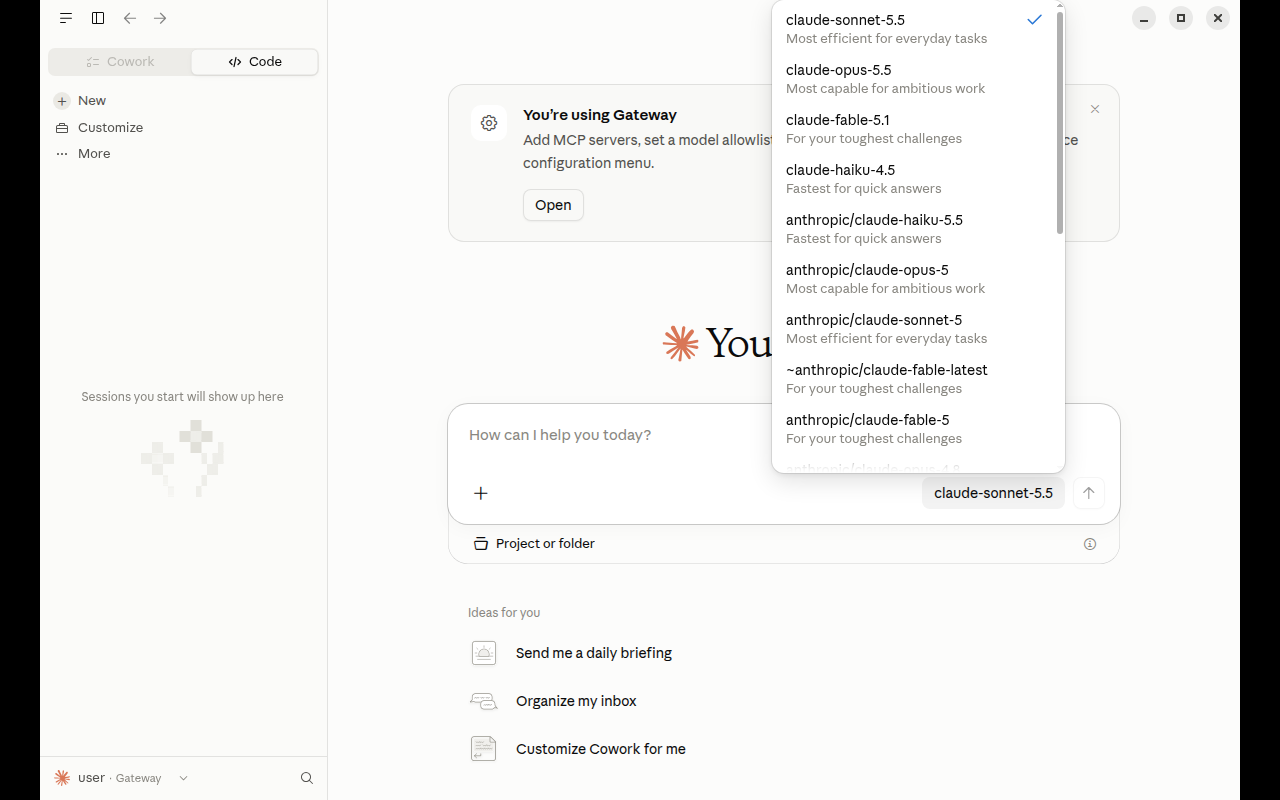
Choose anthropic/claude-haiku-5.5.
Note: At the time of writing,
anthropic/claude-haiku-5.5costs $0.1055 per 1M input tokens and $0.5275 per 1M output tokens. See api.ppq.ai/v1/models for current prices.
The IDs above are examples; the full list is the PayPerQ model catalog. Claude Desktop reads that catalog directly. Anthropic's docs say auto-discovery shows only models whose IDs are recognizably Claude. They also describe an optional Model list setting (below the Test connection panel, under Models) that replaces discovery with your own list. Its format is not the catalog's: each entry's name must be the exact model id the catalog returns.
9. Send a test message
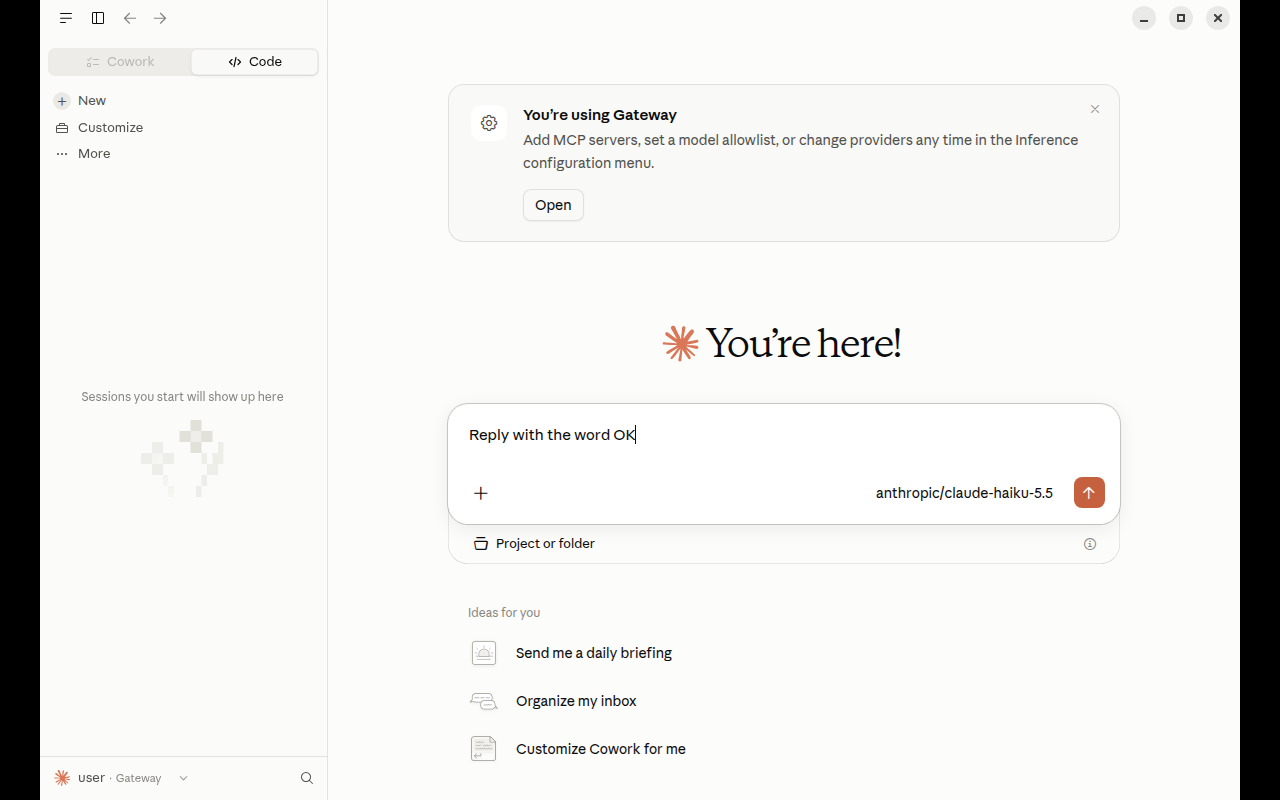
Open a new conversation and send:
textReply with the word OK
If the screen shows a Project or folder selector, pick an empty folder first, then send the message.
10. Verify your setup
Head to ppq.ai/account-activity and confirm that the request shows up in your usage history. If it does, the gateway is wired up correctly.
Claude Code via PayPerQ
If you also use Claude Code (the CLI / VS Code companion to Claude Desktop), the same principle applies: point its ANTHROPIC_BASE_URL at https://api.ppq.ai and set ANTHROPIC_AUTH_TOKEN to your PPQ key. We have a dedicated walkthrough here:
Using Claude Code with PayPerQ
Troubleshooting
- The Gateway option or the Developer menu isn't there. Update Claude Desktop to the latest version (claude.com/download; on Linux, see Anthropic's Linux instructions). Make sure you clicked Enable Developer Mode… under Help > Troubleshooting and confirmed with Enable.
- The Developer menu disappeared after the restart. Anthropic's docs say that if you turned on Developer mode before the app relaunched into a third-party configuration, the menu is gone after the relaunch. Go to Help > Troubleshooting > Enable Developer Mode… again and it stays on from then on.
- The standard claude.ai sign-in screen shows instead of the gateway. Anthropic's docs list a configuration applied while the app was running as a cause. Fully quit Claude Desktop and relaunch it.
- Test connection or requests fail with an auth error (401). Double-check that:
- Credential kind is
Static API key, since a different credential kind uses a different source for the credential. - The base URL is
https://api.ppq.ai. - The auth scheme is
bearer. - The API key is pasted without extra whitespace, is your PayPerQ key (it starts with
sk-) and has not been revoked on ppq.ai/api-keys.
- Credential kind is
- Requests fail with "insufficient credits". Top up at ppq.ai/top-up.
- A model isn't showing up. Fetch the current list directly from
https://api.ppq.ai/v1/modelsand confirm the model you expect is live. Discovery lists models whose IDs are recognizably Claude, so add other IDs through the Model list setting.
Tips for Best Results
- Feel free to experiment with other models, but fall back to Claude if they misbehave. Claude Desktop's model discovery lists models with Claude IDs, such as
anthropic/claude-haiku-5.5,claude-sonnet-5.5andclaude-opus-5.5. Prices differ between them, so check the catalog first. - Monitor your usage. ppq.ai/account-activity shows per-request spend so you can see exactly where your credits are going.
- Use Claude Code for coding tasks. For in-repo coding work, pair Claude Desktop with Claude Code against the same PPQ key.
What is PayPerQ?
PayPerQ is the private way to use AI. You get the big-name models from Anthropic, OpenAI, Google and xAI, the best open-source models, and TEE models that run inside a hardware enclave where not even the model's host can see your data. Chat, image, video and audio, all in one place, with no account and no subscription. You top up a balance with crypto or a card, from as little as 10 cents, and pay only for what you use. Most users spend about $4 a month, against $20+ for a single ChatGPT subscription.
Privacy is built in rather than bolted on. Every chat request is served inside a secure enclave that PayPerQ's servers, staff and logs cannot read into, so PayPerQ never sees your prompts or responses. Choose a TEE model and the model's host cannot read them either.
Why Use PayPerQ?
- Private by default - chats are served inside a secure enclave PayPerQ cannot read, and every chat model shows its privacy tier (Anon, ZDR or TEE)
- No account needed - no sign-up and no email; a credit id is all it takes
- Pay with crypto or card - Bitcoin, Lightning, Monero, stablecoins and more, or a credit card
- Hundreds of AI models from every major provider in one place
- Pay per use - no subscriptions; top up from 10 cents and pay only for what you use, about 1 cent per query on average
- Your history stays yours - conversations are stored on your device by default
Getting Started
- Visit ppq.ai
- Top up your balance with crypto or a card (as little as 10 cents)
- Pick a model, check its privacy tier, and start chatting
No account, no sign-up. Fund and go.
Problems?
Please contact us through the customer communication chatbot in the bottom right of the PayPerQ site, in our Telegram channel or on Discord.
This guide is open source. If a step no longer works, open the guide on GitHub and use the pencil icon to propose a fix, or open an issue; changes go live after a PayPerQ maintainer reviews them.