Using Claude Code with PayPerQ
Learn how to integrate Claude Code, Anthropic's official AI coding CLI, with PayPerQ to access premium AI models.
What is Claude Code?
Claude Code is Anthropic's mega-popular command-line interface (CLI) and VS Code extension for AI-assisted coding. It's an agentic coding tool that lives in your codebase and helps you code faster through natural language commands.
Why Use PayPerQ with Claude Code?
Claude Code is normally accessed through a credit card subscription. By using PPQ's API key, you can avoid that and pay per use via crypto. Additionally, Claude Code normally defaults to Anthropic models. With PPQ, you can point it at any of our hundreds of models.
Note: Anthropic's documentation says: "Anthropic doesn't endorse, maintain, or audit third-party gateway products, and doesn't support routing Claude Code to non-Claude models through any gateway." Non-Claude PPQ models can answer in Claude Code, but they are outside what Anthropic supports.
This guide contains two setup methods:
- 🖥️ CLI Setup Guide
- 📝 VS Code Extension Setup Guide
Prerequisites
- A PayPerQ account and API key.
- An operating system Claude Code supports; see Anthropic's system requirements.
Step by Step Set Up for Claude Code CLI
1. Install Claude Code
Anthropic's docs list the native installer as the recommended install. Open a terminal and run the command for your system:
macOS / Linux / WSL:
bashcurl -fsSL https://claude.ai/install.sh | bash
Windows (PowerShell):
powershellirm https://claude.ai/install.ps1 | iex
Windows (CMD):
batchcurl -fsSL https://claude.ai/install.cmd -o install.cmd && install.cmd && del install.cmd
The installer prints Claude Code successfully installed! with the version and the location ~/.local/bin/claude. When it finishes, open a new terminal and run:
bashclaude --version
A working installation prints a version number, for example 2.1.312 (Claude Code). If your shell says claude isn't found or isn't recognized, the install directory isn't on your PATH yet: see Fix your PATH in the Claude Code docs.
For other install methods (Homebrew, WinGet, npm, Linux package managers), see the Claude Code documentation.
2. Get Your PayPerQ API Key
Navigate to ppq.ai/api-docs and copy your API key. If you want a separate key for Claude Code, create one at ppq.ai/api-keys.
3. Configure Claude Code with PayPerQ
Claude Code reads a settings.json file in your home directory on every launch, and its env block can point Claude Code at a different endpoint. Create ~/.claude/settings.json (or add the env block if the file already exists) with this content, replacing the placeholder with your PayPerQ API key:
json{ "env": { "ANTHROPIC_BASE_URL": "https://api.ppq.ai", "ANTHROPIC_AUTH_TOKEN": "<your PayPerQ API key>", "ANTHROPIC_API_KEY": "" } }
Windows: the Claude Code docs give the path as
%USERPROFILE%\.claude\settings.json. The.claudefolder may not exist yet; create it, then createsettings.jsoninside it, named exactlysettings.json.
ANTHROPIC_AUTH_TOKEN is sent as an Authorization: Bearer header, which is how PayPerQ authenticates the request. Keeping ANTHROPIC_API_KEY empty means ANTHROPIC_AUTH_TOKEN is the one credential set.
Note: Claude Code can take its credential from several places. Anthropic's authentication docs rank
ANTHROPIC_AUTH_TOKENaboveANTHROPIC_API_KEY, above anapiKeyHelperscript, above the subscription login from/login. The gateway docs add: "When both a shell export and a settings-fileenvblock set the same variable, the settings-file value applies." So a staleANTHROPIC_AUTH_TOKENleft insettings.jsonbeats a new one you export in your shell. Run/status(step 5) to see which source is active.
4. Launch Claude Code
Open a terminal in the folder you want to work in and run:
bashclaude
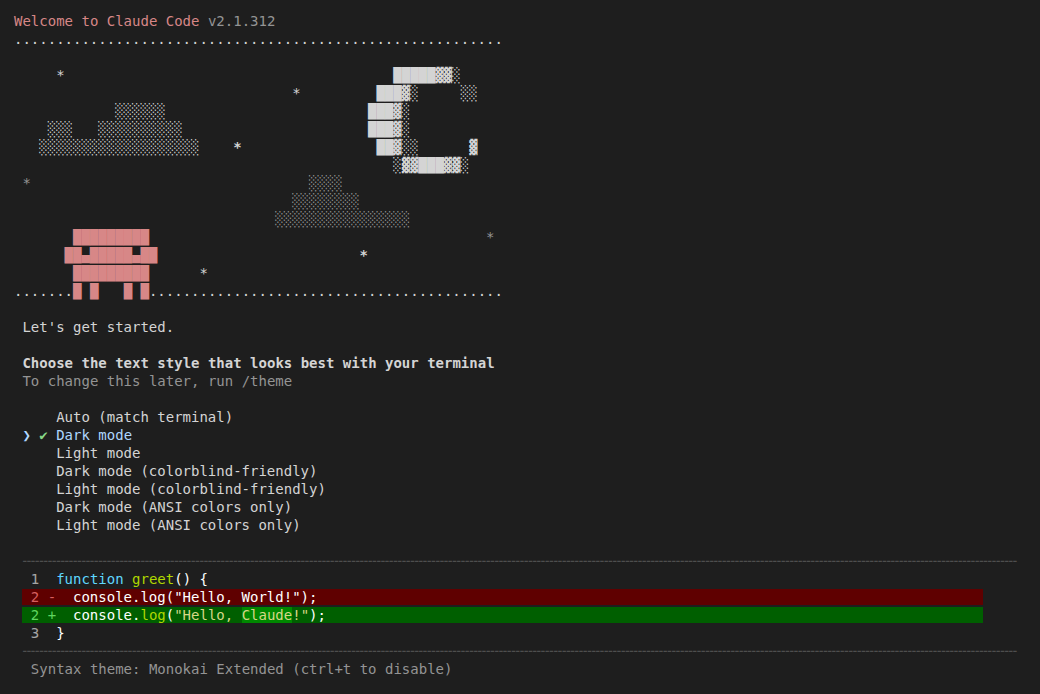
The first launch shows three screens before the prompt appears. With the configuration above you reach the prompt without a login screen.
-
Choose the text style: pick a theme and press Enter.
-
Security notes: press Enter to continue.
-
Accessing workspace: Claude Code asks whether you trust the folder. The highlighted option is
No, exit; move down toYes, I trust this folderand press Enter.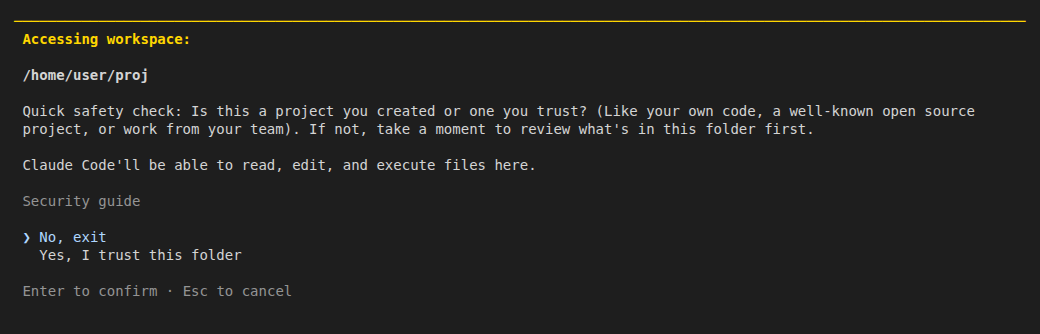
The main screen then shows the current model in its header. Until you choose a model, the header reads Opus 5.5 · API Usage Billing, so choose an economical model (step 6) before you send anything.
5. Check that Claude Code points at PayPerQ
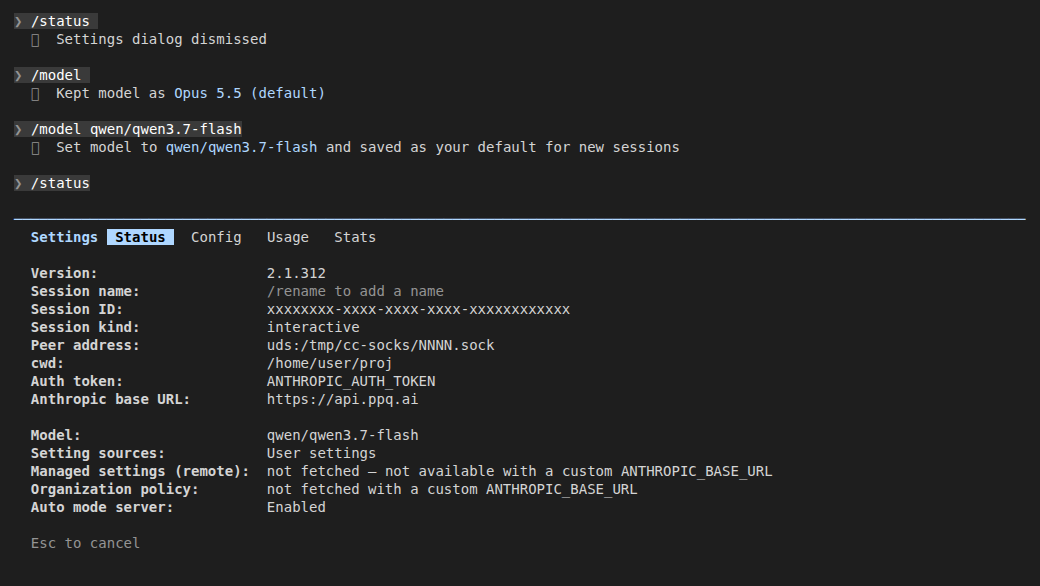
Type /status and press Enter. On the Status tab you must see these three lines:
textAuth token: ANTHROPIC_AUTH_TOKEN Anthropic base URL: https://api.ppq.ai Model: Default (claude-opus-5-5)
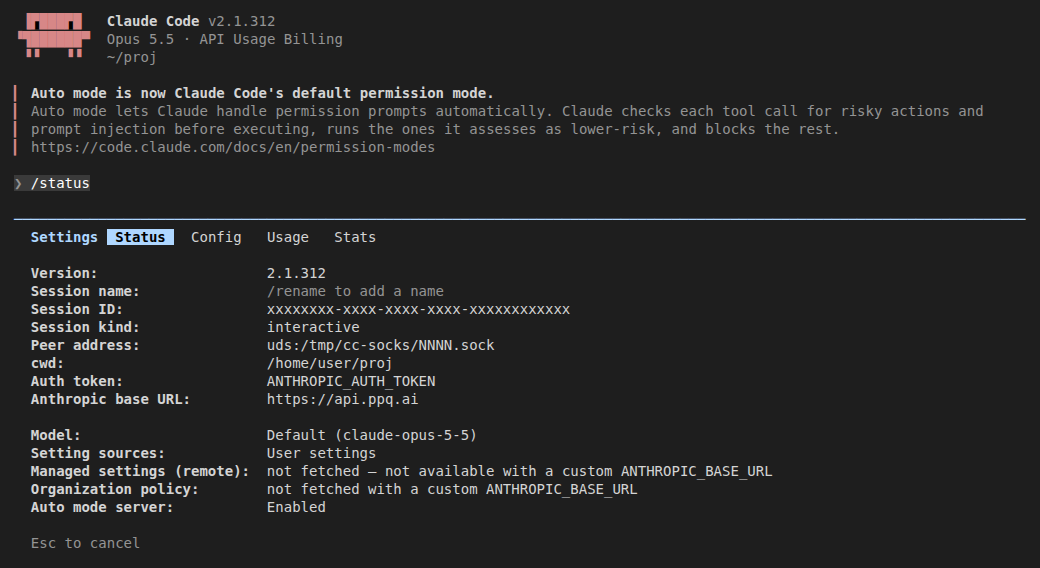
Anthropic base URL: https://api.ppq.ai means requests go to PayPerQ. Press Esc to close the screen. If the Anthropic base URL line is missing, the env block was not read: check the file path and that the JSON is valid.
6. Choose an economical model
Claude Code takes a model ID as text, not a models file. Use the id field of an entry in the PayPerQ model catalog; the catalog's other fields (pricing, supported_parameters) are for your own comparison. Type:
text/model qwen/qwen3.7-flash
Claude Code answers Set model to qwen/qwen3.7-flash and saved as your default for new sessions and writes "model": "qwen/qwen3.7-flash" into ~/.claude/settings.json.
Note:
qwen/qwen3.7-flashcosts $0.03165 per 1M input tokens and $0.13715 per 1M output tokens at the time of writing. Current prices are in the catalog (pricing.input_per_1M_tokens,pricing.output_per_1M_tokens). The catalog liststoolsin itssupported_parametersand accepts text, image and video input.
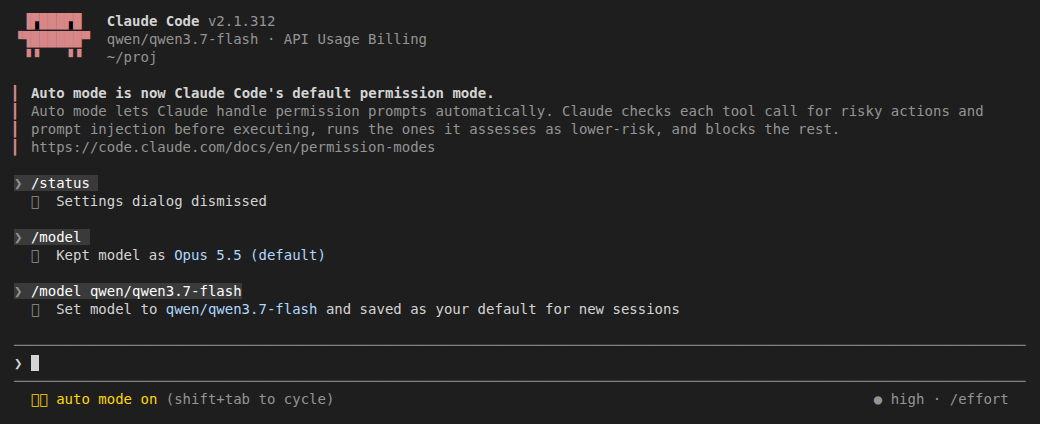
Run /status again. The model line must read:
textModel: qwen/qwen3.7-flash
A warning like Model "qwen/qwen3.7-flash" isn't recognized · context assumed to be 200k tokens can appear in the header at later launches. The model still answers.
7. Send a test prompt
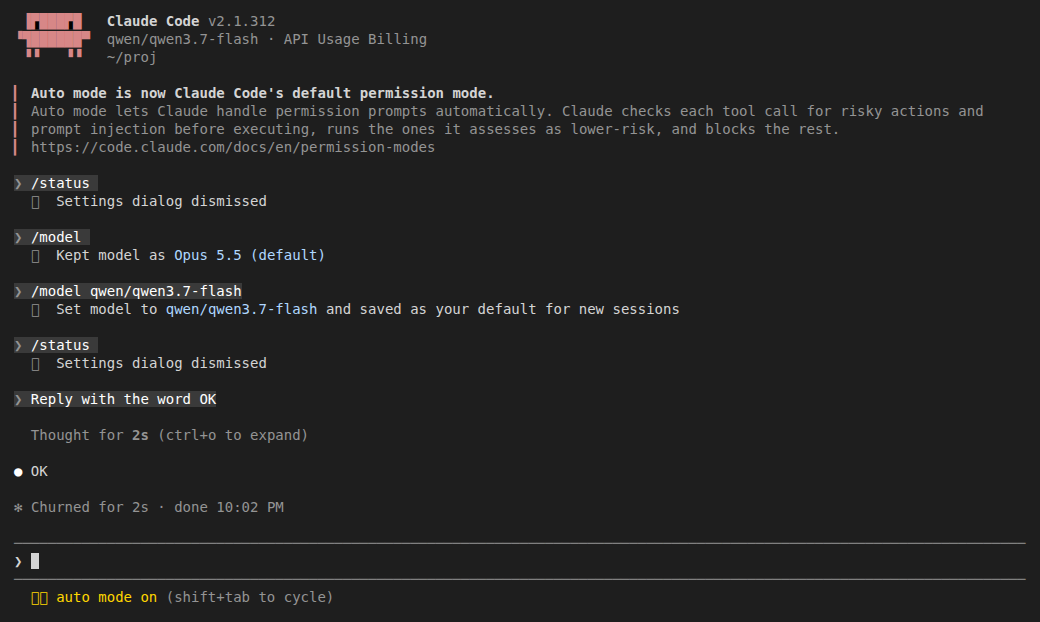
Type this and press Enter:
textReply with the word OK
You should see OK as the answer.
8. Verify your usage
Check your usage history at ppq.ai/account-activity to confirm the request was billed to your PayPerQ account.
Step by Step Set Up for VS Code
Anthropic's VS Code docs say the extension bundles its own copy of the CLI for the chat panel, and to run claude in VS Code's integrated terminal you also need the CLI from step 1 above.
1. Install the Claude Code Extension
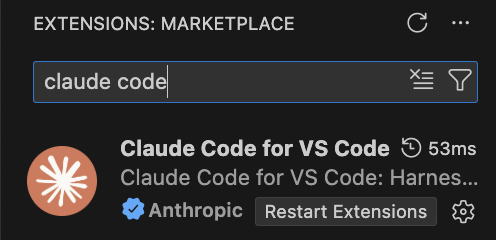
Open VS Code and navigate to the Extensions marketplace (Ctrl+Shift+X on Windows/Linux, Cmd+Shift+X on Mac). Search for "Claude Code" and install the extension published by Anthropic.
2. Open Extension Settings
After installing the extension, click on the gear icon next to the Claude Code extension and select "Extension Settings" to configure it.
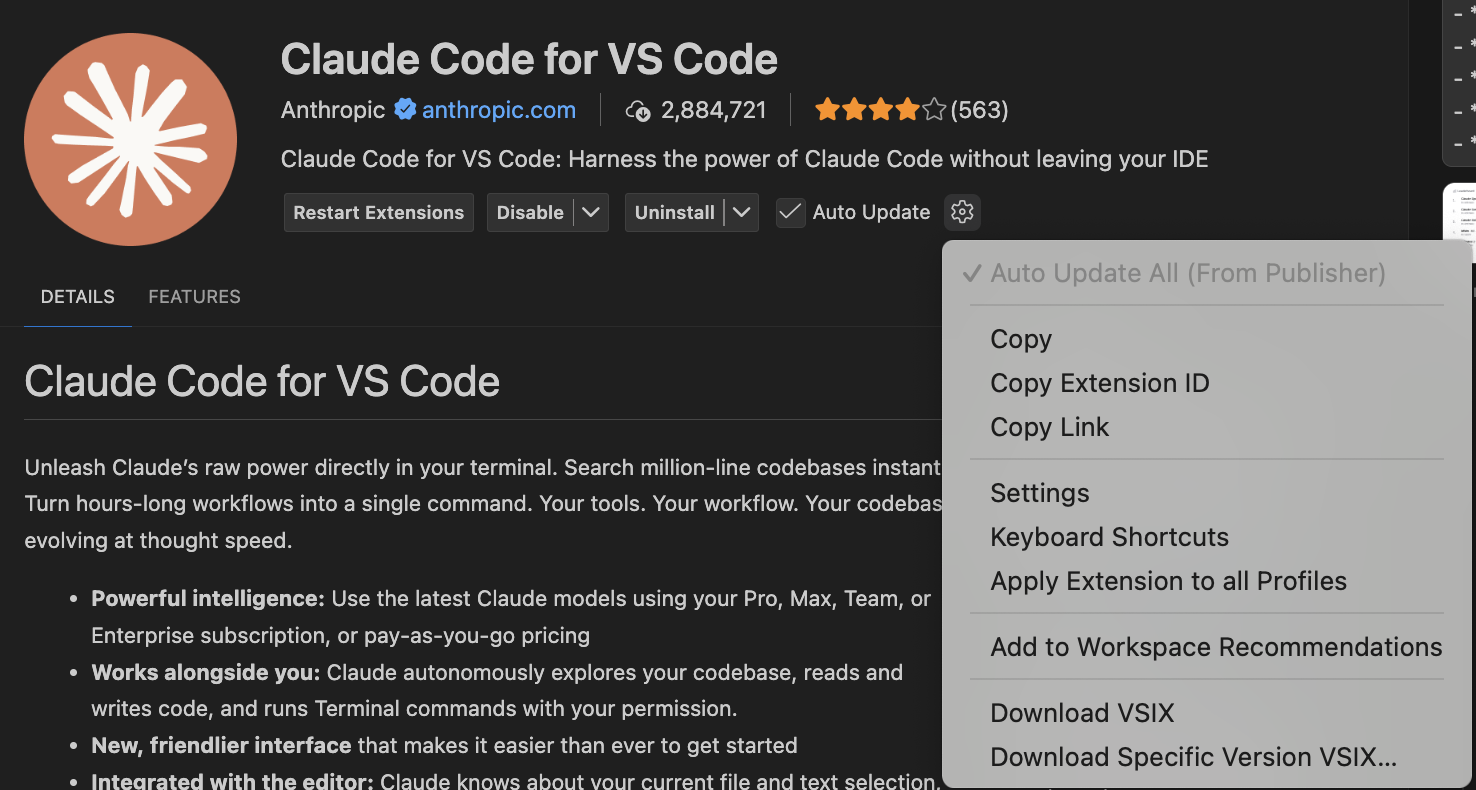
3. Configure Environment Variables
Locate the "Environment Variables" setting and click "Edit in settings.json":
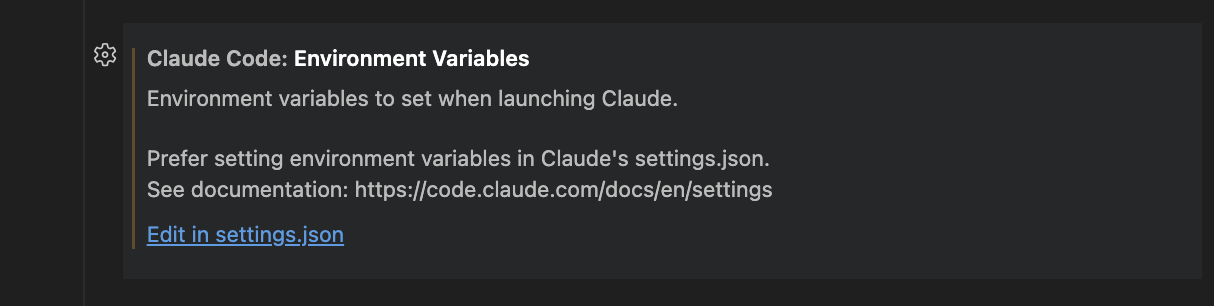
Anthropic's gateway docs say to set the gateway variables for the extension in claudeCode.environmentVariables, and that "the extension checks credentials from this setting before launching, so it's the reliable place for the gateway credential; values in ~/.claude/settings.json reach the spawned process but not the extension's own login check." Add:
json"claudeCode.environmentVariables": [ { "name": "ANTHROPIC_BASE_URL", "value": "https://api.ppq.ai" }, { "name": "ANTHROPIC_AUTH_TOKEN", "value": "<your PayPerQ API key>" }, { "name": "ANTHROPIC_API_KEY", "value": "" } ]
Your VS Code settings file should look similar to this (the key is masked):
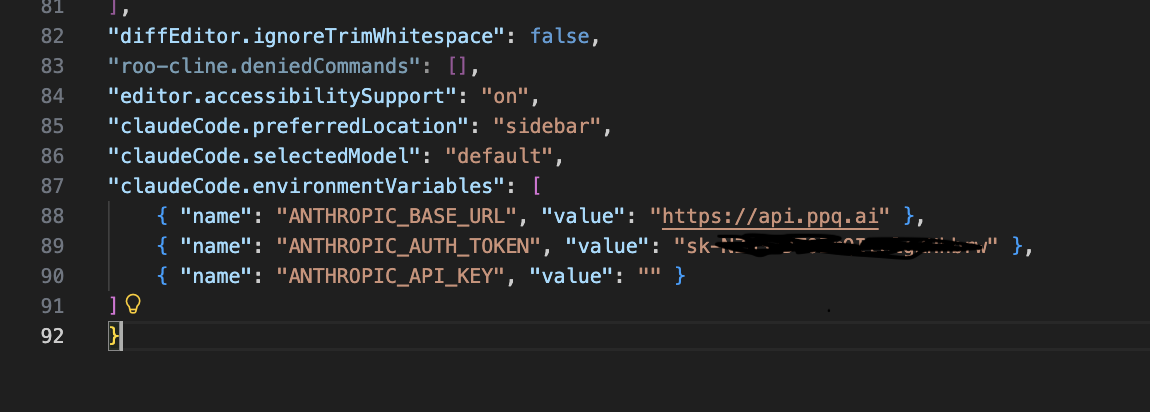
The extension also has a claudeCode.disableLoginPrompt setting, described in the VS Code docs as "Skip authentication prompts (for third-party provider setups)". Turn it on if the extension still shows a login prompt after you save the variables.
4. Verify
Send a short prompt in the Claude Code panel and check your usage history at ppq.ai/account-activity.
Using Custom Non-Anthropic Models
The /model <id> command in step 6 sets one model. To change which model each of Claude Code's opus, sonnet and haiku names resolves to, add these variables to the env block of ~/.claude/settings.json. Anthropic's docs say ANTHROPIC_DEFAULT_HAIKU_MODEL is also the model for background functionality.
json{ "env": { "ANTHROPIC_BASE_URL": "https://api.ppq.ai", "ANTHROPIC_AUTH_TOKEN": "<your PayPerQ API key>", "ANTHROPIC_API_KEY": "", "ANTHROPIC_DEFAULT_OPUS_MODEL": "moonshotai/kimi-k2.6", "ANTHROPIC_DEFAULT_SONNET_MODEL": "moonshotai/kimi-k2.6", "ANTHROPIC_DEFAULT_HAIKU_MODEL": "google/gemini-3-flash-preview" } }
These IDs are examples. The full list is at api.ppq.ai/v1/models; a model's id is the value to use, and Claude Code needs a model whose supported_parameters includes tools. In the VS Code extension, add the same three variables to claudeCode.environmentVariables.
After a restart, /model lists them as custom entries:
text1. Default (recommended) Use the default model (currently moonshotai/kimi-k2.6[1m]) 2. moonshotai/kimi-k2.6 Custom Opus model 4. moonshotai/kimi-k2.6 Custom Sonnet model 5. google/gemini-3-flash-preview Custom Haiku model
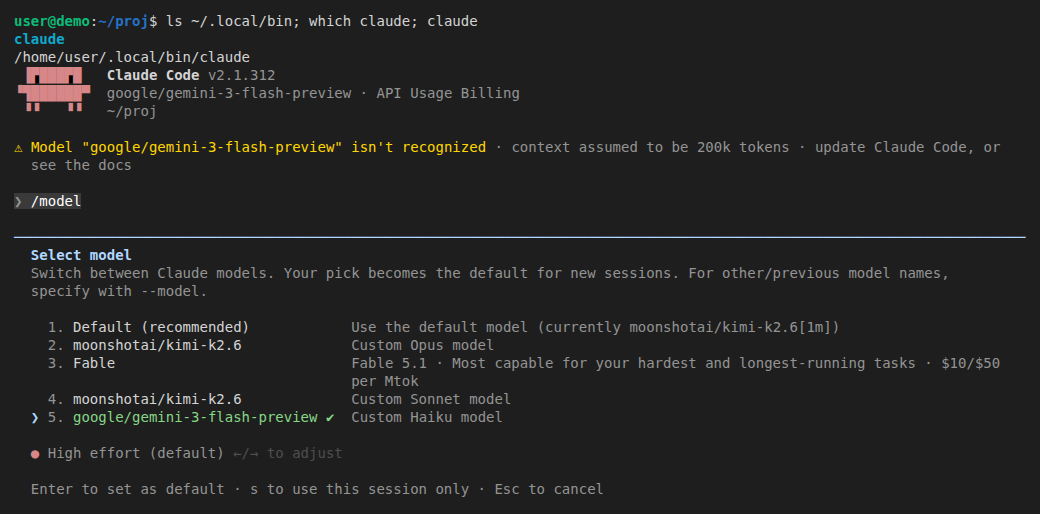
At launch, a warning such as Model "google/gemini-3-flash-preview" isn't recognized · context assumed to be 200k tokens · update Claude Code, or see the docs can appear. The model still answers.
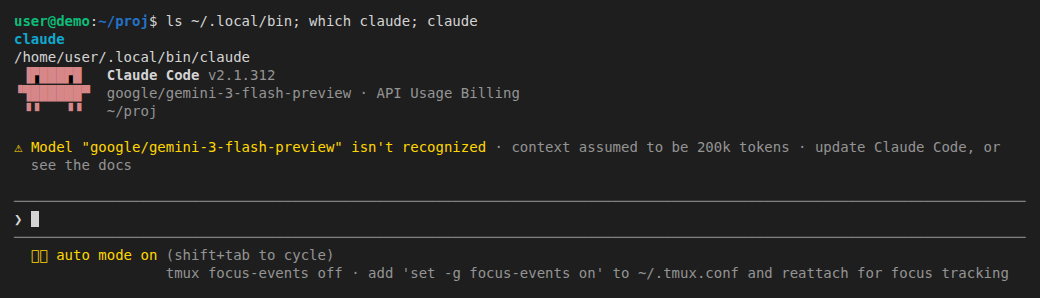
The /model picker shows Anthropic's own prices for the built-in Claude entries. PayPerQ's prices are in the catalog.
Some good non-Anthropic Models
These are example IDs that exist in the catalog and list tools in supported_parameters. The current full list is at api.ppq.ai/v1/models:
moonshotai/kimi-k2.6mistralai/devstral-2512google/gemini-3-flash-previewz-ai/glm-4.7minimax/minimax-m2.1
Using Private (TEE) Models with Claude Code
Want fully private, end-to-end encrypted coding? PayPerQ's private TEE models run inside secure hardware enclaves. Because private models require client-side encryption, you point Claude Code at the local ppq-private-mode proxy instead of api.ppq.ai.
1. Start the proxy
The ppq-private-mode package on npm declares Node.js 20 or later. In its own terminal, set your key and start it:
bashexport PPQ_API_KEY="<your PayPerQ API key>" npx -y ppq-private-mode
Windows: in PowerShell,
$env:PPQ_API_KEY = "<your PayPerQ API key>"sets the variable for the current window only. To keep it for new windows, runsetx PPQ_API_KEY "<your PayPerQ API key>"and open a new terminal.
Leave it running. When enclave attestation succeeds it prints:
textAttestation verified — enclave: inference.tinfoil.sh, code fingerprint: ... PPQ Private Mode proxy listening on http://127.0.0.1:8787 Endpoints: GET /v1/models, POST /v1/chat/completions (OpenAI), POST /v1/messages (Anthropic)
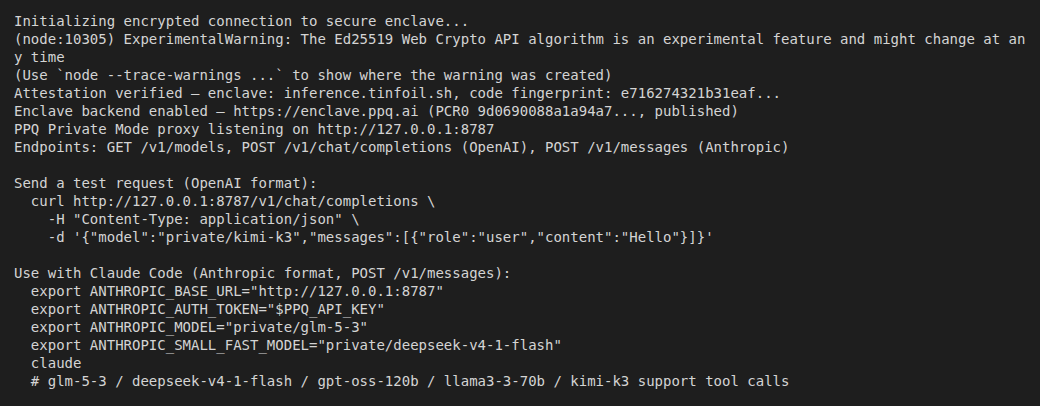
2. Point Claude Code at the proxy
The proxy prints the settings Claude Code needs: base URL http://127.0.0.1:8787, your PayPerQ key as the token, private/glm-5-3 as the main model and private/deepseek-v4-1-flash as the small, fast model. It also prints: "glm-5-3 / deepseek-v4-1-flash / gpt-oss-120b / llama3-3-70b / kimi-k3 support tool calls". Because the settings-file value applies when a shell export sets the same variable, change the env block in ~/.claude/settings.json instead of exporting:
json{ "env": { "ANTHROPIC_BASE_URL": "http://127.0.0.1:8787", "ANTHROPIC_AUTH_TOKEN": "<your PayPerQ API key>", "ANTHROPIC_API_KEY": "", "ANTHROPIC_MODEL": "private/glm-5-3", "ANTHROPIC_DEFAULT_HAIKU_MODEL": "private/deepseek-v4-1-flash" } }
Start a new claude session and run /status: the Anthropic base URL line must read http://127.0.0.1:8787. To go back to the regular route, restore ANTHROPIC_BASE_URL to https://api.ppq.ai and remove the two model lines. The private model IDs and their prices are in the catalog (IDs starting with private/).
Get the Most Recent Models
Want to see all available models? You can fetch the most up-to-date list directly from PayPerQ's API:
bashcurl https://api.ppq.ai/v1/models
This endpoint returns a JSON list of all currently available models on PayPerQ. The id field is the model name to give Claude Code.
Troubleshooting
API Error: 401 · Please run /login, or 401 API key not found or has been revoked
PayPerQ rejected the key. Claude Code retries before it gives up: an invalid key shows 401 API key not found or has been revoked · Retrying in 3s · attempt N/10 and ends with Please run /login · API Error: 401 API key not found or has been revoked after about four minutes. Check the following:
- Check the key. Copy it again from ppq.ai/api-docs; a revoked key gives this error.
- Check for a conflicting source. A value in the
envblock of~/.claude/settings.jsonapplies even when you export a different one in your shell, so a stale token insettings.jsonis the one that is sent. Run/statusto see which source is active. - Check
ANTHROPIC_BASE_URLishttps://api.ppq.ai, and that your key is inANTHROPIC_AUTH_TOKEN. - Clear any old login. A saved login from an Anthropic account stays on the machine; the docs say to run
/logoutinside Claude Code to clear it, which leaves the PayPerQ credential as the one in use.
Problems?
Please contact us through the customer communication chatbot in the bottom right of the PayPerQ site, in our Telegram channel or on Discord.
This guide is open source. If a step no longer works, open the guide on GitHub and use the pencil icon to propose a fix, or open an issue; changes go live after a PayPerQ maintainer reviews them.
What is PayPerQ?
PayPerQ is the private way to use AI. You get the big-name models from Anthropic, OpenAI, Google and xAI, the best open-source models, and TEE models that run inside a hardware enclave where not even the model's host can see your data. Chat, image, video and audio, all in one place, with no account and no subscription. You top up a balance with crypto or a card, from as little as 10 cents, and pay only for what you use. Most users spend about $4 a month, against $20+ for a single ChatGPT subscription.
Privacy is built in rather than bolted on. Every chat request is served inside a secure enclave that PayPerQ's servers, staff and logs cannot read into, so PayPerQ never sees your prompts or responses. Choose a TEE model and the model's host cannot read them either.
Why Use PayPerQ?
- Private by default - chats are served inside a secure enclave PayPerQ cannot read, and every chat model shows its privacy tier (Anon, ZDR or TEE)
- No account needed - no sign-up and no email; a credit id is all it takes
- Pay with crypto or card - Bitcoin, Lightning, Monero, stablecoins and more, or a credit card
- Hundreds of AI models from every major provider in one place
- Pay per use - no subscriptions; top up from 10 cents and pay only for what you use, about 1 cent per query on average
- Your history stays yours - conversations are stored on your device by default
Getting Started
- Visit ppq.ai
- Top up your balance with crypto or a card (as little as 10 cents)
- Pick a model, check its privacy tier, and start chatting
No account, no sign-up. Fund and go.