Using OpenCode AI Coding Agent with PayPerQ
Learn how to integrate OpenCode, the open source AI coding agent, with PayPerQ to access premium AI models including Claude Sonnet 4.6, GPT-5.4, and Gemini 3.
What is OpenCode?
OpenCode is an open source AI coding agent that helps you write code directly in your terminal, IDE, or desktop application. With OpenCode, you can leverage AI to assist with coding tasks, refactoring, debugging, and more—all through a simple command-line interface or desktop app.
Why Use PayPerQ with OpenCode?
By connecting OpenCode to PayPerQ's API, you can pick from the models in the PayPerQ catalog (Anthropic, OpenAI, Google, Moonshot and many more) with simple pay-per-use pricing, no subscription required. The full, current list is at api.ppq.ai/v1/models.
Prerequisites:
- A PayPerQ account and API key.
- On Windows, the OpenCode docs recommend WSL (see the callout in step 1).
Step by Step Set Up
1. Install OpenCode
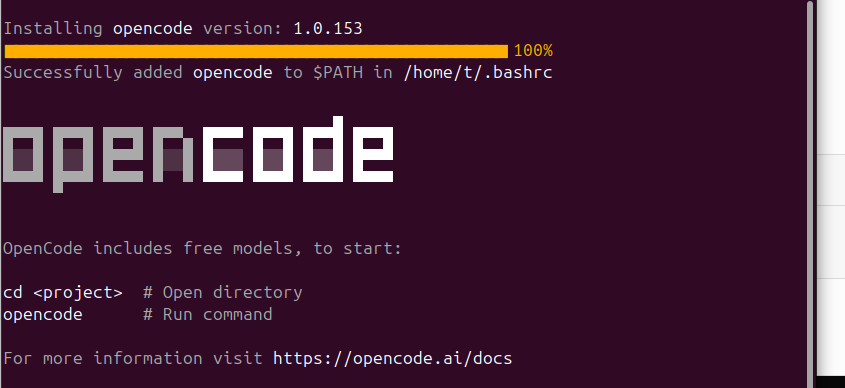
Install OpenCode with the official script:
bashcurl -fsSL https://opencode.ai/install | bash
The installer adds ~/.opencode/bin to your PATH. Open a new terminal afterwards so the opencode command is found.
Shell profile: on macOS the default shell is zsh and the profile is
~/.zshrc; on most Linux distributions it is bash and~/.bashrc; on Windows, PowerShell loads the file named by$PROFILE. Open a new terminal after editing it.
Windows: the OpenCode docs say: "For the best experience on Windows, we recommend using Windows Subsystem for Linux (WSL)." See opencode.ai/docs/windows-wsl.
Alternatives (from the OpenCode docs):
bashnpm install -g opencode-ai
bashbrew install anomalyco/tap/opencode
For more installation options, visit the OpenCode GitHub repository.
2. Get Your PayPerQ API Key
Navigate to ppq.ai/api-docs and copy your API key. You can create more keys at ppq.ai/api-keys. You will paste it into OpenCode in step 5.
3. Locate Your OpenCode Config Folder
OpenCode's global config file is ~/.config/opencode/opencode.json (OpenCode config docs). Create the folder if it does not exist:
bashmkdir -p ~/.config/opencode
Windows:
~is your user folder, so this file is%USERPROFILE%\.config\opencode\opencode.json.
4. Create the Configuration File
Create ~/.config/opencode/opencode.json with this content. It declares the PayPerQ provider and one example model. It does not contain your API key: you add that with /connect in step 5.
json{ "$schema": "https://opencode.ai/config.json", "provider": { "ppq": { "npm": "@ai-sdk/openai-compatible", "name": "PayPerQ", "options": { "baseURL": "https://api.ppq.ai/v1" }, "models": { "openai/gpt-5-nano": { "name": "GPT-5 Nano" } } } } }
Note:
openai/gpt-5-nanois an economical example model; its price is $0.05275 per 1M input tokens and $0.422 per 1M output tokens at the time of writing. See api.ppq.ai/v1/models for current prices.
The model list above is an example. The full catalog is at api.ppq.ai/v1/models, and its format is different from OpenCode's: in OpenCode's models section the key is the catalog entry's id, and name is any display name you want. Per the OpenCode docs, "Each ID must match the id returned by GET /v1/models".
5. Launch OpenCode and Select Your Model
Start OpenCode:
bashopencode
Then store your key. In the OpenCode prompt, type /connect, scroll to Other, enter the provider id ppq (the id used in this guide's opencode.json), and paste your key when asked for API key:
text/connect
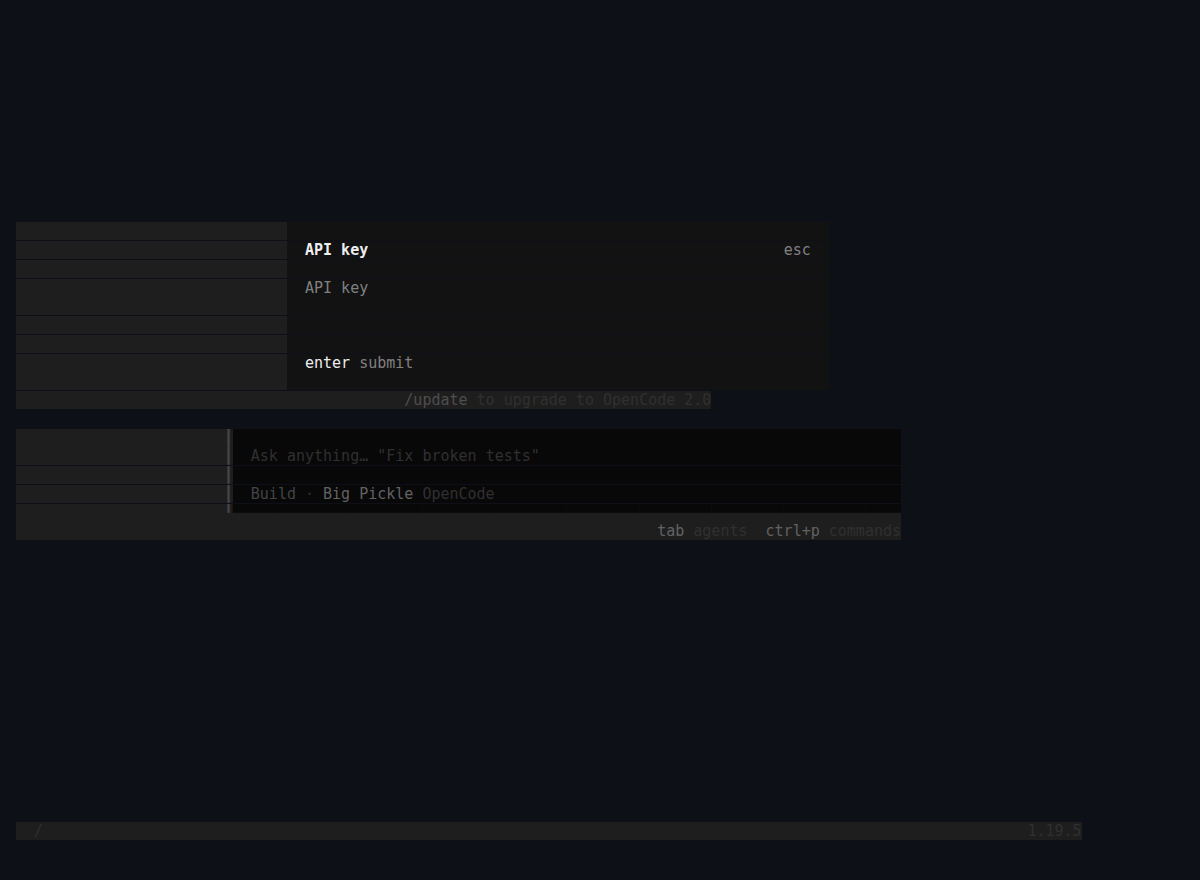
Per the OpenCode docs, /connect stores credentials in ~/.local/share/opencode/auth.json.
Note: the docs describe
options.apiKeyin the config as "Optionally set the API key, if not using auth". Use one method consistently: this guide uses/connect.
After the key is saved, OpenCode shows the PayPerQ model picker. You can open it again any time with /models:
text/models
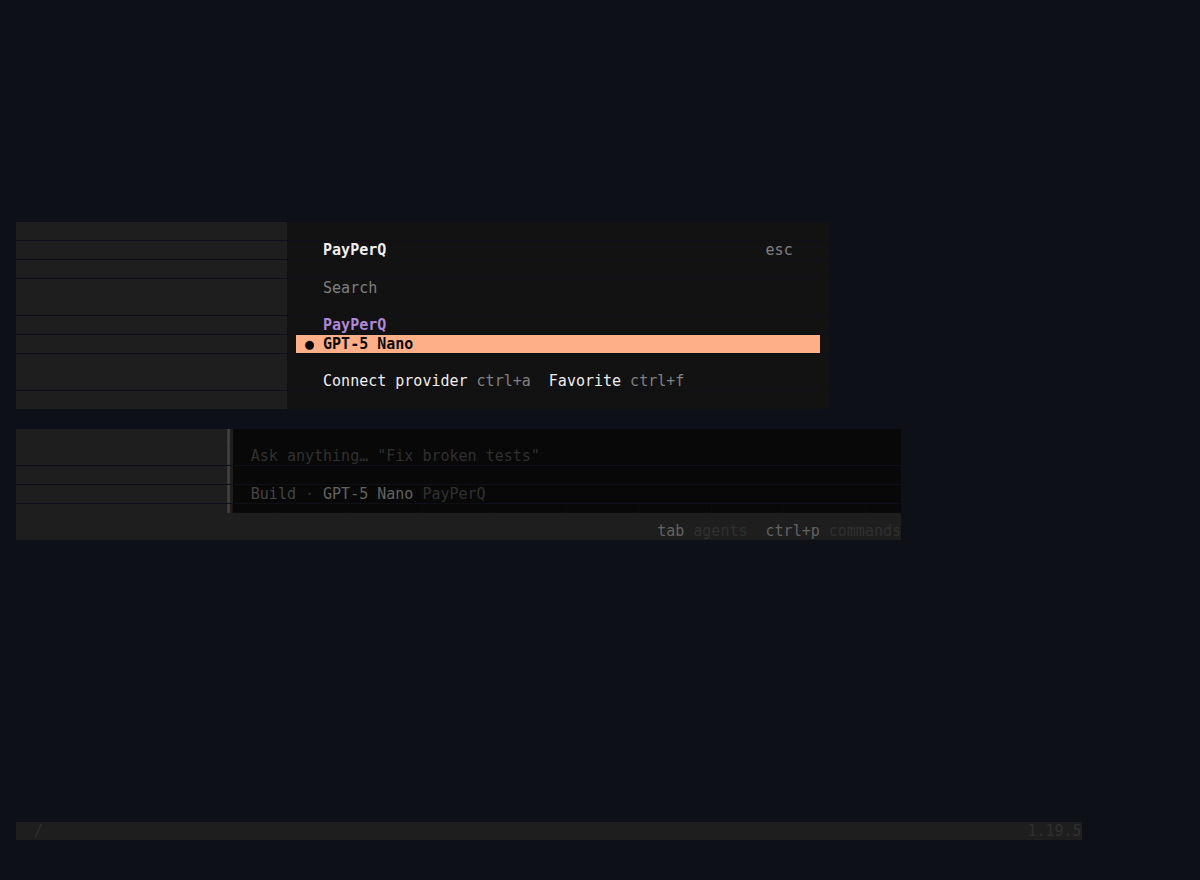
You must see PayPerQ with GPT-5 Nano under it. Select it; the bar under the prompt then reads Build · GPT-5 Nano PayPerQ.
6. Verify Your Setup
Send a short test prompt:
textReply with the word OK
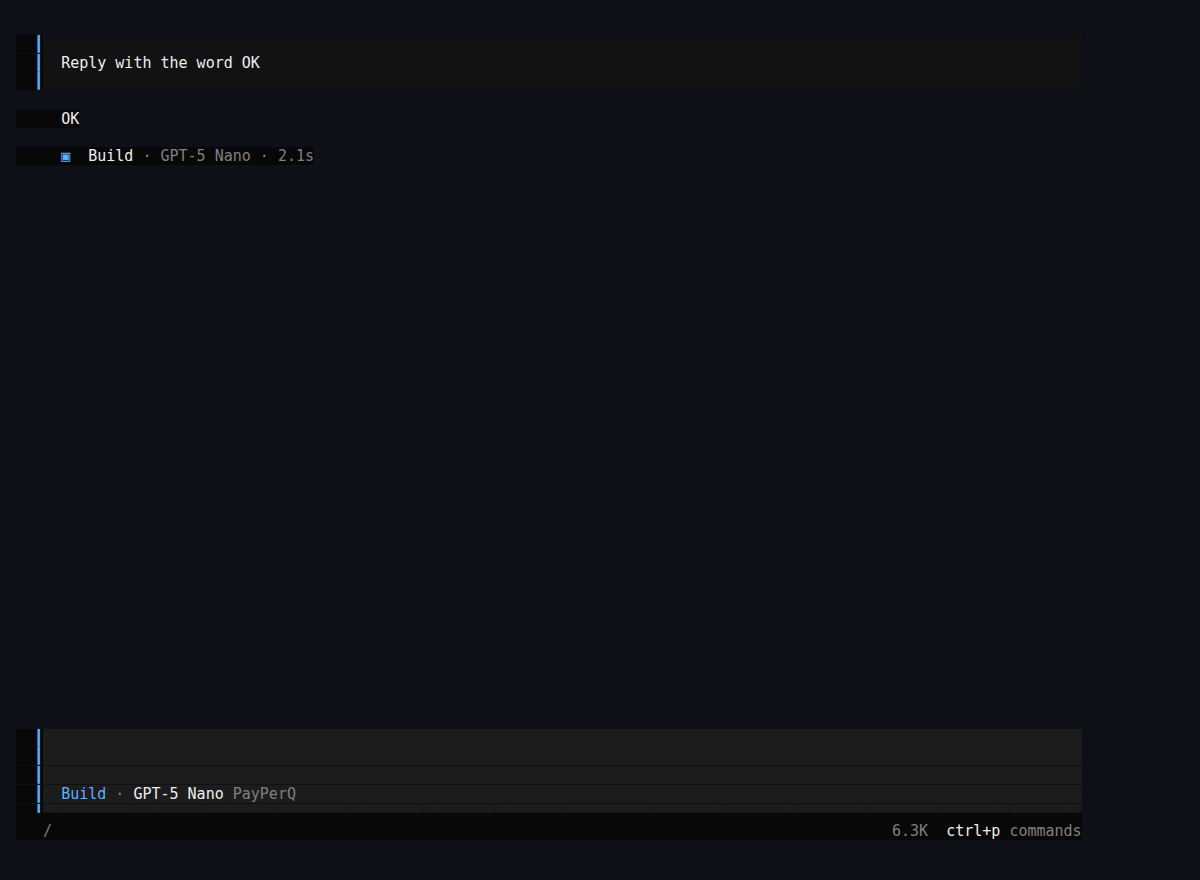
You can also check the setup from a normal terminal:
bashopencode providers list opencode models ppq
You should see ppq api under the credentials in ~/.local/share/opencode/auth.json, and ppq/openai/gpt-5-nano in the model list.
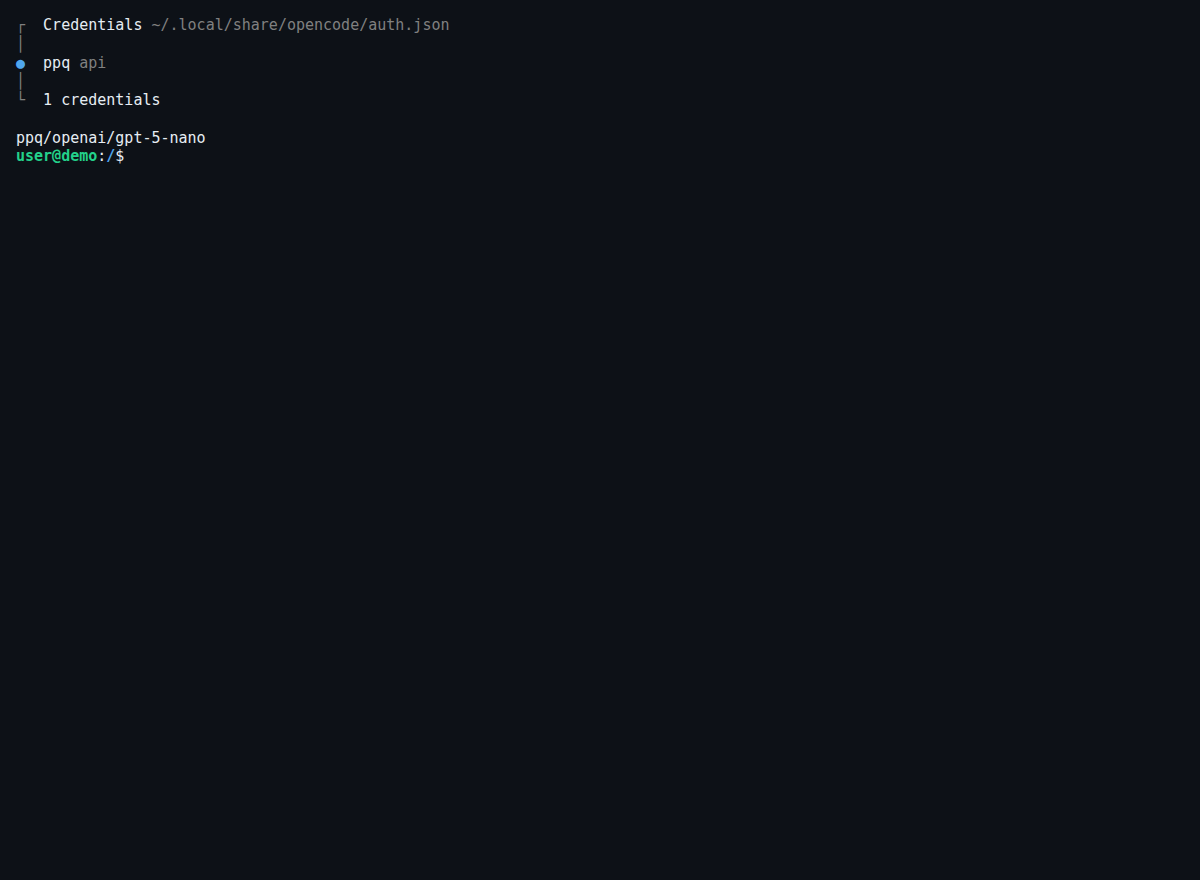
Requests also show up in your usage history at ppq.ai/account-activity.
Available Models
You can add model IDs from the PayPerQ catalog to the models section of opencode.json. For a coding agent, prefer models whose supported_parameters include tools.
Get the Most Recent Models
To see the up-to-date list of models directly from PayPerQ's API:
bashcurl https://api.ppq.ai/v1/models
This endpoint returns a JSON list of all currently available models. You can use it to check for new models and to build your own opencode.json with the models you want.
Let AI Update Your Configuration Automatically
You can ask an AI model on PPQ to build the models section for you:
- Visit the models API endpoint in your browser: https://api.ppq.ai/v1/models
- Copy the entire JSON response (Ctrl+A or Cmd+A to select all, then copy)
- Go to ppq.ai and start a new chat with any AI model
- Paste this prompt along with the models data:
textI have this list of models from the PPQ API: [PASTE THE JSON RESPONSE HERE] Please create an OpenCode configuration file using this EXACT structure. For each model in the API response that I list below, extract ONLY the "id" field and add it to the models section: { "$schema": "https://opencode.ai/config.json", "provider": { "ppq": { "npm": "@ai-sdk/openai-compatible", "name": "PayPerQ", "options": { "baseURL": "https://api.ppq.ai/v1" }, "models": { "openai/gpt-5-nano": { "name": "openai/gpt-5-nano" } } } } } CRITICAL: Each model entry must have the model ID as the object key and a "name" property. Do NOT include any other fields from the API response. Do NOT add an apiKey. The models I want: [LIST THE MODEL IDS YOU WANT]
- Copy the result and save it as
~/.config/opencode/opencode.json, then connect your key with/connectas in step 5.
Tips for Best Results
- Choose the right model: pick models whose catalog entry lists
toolsinsupported_parameters, since OpenCode is a coding agent. - Monitor your usage: check ppq.ai/account-activity to track API usage and costs.
- Experiment: different models excel at different tasks, so try a few to find your favorite.
Troubleshooting
HTTP 401 "Invalid API key": PayPerQ returns this when the key is not found or has been revoked. Copy a current key from ppq.ai/api-docs or ppq.ai/api-keys and enter it again with /connect.
Problems?
Please contact us through the customer communication chatbot in the bottom right of the PayPerQ site, in our Telegram channel or on Discord.
This guide is open source. If a step no longer works, open the guide on GitHub and use the pencil icon to propose a fix, or open an issue; changes go live after a PayPerQ maintainer reviews them.
What is PayPerQ?
PayPerQ is the private way to use AI. You get the big-name models from Anthropic, OpenAI, Google and xAI, the best open-source models, and TEE models that run inside a hardware enclave where not even the model's host can see your data. Chat, image, video and audio, all in one place, with no account and no subscription. You top up a balance with crypto or a card, from as little as 10 cents, and pay only for what you use. Most users spend about $4 a month, against $20+ for a single ChatGPT subscription.
Privacy is built in rather than bolted on. Every chat request is served inside a secure enclave that PayPerQ's servers, staff and logs cannot read into, so PayPerQ never sees your prompts or responses. Choose a TEE model and the model's host cannot read them either.
Why Use PayPerQ?
- Private by default - chats are served inside a secure enclave PayPerQ cannot read, and every chat model shows its privacy tier (Anon, ZDR or TEE)
- No account needed - no sign-up and no email; a credit id is all it takes
- Pay with crypto or card - Bitcoin, Lightning, Monero, stablecoins and more, or a credit card
- Hundreds of AI models from every major provider in one place
- Pay per use - no subscriptions; top up from 10 cents and pay only for what you use, about 1 cent per query on average
- Your history stays yours - conversations are stored on your device by default
Getting Started
- Visit ppq.ai
- Top up your balance with crypto or a card (as little as 10 cents)
- Pick a model, check its privacy tier, and start chatting
No account, no sign-up. Fund and go.