Using OpenClaw with PayPerQ
Learn how to configure OpenClaw (Clawdbot) to use PayPerQ's API for pay-per-use access to Claude and hundreds of other AI models.
What is OpenClaw?
OpenClaw is an app that can connect to many of your personal apps (whatsapp, telegram, email, slack, many more), and serve as an assistant or agent for many activities and automated tasks.
Step by Step Configuration
This guide uses OpenClaw's own setup wizard (openclaw onboard), which the OpenClaw docs describe as "the recommended terminal setup path on macOS, Linux, and Windows (native or WSL2)". The wizard has a Custom Provider option that accepts any OpenAI-compatible endpoint, so PayPerQ is added there and the key is stored by OpenClaw.
1. Download OpenClaw
Install OpenClaw as the official GitHub repository says.
On macOS, Linux or WSL2:
bashcurl -fsSL https://openclaw.ai/install.sh | bash
On Windows, the OpenClaw docs give this PowerShell command:
powershelliwr -useb https://openclaw.ai/install.ps1 | iex
The installer needs a supported Node.js: the OpenClaw docs list Node.js 24.16.0+ on 24.x, or 26.1.0+. They say the installer "provisions a supported Node.js runtime when needed".
If the installer ends with PATH missing npm global bin dir, it prints the exact line to run for the current terminal and tells you to check your shell startup file for future terminals. Until you do that, openclaw may not be found.
Shell profile: on macOS the default shell is zsh and the profile is
~/.zshrc; on most Linux distributions it is bash and~/.bashrc; on Windows, PowerShell loads the file named by$PROFILE. Open a new terminal after editing it.
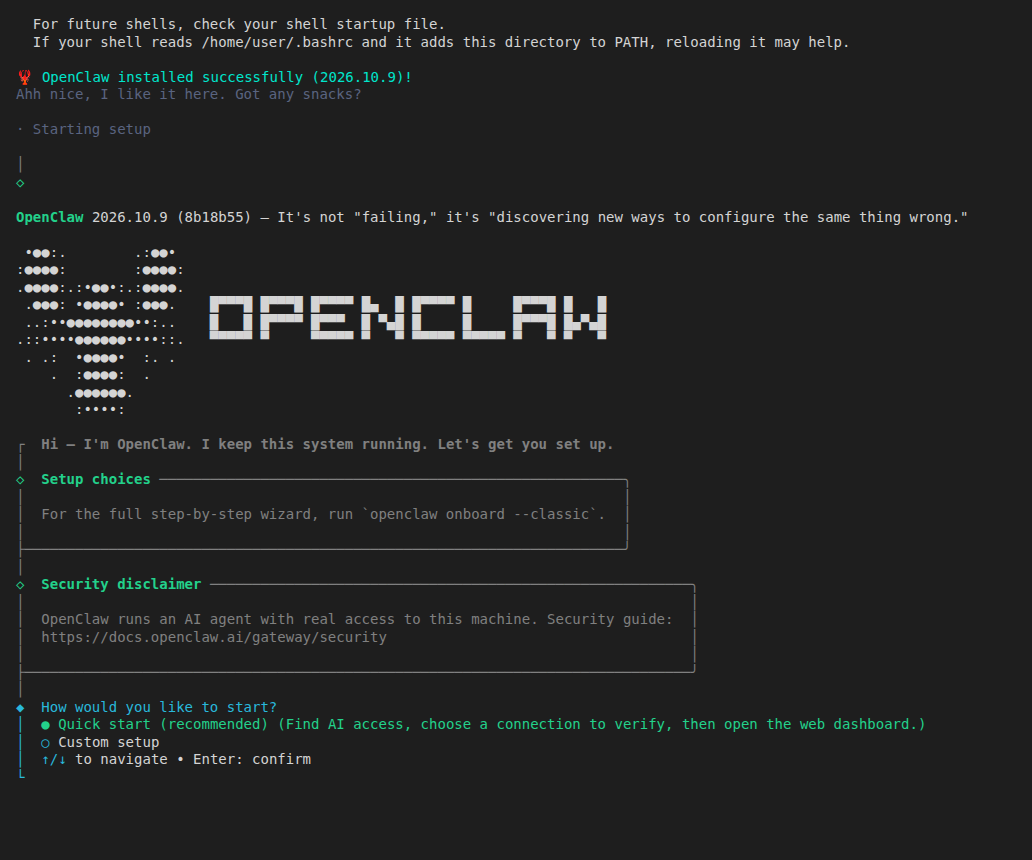
When the installer finishes it starts the onboarding wizard:
2. Get Your PayPerQ API Key
Navigate to ppq.ai/api-docs and copy your API key. It starts with sk-. You can create more keys at ppq.ai/api-keys.
3. Update Your OpenClaw Config File
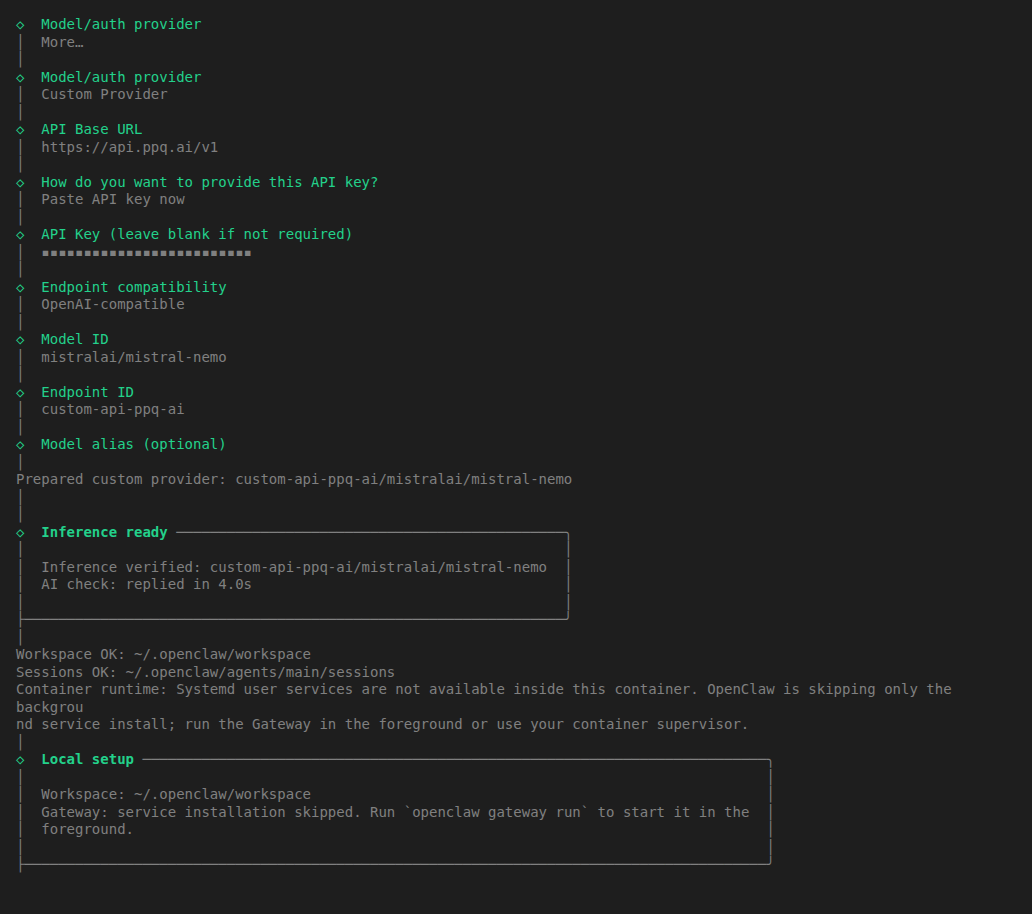
In the wizard, answer the prompts like this (run openclaw onboard to start it again later):
- How would you like to start? Quick start (recommended).
- What would you like to create? One agent.
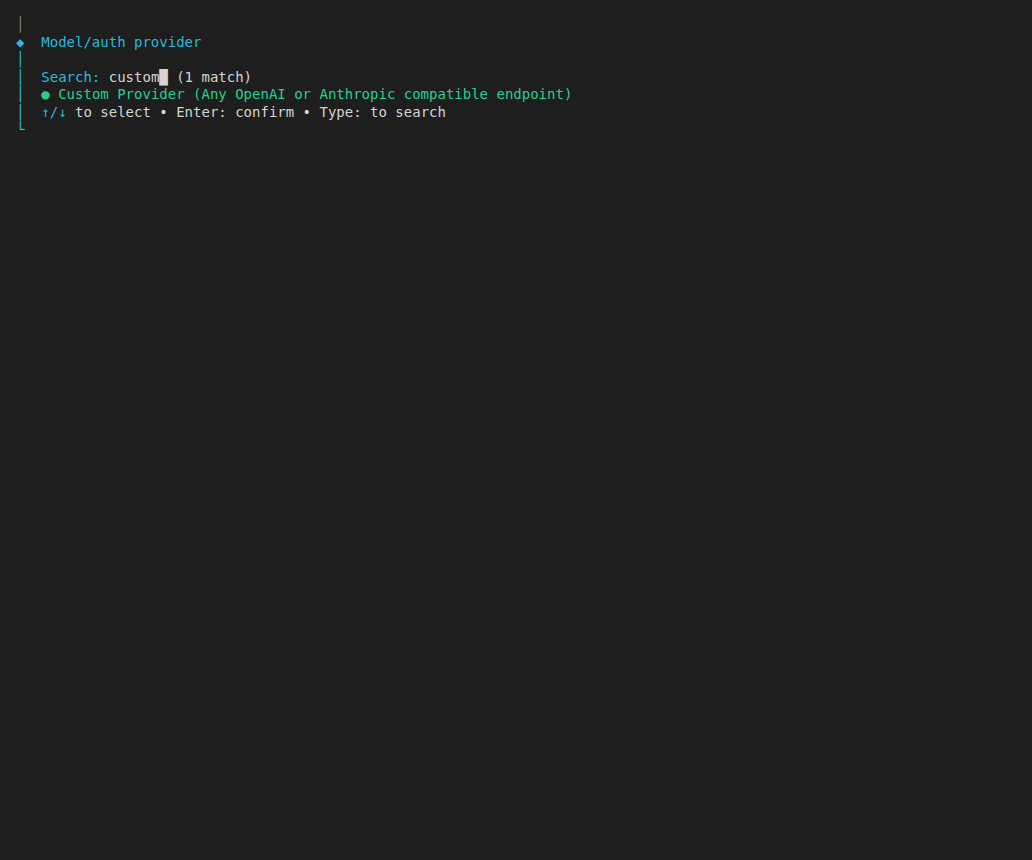
- Model/auth provider: choose More…, type
customto search, and pick Custom Provider (Any OpenAI or Anthropic compatible endpoint).
- API Base URL:
https://api.ppq.ai/v1 - How do you want to provide this API key? Paste API key now, then paste
<your PayPerQ API key>(the field is masked). - Endpoint compatibility: OpenAI-compatible (Uses /chat/completions).
- Model ID:
mistralai/mistral-nemo - Endpoint ID and Model alias: press Enter to accept the defaults (the endpoint ID is
custom-api-ppq-ai).
Note:
mistralai/mistral-nemocosts $0.030595 per 1M input tokens and $0.03165 per 1M output tokens at the time of writing. See api.ppq.ai/v1/models for current prices.
The wizard then sends a real request to PayPerQ and prints Inference verified: custom-api-ppq-ai/mistralai/mistral-nemo and AI check: replied in …:
The wizard writes a models.providers.custom-api-ppq-ai entry (base URL, openai-completions, the model) to ~/.openclaw/openclaw.json.
Windows:
~is your user folder, so this file is%USERPROFILE%\.openclaw\openclaw.json.
Alternative: the OpenClaw docs describe adding a provider by hand under models.providers in that file, with baseUrl, apiKey, api: "openai-completions" and a models list. Use the wizard if you can. If you edit the file, merge the entry into your existing config rather than replacing it, and keep the key out of anything you share:
json{ "models": { "mode": "merge", "providers": { "ppq": { "baseUrl": "https://api.ppq.ai/v1", "apiKey": "YOUR_PAYPERQ_API_KEY", "api": "openai-completions", "models": [ { "id": "mistralai/mistral-nemo", "name": "Mistral Nemo", "input": ["text"], "contextWindow": 131072 } ] } } } }
This is an example model entry; replace YOUR_PAYPERQ_API_KEY with your PayPerQ API key.
4. Restart the Gateway
Quick start runs the Gateway in the foreground of the wizard's terminal until you press Ctrl+C; your config stays saved. The OpenClaw docs then say to install it as a background service:
bashopenclaw gateway install
After you change the configuration later, apply it with openclaw gateway restart.
Some Good Models to Try
The Model ID in the wizard can be any ID from the PayPerQ catalog. Example model IDs (check the current list at api.ppq.ai/v1/models); these exist in the catalog and list tools support:
- claude-sonnet-5.5 - Anthropic Sonnet model
- moonshotai/kimi-k2.6 - Moonshot AI's multimodal coding model
- mistralai/devstral-2512 - Mistral AI's development model
- google/gemini-3-flash-preview - Google's multimodal model
- z-ai/glm-4.7 - Z-AI's model
- minimax/minimax-m2.1 - MiniMax's model
- And many more
Get the Most Recent Models
Want to see all available models? You can fetch the most up-to-date list directly from PayPerQ's API:
bashcurl https://api.ppq.ai/v1/models
This endpoint returns a JSON list of all currently available models on PayPerQ.
Verify Your Setup
List the configured models:
bashopenclaw models list
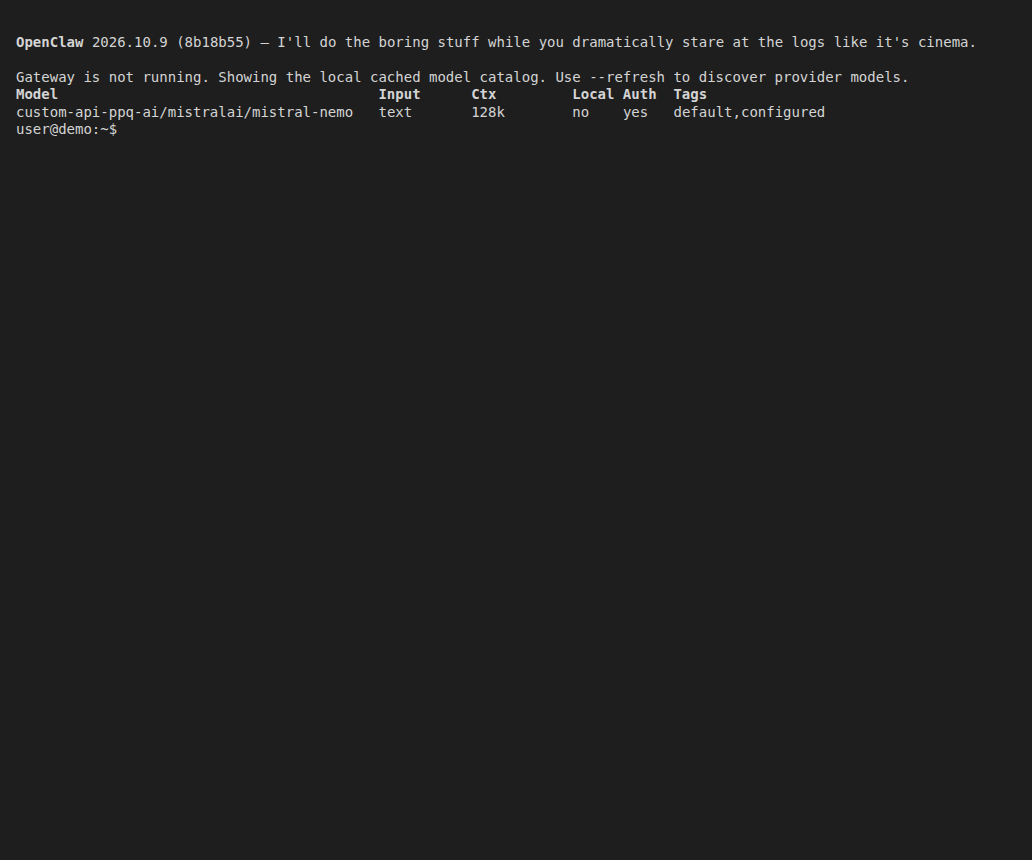
You must see a row for custom-api-ppq-ai/mistralai/mistral-nemo tagged default,configured:
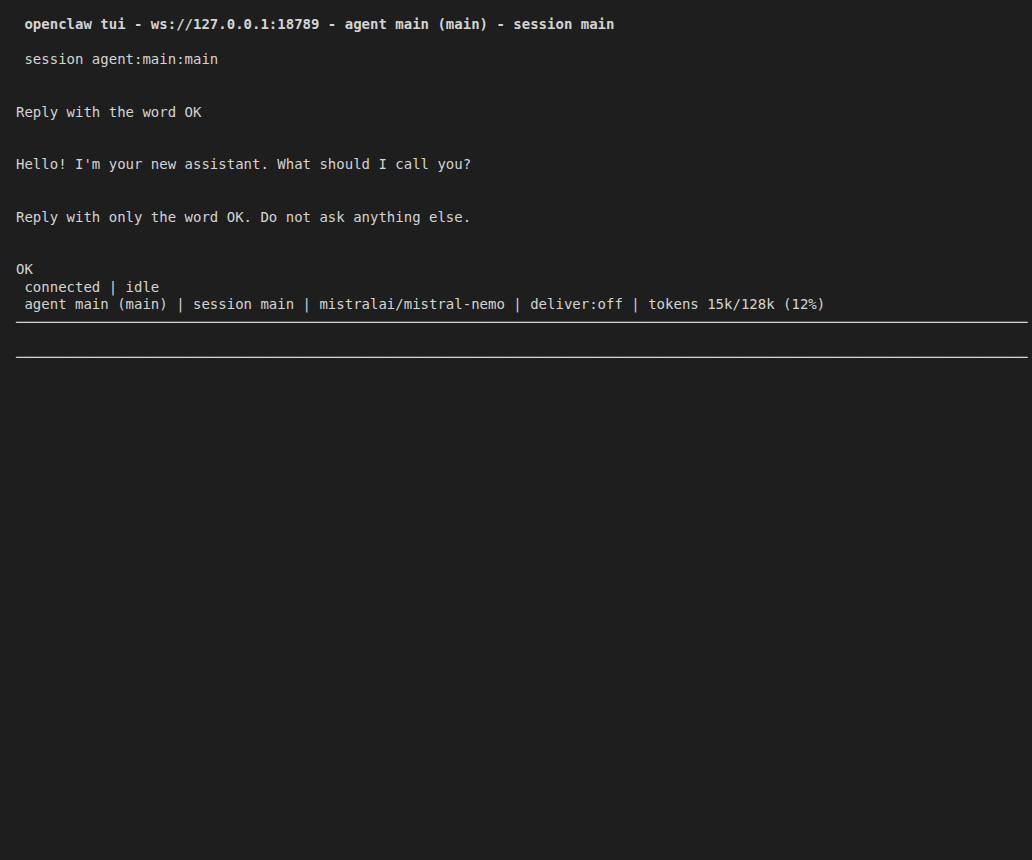
With the Gateway running, start the terminal chat with openclaw. Its footer shows mistralai/mistral-nemo. Send a short message such as Reply with only the word OK. Do not ask anything else. and the model answers through PayPerQ:
You can also check that requests are processed in your usage history at ppq.ai/account-activity.
Try AutoClaw — Smart Model Routing
Don't want to pick a model yourself? AutoClaw is our intelligent router that automatically selects the best model for each prompt — saving you money on simple questions while using top-tier models when it matters.
Troubleshooting
sudo is required for system installs on Linux: the installer needs to install Node.js system-wide and stops without sudo. Install sudo or re-run the installer as root.PATH missing npm global bin dir, oropenclawnot found: run theexport PATH=...line the installer prints, and add it to your shell startup file for future terminals.
Problems?
Please contact us through the customer communication chatbot in the bottom right of the PayPerQ site, in our Telegram channel or on Discord.
This guide is open source. If a step no longer works, open the guide on GitHub and use the pencil icon to propose a fix, or open an issue; changes go live after a PayPerQ maintainer reviews them.
What is PayPerQ?
PayPerQ is the private way to use AI. You get the big-name models from Anthropic, OpenAI, Google and xAI, the best open-source models, and TEE models that run inside a hardware enclave where not even the model's host can see your data. Chat, image, video and audio, all in one place, with no account and no subscription. You top up a balance with crypto or a card, from as little as 10 cents, and pay only for what you use. Most users spend about $4 a month, against $20+ for a single ChatGPT subscription.
Privacy is built in rather than bolted on. Every chat request is served inside a secure enclave that PayPerQ's servers, staff and logs cannot read into, so PayPerQ never sees your prompts or responses. Choose a TEE model and the model's host cannot read them either.
Why Use PayPerQ?
- Private by default - chats are served inside a secure enclave PayPerQ cannot read, and every chat model shows its privacy tier (Anon, ZDR or TEE)
- No account needed - no sign-up and no email; a credit id is all it takes
- Pay with crypto or card - Bitcoin, Lightning, Monero, stablecoins and more, or a credit card
- Hundreds of AI models from every major provider in one place
- Pay per use - no subscriptions; top up from 10 cents and pay only for what you use, about 1 cent per query on average
- Your history stays yours - conversations are stored on your device by default
Getting Started
- Visit ppq.ai
- Top up your balance with crypto or a card (as little as 10 cents)
- Pick a model, check its privacy tier, and start chatting
No account, no sign-up. Fund and go.