Using Strix with PayPerQ
Run Strix, the open-source AI pentesting tool, on pay-per-use PayPerQ models instead of a separate model subscription.
What is Strix?
Strix is an open-source AI penetration testing tool from the usestrix team. Its agents run your code dynamically, look for vulnerabilities and validate them with working proofs-of-concept, then write the findings to disk. You point it at a local folder, a GitHub repository or a live web application from the command line.
Strix uses LiteLLM for model access, so it can talk to any OpenAI-compatible endpoint. That is how you connect it to PayPerQ and pay per request instead of holding a subscription with a model vendor.
Step by Step Set Up
1. Prerequisites
- A PayPerQ account and API key. Copy the key from ppq.ai/api-docs.
- Docker, running. Strix's Quick Start lists "Docker (running)" as a prerequisite: Strix runs its security tools in a Docker sandbox.
- Linux, macOS or Windows on x86_64, or Linux or macOS on arm64. These are the platforms the official installer script handles.
2. Install Strix
Run a command in your terminal:
bashcurl -sSL https://strix.ai/install | bash
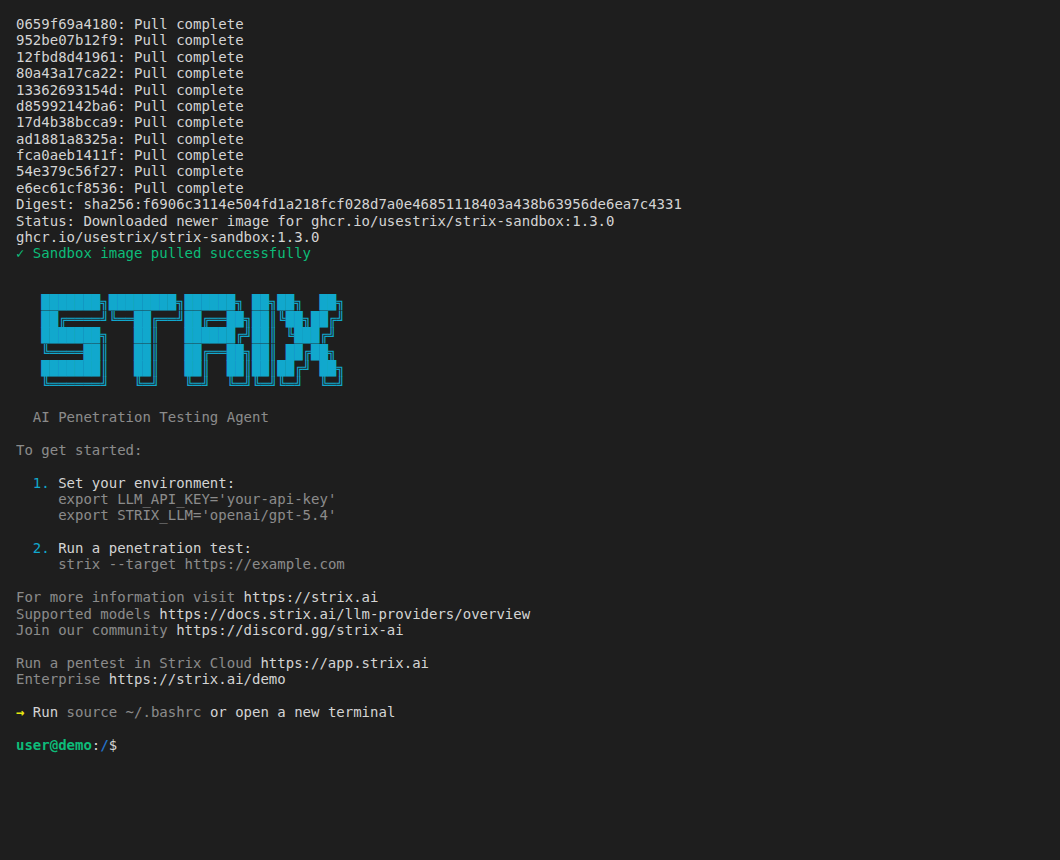
The installer downloads the Strix binary, adds it to your PATH, and pulls the sandbox Docker image ghcr.io/usestrix/strix-sandbox:1.3.0, which can take a few minutes. When it finishes you see ✓ Sandbox image pulled successfully, the Strix banner and the line Run source ~/.bashrc or open a new terminal.
Shell profile: on macOS the default shell is zsh and the profile is
~/.zshrc; on most Linux distributions it is bash and~/.bashrc; on Windows, PowerShell loads the file named by$PROFILE. Open a new terminal after editing it.
Alternative: the Strix Quick Start also offers
pipx install strix-agent.
3. Check the installation
Open a new terminal, then run a command:
bashstrix --version
You see strix followed by the installed version, for example strix 1.7.0.
4. Add PayPerQ as the model provider
You give Strix its model settings with three environment variables. In the terminal where you will run Strix, run these three commands, one at a time. Each command prints nothing; the settings apply to Strix runs started from this terminal, and Strix saves them for later runs (see the note below).
Set the model:
bashexport STRIX_LLM="openai/deepseek/deepseek-v4.1-flash-1017"
Note:
deepseek/deepseek-v4.1-flash-1017costs $0.3165 per 1M input tokens and $1.266 per 1M output tokens at the time of writing. See api.ppq.ai/v1/models for current prices.
Note: this model is an example. Strix writes models as
provider/model-name(LiteLLM format), andopenai/selects the OpenAI-compatible protocol. The catalog at api.ppq.ai/v1/models uses a different format: itsidfield maps to the setting, written afteropenai/. The Strix docs add that frontier OpenAI, Anthropic and Gemini models need a cyber access program for security testing.
Set the PayPerQ base URL:
bashexport LLM_API_BASE="https://api.ppq.ai"
Set your key:
bashexport LLM_API_KEY="<your PayPerQ API key>"
Windows: in PowerShell,
$env:STRIX_LLM = "openai/deepseek/deepseek-v4.1-flash-1017"sets the variable for the current window only. To keep it for new windows, runsetx STRIX_LLM "openai/deepseek/deepseek-v4.1-flash-1017"and open a new terminal. Do the same forLLM_API_BASE = "https://api.ppq.ai"andLLM_API_KEY = "<your PayPerQ API key>".
Note: Strix saves these settings to
~/.strix/cli-config.jsonthe first time it runs, so you do not have to export them again for later runs.
5. Create a small test project
Create a folder named strix-demo and, in it, a file named app.py with this content:
pythonimport sqlite3 from flask import Flask, request app = Flask(__name__) @app.route("/user") def user(): name = request.args.get("name", "") db = sqlite3.connect("users.db") rows = db.execute("SELECT * FROM users WHERE name = '" + name + "'").fetchall() return str(rows)
Note: Strix mounts a local target folder into its sandbox, writable, so the agent can edit the real files in it. The Strix CLI reference says to commit or stash your work first. A throwaway folder like this one avoids that risk.
You now have strix-demo/app.py ready as the scan target.
6. Run a scan
Run a command from the folder that contains strix-demo:
bashstrix --target ./strix-demo --scan-mode quick --max-turns 6
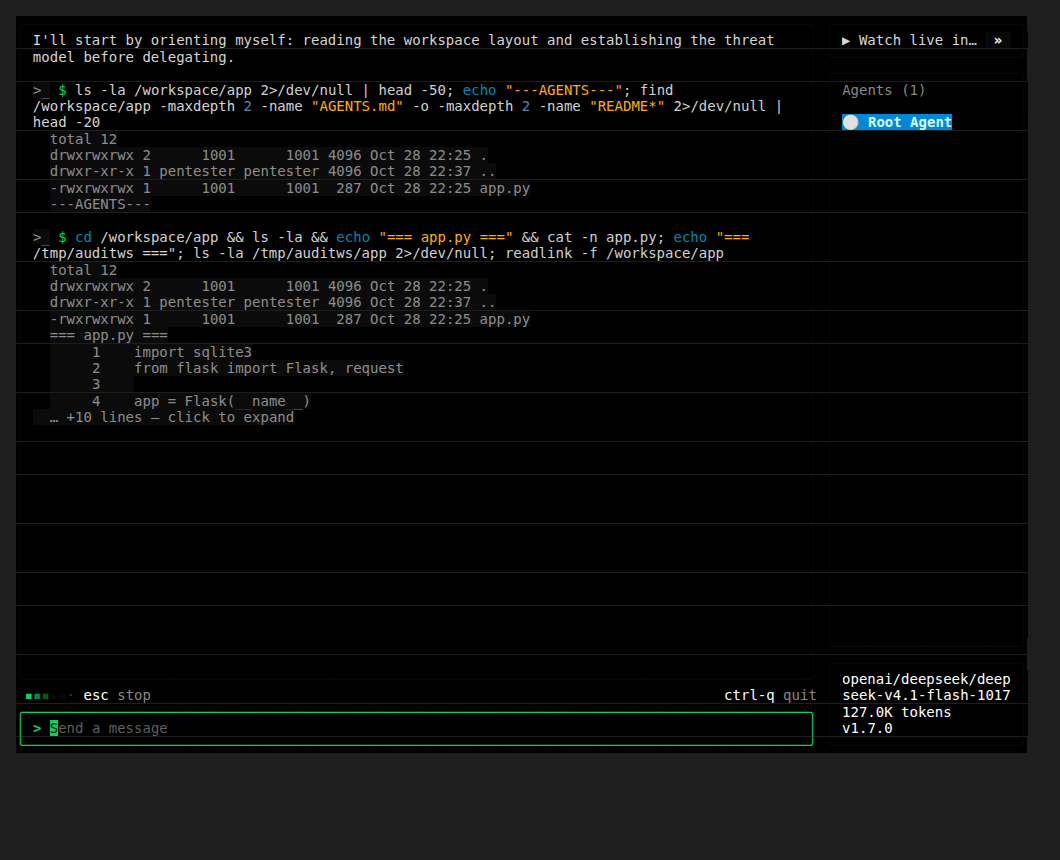
Strix opens a terminal interface in the same terminal. Within a minute or so the root agent starts answering and running commands in the sandbox, such as ls -la and cat -n app.py. The lower-right panel shows openai/deepseek/deepseek-v4.1-flash-1017: this is the PayPerQ model answering.
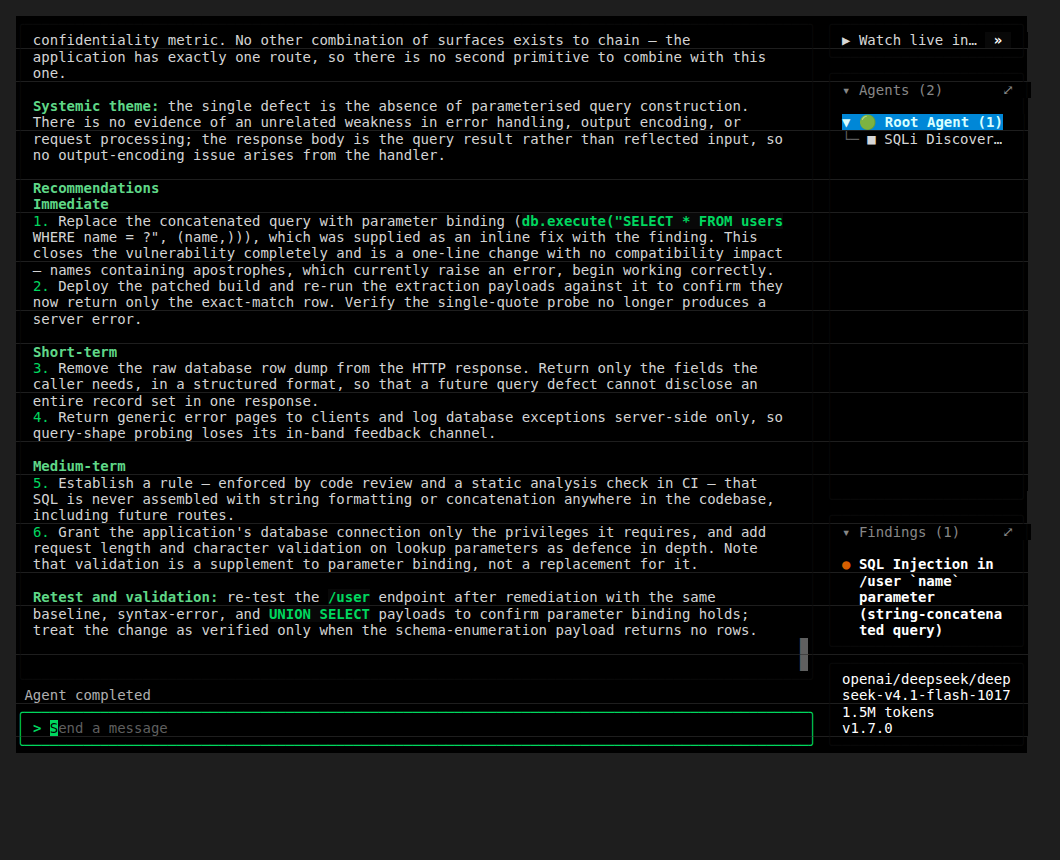
The scan runs several minutes. It is finished when the footer shows Agent completed and the Findings panel lists a finding, here a SQL injection in the name parameter of /user. Strix saves the results in strix_runs/<run-name>.
Note:
--max-turns 6limits each agent to 6 turns, which keeps this first scan short and cheap. The default is 500 turns per agent. The CLI reference also describes--max-budget, but calls its cost figure a best-effort estimate from token usage and model pricing, so combine it with a turn limit.
Setup is complete: Strix now runs its scans on a PayPerQ model. Check what each scan cost at ppq.ai/account-activity. To use another model, change STRIX_LLM to openai/ followed by another id from the catalog and start Strix again.
Troubleshooting
The terminal interface shows no new activity for about five minutes, then continues. What happened: a model request received no data from the stream. Strix logs model stream produced no event for 300s; abandoning the turn, then replays the turn automatically. Likely cause: the model request stalled. Fix: wait; the scan resumes on its own. LLM_TIMEOUT (default 300 seconds) sets how long Strix waits per request.
LLM CONNECTION FAILED at startup. What happened: the startup connection check did not get an answer from the model within LLM_PREFLIGHT_TIMEOUT (default 30 seconds), according to the Strix configuration reference. Likely cause: a wrong LLM_API_BASE, LLM_API_KEY or STRIX_LLM value, or a slow model. Fix: check the three values from step 4 and the model id against api.ppq.ai/v1/models, then run the scan again.
Problems?
Please contact us through the customer communication chatbot in the bottom right of the PayPerQ site, in our Telegram channel or on Discord.
This guide is open source. If a step no longer works, open the guide on GitHub and use the pencil icon to propose a fix, or open an issue; changes go live after a PayPerQ maintainer reviews them.
What is PayPerQ?
PayPerQ is the private way to use AI. You get the big-name models from Anthropic, OpenAI, Google and xAI, the best open-source models, and TEE models that run inside a hardware enclave where not even the model's host can see your data. Chat, image, video and audio, all in one place, with no account and no subscription. You top up a balance with crypto or a card, from as little as 10 cents, and pay only for what you use. Most users spend about $4 a month, against $20+ for a single ChatGPT subscription.
Privacy is built in rather than bolted on. Every chat request is served inside a secure enclave that PayPerQ's servers, staff and logs cannot read into, so PayPerQ never sees your prompts or responses. Choose a TEE model and the model's host cannot read them either.
Why Use PayPerQ?
- Private by default - chats are served inside a secure enclave PayPerQ cannot read, and every chat model shows its privacy tier (Anon, ZDR or TEE)
- No account needed - no sign-up and no email; a credit id is all it takes
- Pay with crypto or card - Bitcoin, Lightning, Monero, stablecoins and more, or a credit card
- Hundreds of AI models from every major provider in one place
- Pay per use - no subscriptions; top up from 10 cents and pay only for what you use, about 1 cent per query on average
- Your history stays yours - conversations are stored on your device by default
Getting Started
- Visit ppq.ai
- Top up your balance with crypto or a card (as little as 10 cents)
- Pick a model, check its privacy tier, and start chatting
No account, no sign-up. Fund and go.