Using OpenWorker with PayPerQ
Run the OpenWorker desktop app on pay-per-use PayPerQ models by adding PayPerQ as an OpenAI-compatible provider in Settings.
What is OpenWorker?
OpenWorker is an open-source desktop app, built by Andrew Ng's team, that works as an AI coworker for everyday tasks: it reads files in a folder you choose, writes documents, reviews code and connects to tools such as GitHub and Slack. You decide which actions it may take, and it asks for approval where you set it to.
You bring your own model. OpenWorker runs locally, stores model keys in the app's local secret store, and lets you add any OpenAI-compatible endpoint under Settings → Models & Keys. That is how you connect PayPerQ. The project is on GitHub under the MIT license.
Step by Step Set Up
1. Prerequisites
- A PayPerQ account and API key from ppq.ai/api-docs.
- macOS 12 or newer on Apple Silicon, or Windows 10/11 (x64), the platforms the OpenWorker README lists for the desktop app.
2. Install the OpenWorker desktop app
Download the installer for your system from the OpenWorker README:
- macOS (Apple Silicon): download.openworker.com/mac
- Windows 10/11 (x64): download.openworker.com/windows
Install and open the app. The main window shows "What should we produce?" and a composer at the bottom with a No model warning. You do not need to sign in.
Note: the app updates itself, and the README says the desktop app is in open beta, so screens may differ slightly from the images below.
3. Open Models & Keys
Click No model in the composer. Settings opens on Models & Keys. (You can also open Settings and choose Models & Keys in the left list.)
4. Add PayPerQ as an OpenAI-compatible provider
- Scroll to the API KEYS group and click Add an OpenAI-compatible provider.
- Name: type
PayPerQ. The Route prefix fills in aspayperq; leave it. - Endpoint: type
https://api.ppq.ai/v1. - API key: paste
<your PayPerQ API key>. The field is masked.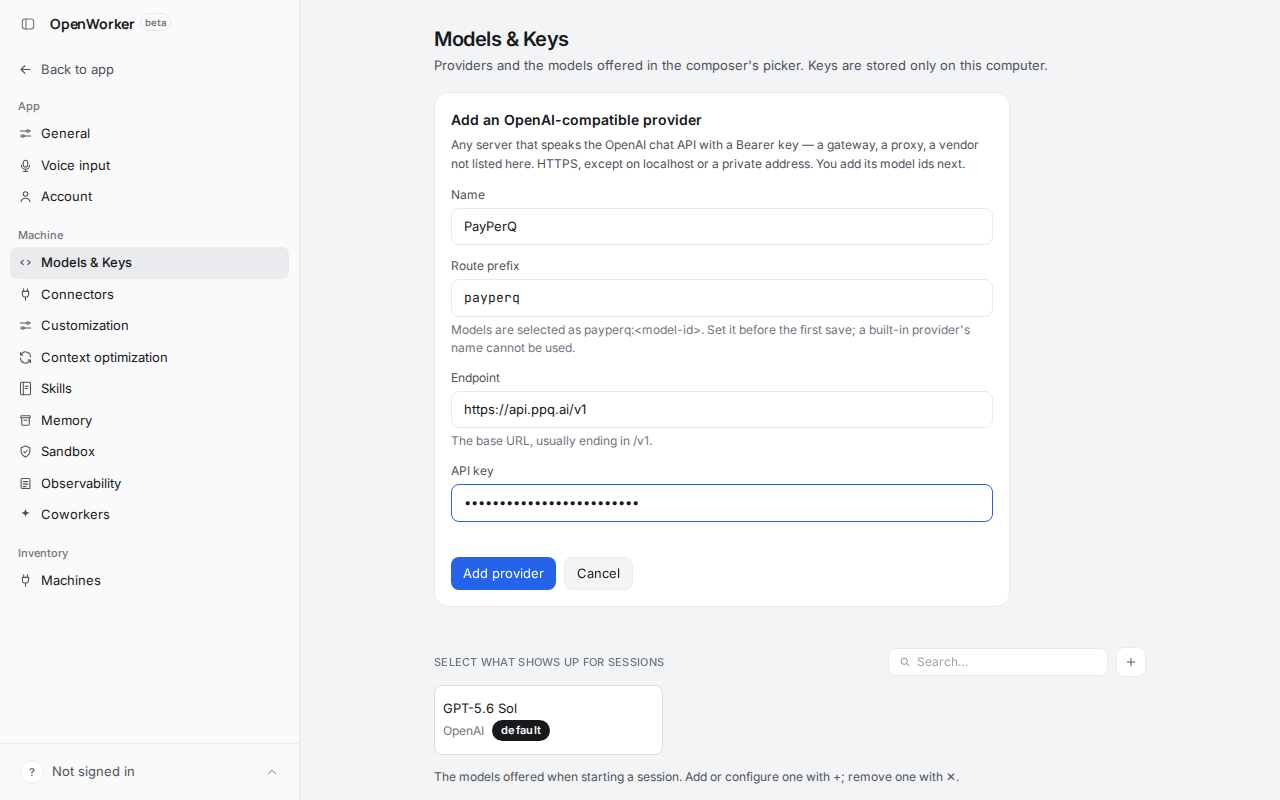
- Click Add provider. The PayPerQ card opens with ✓ Connected and ✓ Tested & saved next to the key.
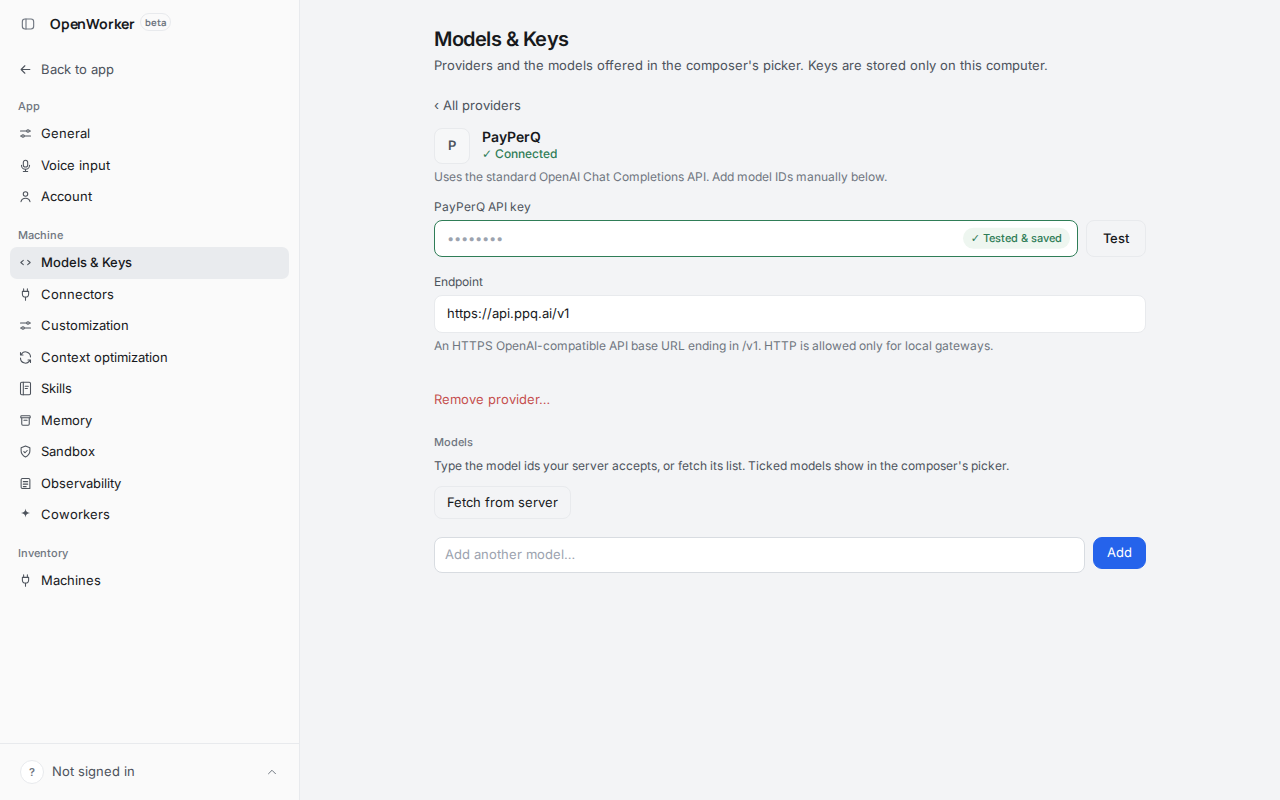
Note: OpenWorker keeps the key on your computer, in its local secret store. You enter it once in this form; there is no environment variable or config file to edit.
5. Add a model
In the Models section of the PayPerQ card, type the model ID into Add another model… and click Add:
textopenai/gpt-oss-20b
The model appears in a list with its checkbox ticked; ticked models show in the composer's model picker.
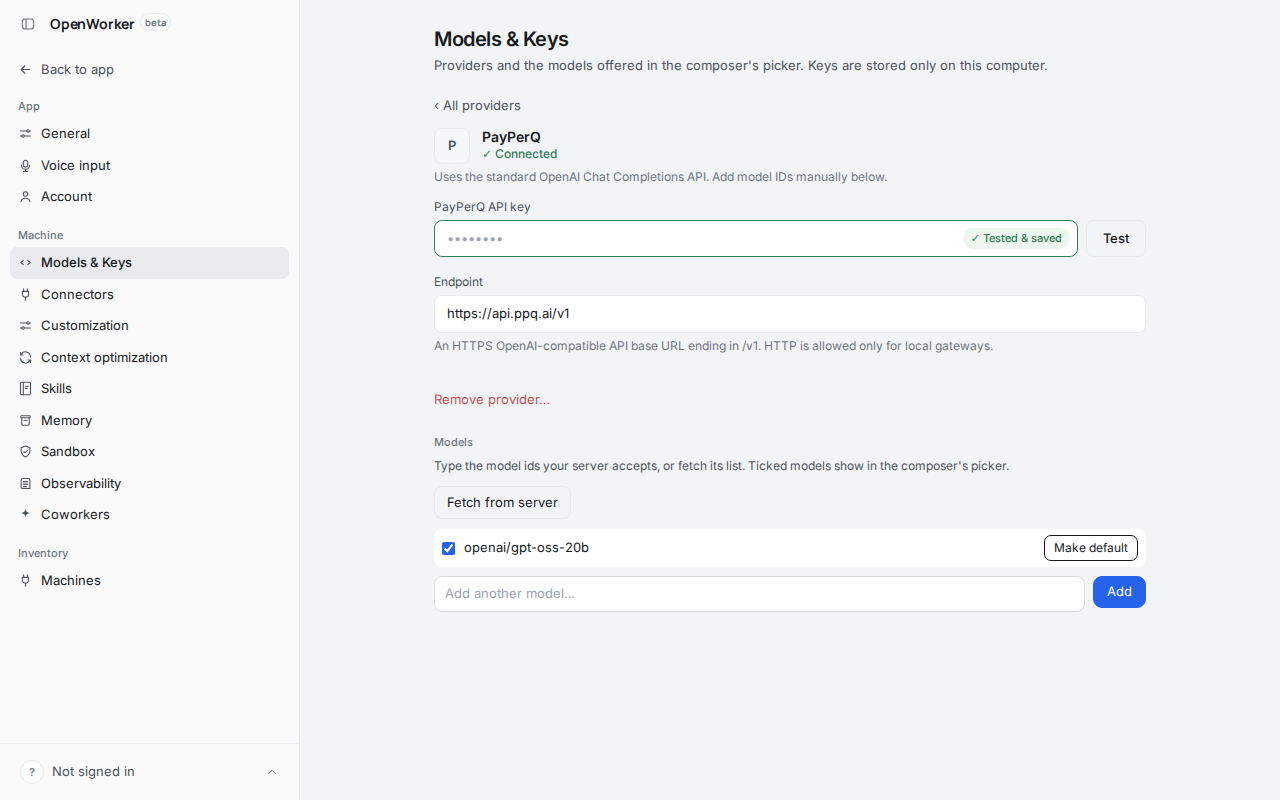
Note:
openai/gpt-oss-20bcosts $0.03165 per 1M input tokens and $0.13715 per 1M output tokens at the time of writing. See api.ppq.ai/v1/models for current prices.
Note: this is an example. The full list of model IDs is the catalog at api.ppq.ai/v1/models. OpenWorker takes the model ID as plain text, so copy the catalog's
idfield exactly. OpenWorker's docs say "Adding any model string works at your own risk" for models outside its curated list; for a tool-using session, choose a model whosesupported_parametersincludestools.
6. Select the model and check it
Click Back to app. Click the model button in the composer (it may show another model, such as GPT-5.6 Sol). The picker lists openai/gpt-oss-20b with payperq on the right. Click it.
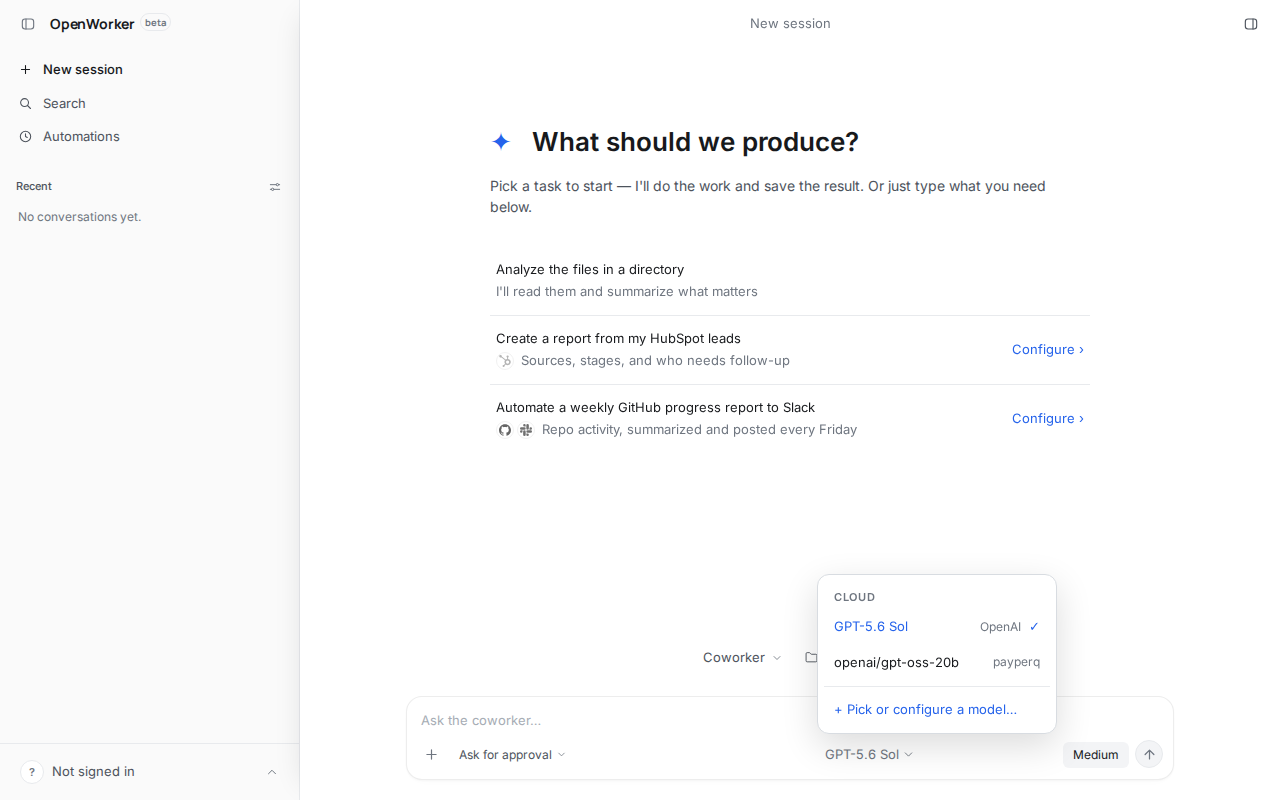
The composer's model button now reads openai/gpt-oss-20b.
7. Send a test prompt
OpenWorker works in a folder, shown next to Coworker above the composer. Pick a folder that contains a text or Markdown file (for example meeting.md). In the composer, type a short request that needs the file, and press Enter:
textRead meeting.md in this folder and tell me which day we ship, in one short sentence.
The session shows a Read meeting.md step (under "2 steps") and an answer taken from the file, from a PayPerQ model.
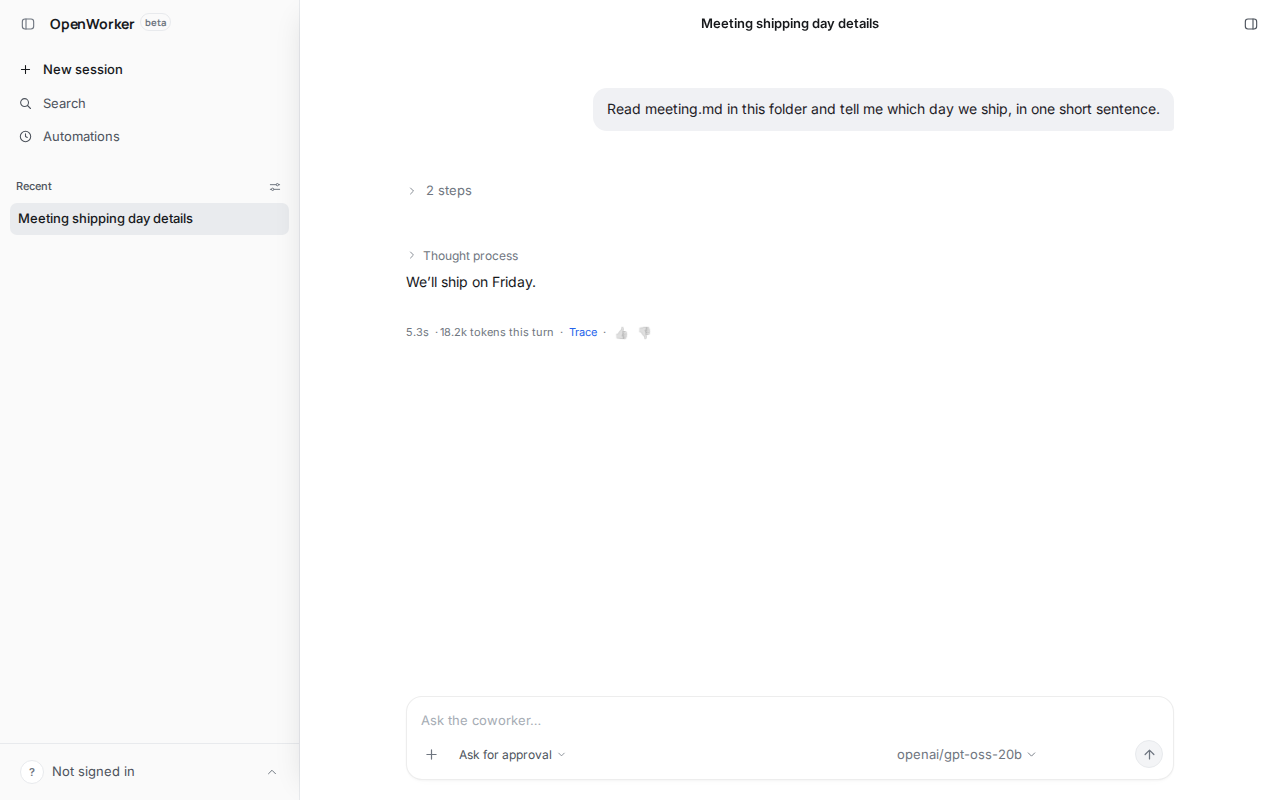
Note: adjust the file name and question to your own folder. If a prompt asks for approval, review it before continuing; the composer's Ask for approval setting controls this.
Setup is complete. OpenWorker now sends requests to PayPerQ. Check your spend at ppq.ai/account-activity. To use another model, add its catalog ID in Settings → Models & Keys → PayPerQ and select it in the composer.
Troubleshooting
Windows shows a SmartScreen warning when you open the installer. What happened: the OpenWorker README says the Windows builds are not yet code-signed. Likely cause: expected for the current builds. Fix: follow the steps Windows offers to run the app anyway, only if you downloaded it from the link in step 2.
Problems?
Please contact us through the customer communication chatbot in the bottom right of the PayPerQ site, in our Telegram channel or on Discord.
This guide is open source. If a step no longer works, open the guide on GitHub and use the pencil icon to propose a fix, or open an issue; changes go live after a PayPerQ maintainer reviews them.
What is PayPerQ?
PayPerQ is the private way to use AI. You get the big-name models from Anthropic, OpenAI, Google and xAI, the best open-source models, and TEE models that run inside a hardware enclave where not even the model's host can see your data. Chat, image, video and audio, all in one place, with no account and no subscription. You top up a balance with crypto or a card, from as little as 10 cents, and pay only for what you use. Most users spend about $4 a month, against $20+ for a single ChatGPT subscription.
Privacy is built in rather than bolted on. Every chat request is served inside a secure enclave that PayPerQ's servers, staff and logs cannot read into, so PayPerQ never sees your prompts or responses. Choose a TEE model and the model's host cannot read them either.
Why Use PayPerQ?
- Private by default - chats are served inside a secure enclave PayPerQ cannot read, and every chat model shows its privacy tier (Anon, ZDR or TEE)
- No account needed - no sign-up and no email; a credit id is all it takes
- Pay with crypto or card - Bitcoin, Lightning, Monero, stablecoins and more, or a credit card
- Hundreds of AI models from every major provider in one place
- Pay per use - no subscriptions; top up from 10 cents and pay only for what you use, about 1 cent per query on average
- Your history stays yours - conversations are stored on your device by default
Getting Started
- Visit ppq.ai
- Top up your balance with crypto or a card (as little as 10 cents)
- Pick a model, check its privacy tier, and start chatting
No account, no sign-up. Fund and go.