Using OpenCode AI Coding Agent with PayPerQ
Learn how to integrate OpenCode, the open source AI coding agent, with PayPerQ to access premium AI models including Claude Sonnet 4.6, GPT-5.4, and Gemini 3.
What is OpenCode?
OpenCode is an open source AI coding agent that helps you write code directly in your terminal, IDE, or desktop application. With OpenCode, you can leverage AI to assist with coding tasks, refactoring, debugging, and more—all through a simple command-line interface or desktop app.
Why Use PayPerQ with OpenCode?
By connecting OpenCode to PayPerQ's API, you gain access to cutting-edge AI models that are perfect for coding tasks:
- Claude Sonnet 4.6 & Opus 4.6 - Anthropic's most advanced reasoning models
- GPT-5.4 - OpenAI's latest models including GPT-5.4 Pro
- Gemini 3 Pro & Flash - Google's latest multimodal AI
- Kimi K2.6 - Moonshot's latest multimodal coding model
- Big Pickle - OpenCode's free model (limited time)
- And many more premium models
Many OpenCode Zen-recommended models are available through PayPerQ with simple pay-per-use pricing—no subscriptions required.
Step by Step Set Up
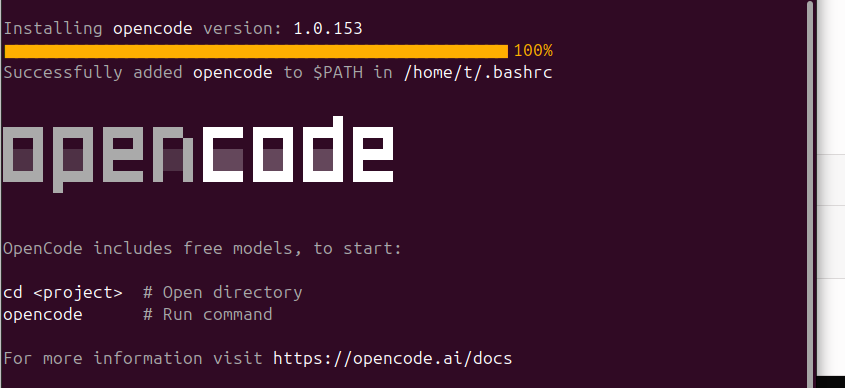
1. Install OpenCode
First, install OpenCode using one of the following methods:
Using curl:
bashcurl -fsSL https://opencode.ai/install | bash
Using npm:
bashnpm install -g opencode-ai
Using brew (macOS):
bashbrew install anomalyco/tap/opencode
For more installation options, visit the OpenCode GitHub repository.
2. Get Your PayPerQ API Key
Navigate to ppq.ai/api-docs and copy your API key. You'll need this to authenticate your requests.
3. Locate Your OpenCode Config Folder
OpenCode stores its configuration in a platform-specific location:
- macOS/Linux:
~/.config/opencode/(opencode.jsoncoropencode.json) - macOS/Linux (older installs):
~/.local/share/opencode/(opencode.jsonc) - Windows: Press
WIN+Rand paste%USERPROFILE%\.config\opencode\
Note: If the config folder doesn't exist yet, run OpenCode once or create the directory manually.
Navigate to this folder in your terminal or file explorer.
4. Create the Configuration File
Create a new file called opencode.json in your OpenCode config folder. You can download the complete configuration file here:
Or create it manually with the following content:
json{ "$schema": "https://opencode.ai/config.json", "provider": { "ppq": { "npm": "@ai-sdk/openai-compatible", "name": "ppq", "options": { "baseURL": "https://api.ppq.ai", "apiKey": "sk-YOUR_API_KEY_HERE", "includeUsage": true }, "models": { "x-ai/grok-code-fast-1": { "name": "x-ai/grok-code-fast-1" }, "anthropic/claude-sonnet-4": { "name": "anthropic/claude-sonnet-4" }, "anthropic/claude-sonnet-4.5": { "name": "anthropic/claude-sonnet-4.5" }, "claude-sonnet-4.6": { "name": "claude-sonnet-4.6" }, "claude-haiku-4.5": { "name": "claude-haiku-4.5" }, "anthropic/claude-3.5-haiku": { "name": "anthropic/claude-3.5-haiku" }, "claude-opus-4.5": { "name": "claude-opus-4.5" }, "claude-opus-4.6": { "name": "claude-opus-4.6" }, "anthropic/claude-opus-4.1": { "name": "anthropic/claude-opus-4.1" }, "gemini-3-flash-preview": { "name": "gemini-3-flash-preview" }, "gemini-3-pro-preview": { "name": "gemini-3-pro-preview" }, "google/gemini-3.1-pro-preview": { "name": "google/gemini-3.1-pro-preview" }, "minimax/minimax-m2.5": { "name": "minimax/minimax-m2.5" }, "z-ai/glm-5": { "name": "z-ai/glm-5" }, "moonshotai/kimi-k2.6": { "name": "moonshotai/kimi-k2.6" }, "gpt-5.1": { "name": "gpt-5.1" }, "gpt-5.1-codex": { "name": "gpt-5.1-codex" }, "openai/gpt-5.1-codex-max": { "name": "openai/gpt-5.1-codex-max" }, "openai/gpt-5.1-codex-mini": { "name": "openai/gpt-5.1-codex-mini" }, "openai/gpt-5": { "name": "openai/gpt-5" }, "openai/gpt-5-codex": { "name": "openai/gpt-5-codex" }, "gpt-5-nano": { "name": "gpt-5-nano" }, "gpt-5.2": { "name": "gpt-5.2" }, "gpt-5.2-codex": { "name": "gpt-5.2-codex" }, "openai/gpt-5.3-codex": { "name": "openai/gpt-5.3-codex" }, "openai/gpt-5.4": { "name": "openai/gpt-5.4" } } } } }
Important: Replace sk-YOUR_API_KEY_HERE with your actual PayPerQ API key from ppq.ai/api-docs.
5. Launch OpenCode and Select Your Model
Start OpenCode in your terminal or desktop app. To view all available PayPerQ models, use the /models command:
bash/models
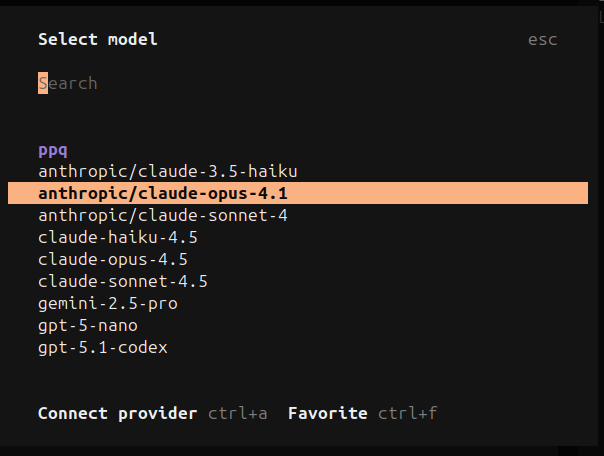
You'll see all the PPQ models listed under the "ppq" provider. Select the model that best fits your coding task.
6. Verify Your Setup
Once you start using OpenCode with PayPerQ models, you can verify that requests are being processed by checking your usage history at ppq.ai/account-activity.
Available Models
The configuration includes all Zen-recommended models that are available through PayPerQ:
- Claude: Sonnet 4.6, Opus 4.6, Haiku 4.5
- GPT: GPT-5.4, GPT-5.3 Codex, GPT-5.1 Codex
- Gemini: 3 Pro, 3 Flash
- Coding: Grok Code Fast
- Reasoning: Kimi K2.6
- And many more through the full model list
Each model has been tested and verified to work with OpenCode through PayPerQ's API.
Get the Most Recent Models
Want to create your own configuration with the latest models? You can fetch the most up-to-date list of available models directly from PayPerQ's API:
View all available models:
bashcurl https://api.ppq.ai/v1/models
This endpoint returns a JSON list of all currently available models on PayPerQ. You can use this to:
- Check for new models - See what's been added since this guide was published
- Build custom configs - Create your own
opencode.jsonwith specific models you want - Stay updated - Always have access to the latest AI models as they're released
Let AI Update Your Configuration Automatically
The easiest way to keep your opencode.json file up-to-date is to ask an AI model on PPQ to do it for you! Here's how:
-
Visit the models API endpoint in your browser: https://api.ppq.ai/v1/models
-
Copy the entire JSON response from the browser page (Ctrl+A or Cmd+A to select all, then copy)
-
Go to ppq.ai and start a new chat with any AI model
-
Paste this prompt along with the models data:
textI have this list of models from the PPQ API: [PASTE THE JSON RESPONSE HERE] Please create an OpenCode configuration file using this EXACT structure. For each model in the API response, extract ONLY the "id" field and add it to the models section: { "$schema": "https://opencode.ai/config.json", "provider": { "ppq": { "npm": "@ai-sdk/openai-compatible", "name": "ppq", "options": { "baseURL": "https://api.ppq.ai", "apiKey": "sk-YOUR_API_KEY_HERE", "includeUsage": true }, "models": { "z-ai/glm-4.6": { "name": "z-ai/glm-4.6" }, "anthropic/claude-sonnet-4": { "name": "anthropic/claude-sonnet-4" }, "gpt-5.1-codex": { "name": "gpt-5.1-codex" } } } } } CRITICAL: Each model entry must have the model ID as BOTH the object key AND the "name" property value. Do NOT include any other fields from the API response (like "object", "created", "owned_by", etc.). ONLY use the "id" field. Process ALL models from the API response in this exact format.
- The AI will generate a complete configuration with all current models
- Copy the result and save it as
opencode.jsonin your OpenCode config folder - Replace
sk-YOUR_API_KEY_HEREwith your actual API key from ppq.ai/api-docs
This method ensures you always have access to the newest models without manually updating the configuration!
Or download the pre-configured file with all current models (as of March 13, 2026):
Download opencode.json with all current models
Note: This file includes all models available at the time of publication. For the most up-to-date model list, use the AI method above or check the API endpoint directly.
Tips for Best Results
- Choose the right model: Use specialized coding models like
openai/gpt-5.3-codexorx-ai/grok-code-fast-1for programming tasks - Try the free model: Big Pickle is free on OpenCode and great for testing
- Monitor your usage: Check your PayPerQ dashboard to track API usage and costs
- Experiment: Different models excel at different tasks—try a few to find your favorite
Problems?
Please contact us through the customer communication chatbot in the bottom right or in our telegram channel!