Using Open Notebook with PayPerQ
Run the self-hosted Open Notebook research app on pay-per-use PayPerQ models for chat and embeddings, using its built-in PayPerQ provider.
What is Open Notebook?
Open Notebook is an open source, privacy-focused alternative to Google's Notebook LM. You run it yourself with Docker, collect sources (PDFs, web pages, text, audio and video) in notebooks, and chat with them, search them and generate podcasts.
Open Notebook does not ship its own models. You connect providers under Manage → Models and choose a default model for each job. PayPerQ is one of its built-in providers, so you add your PayPerQ API key there and pick models from PayPerQ's catalog.
Step by Step Set Up
1. Prerequisites
- A PayPerQ account and API key, from ppq.ai/api-docs.
- Docker with Compose v2, which the Open Notebook docs require: Docker Desktop on macOS and Windows, Docker Engine with the Compose plugin on Linux. Check with the command below; it prints a Compose version.
bashdocker compose version
2. Download the Open Notebook compose file
Run these three commands in order. They create a folder, enter it and download the official docker-compose.yml.
bashmkdir open-notebook
bashcd open-notebook
bashcurl -o docker-compose.yml https://raw.githubusercontent.com/lfnovo/open-notebook/main/docker-compose.yml
docker-compose.yml now exists in the folder.
Windows: in PowerShell, type
curl.exeinstead ofcurl. You can also open the file on GitHub and save it asdocker-compose.yml.
3. Set your encryption key
Open Notebook encrypts the API keys you store with a secret you choose. It must be set before you can save a provider key.
-
Generate a secret. Run this command and copy the 64-character value it prints.
bashopenssl rand -hex 32 -
Edit
docker-compose.yml. In theopen_notebookservice, find this line:yaml- OPEN_NOTEBOOK_ENCRYPTION_KEY=change-me-to-a-secret-stringReplace
change-me-to-a-secret-stringwith the value you generated, then save the file. Keep this value: it is needed to read the stored keys later.
Windows: the Open Notebook docs print a suitable value in PowerShell with
[guid]::NewGuid().ToString("N") + [guid]::NewGuid().ToString("N").
Note: by default the web UI (port 8502) and API (port 5055) are published on all network interfaces and there is no password. If other devices can reach your machine, change the two port lines of the
open_notebookservice to"127.0.0.1:8502:8502"and"127.0.0.1:5055:5055", or add- OPEN_NOTEBOOK_PASSWORD=your-passwordto itsenvironment:block, before starting.
4. Start Open Notebook
Run this command in the open-notebook folder:
bashdocker compose up -d
Docker pulls the images and starts two containers, surrealdb and open_notebook. The last lines show both as started.
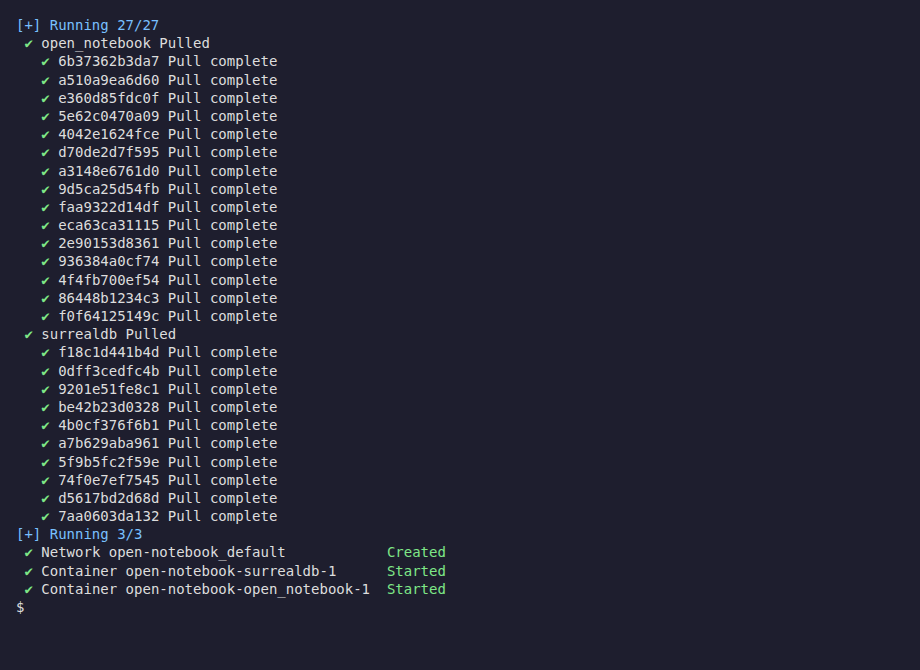
Wait about 30 seconds, then open http://localhost:8502 in your browser. The Open Notebook page loads.
5. Add PayPerQ as a provider
In the left sidebar, under Manage, click Models. Then:
- Find the PayPerQ card. Scroll down the provider list to PayPerQ (it shows Language, Embedding, STT and TTS tags and "Not configured") and click its Add Configuration button.
- Configuration Name. Type
Personal(any label works). - API Key. Paste
<your PayPerQ API key>. The field is masked. - Base URL. Leave it empty.
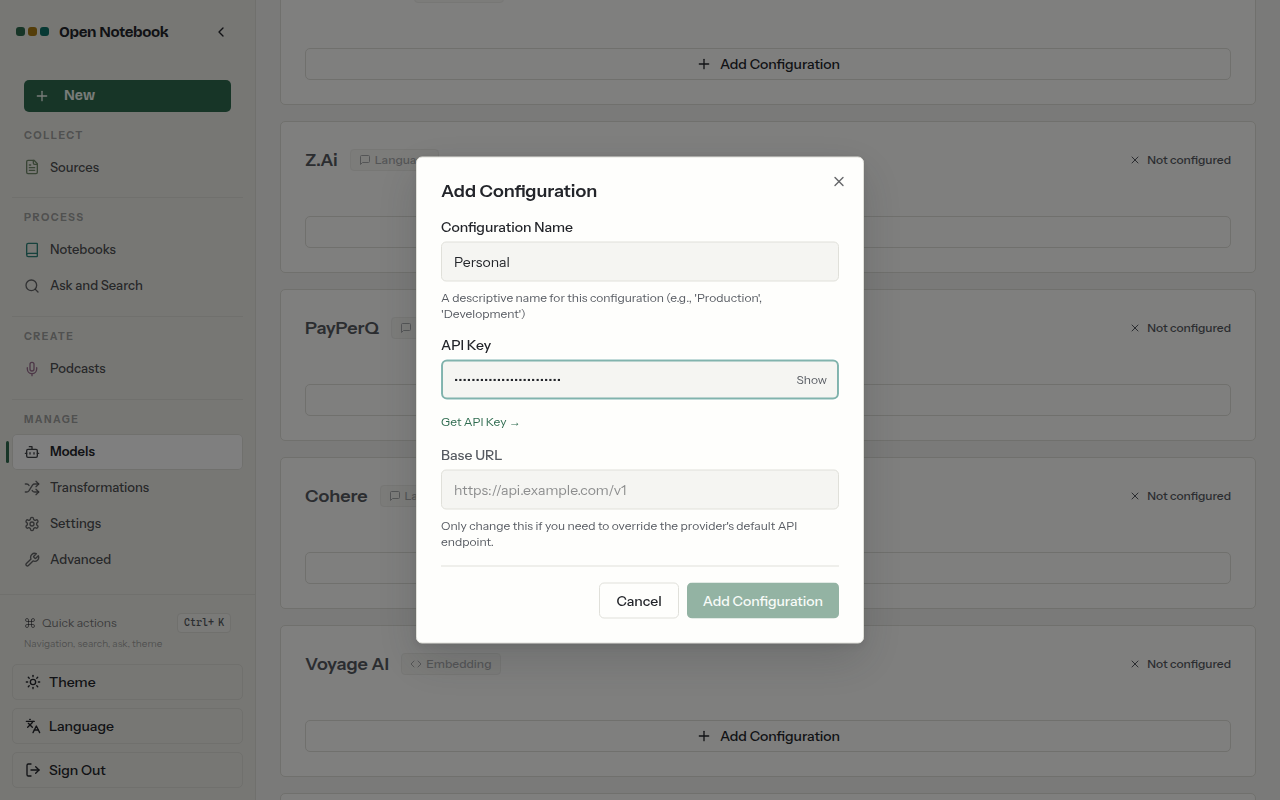
- Save. Click Add Configuration in the form. The PayPerQ card moves to the top of the list and shows "Configured".
- Test the connection. On the new
Personalconfiguration, click Test. A green check appears next to the button.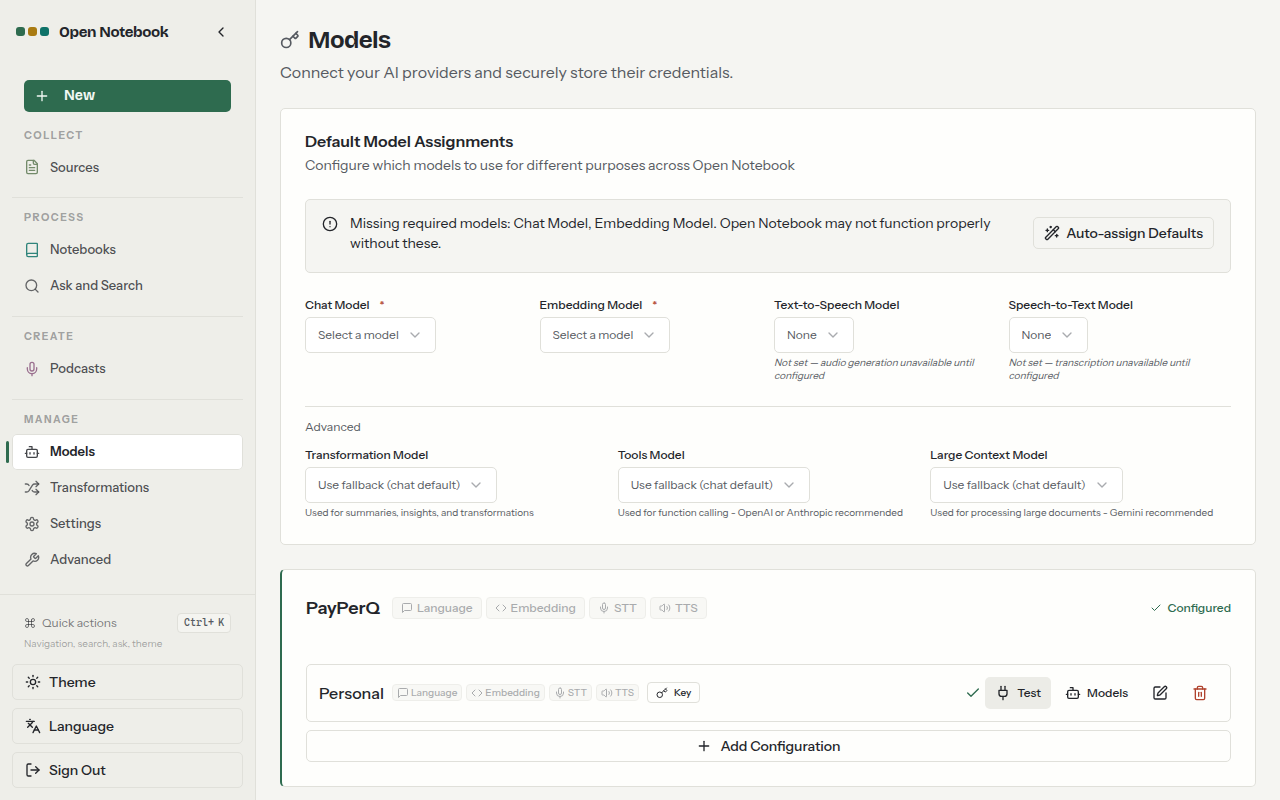
Note: the Test button sends a request to PayPerQ, so it uses a little of your balance.
6. Pick the models
Open Notebook needs one Language model (chat) and one Embedding model (search and Ask). This guide uses mistralai/mistral-nemo for chat and openai/text-embedding-3-small for embeddings.
Note:
mistralai/mistral-nemocosts $0.030595 per 1M input tokens and $0.03165 per 1M output tokens at the time of writing, andopenai/text-embedding-3-smallcosts $0.022 per 1M input tokens. Both are examples; see https://api.ppq.ai/v1/models for the full catalog and current prices (embedding models are listed at https://api.ppq.ai/v1/models?type=embedding). Open Notebook uses the catalog'sidas the model name.
- Open the model list. On the
Personalconfiguration, click Models. The Discover Models - PayPerQ dialog opens. - Model Type. Leave Language selected.
- Search. Type
mistral-nemoin the search box. - Tick the model. Tick
mistralai/mistral-nemo (Mistral Nemo), then click Add (1). A "Success" message appears and the model is listed under the configuration. - Open the list again. Click Models on the configuration.
- Model Type. Open the dropdown and choose Embedding.
- Search. Type
text-embedding-3-small. - Tick the model. Tick
openai/text-embedding-3-small (Text Embedding 3 Small), then click Add (1).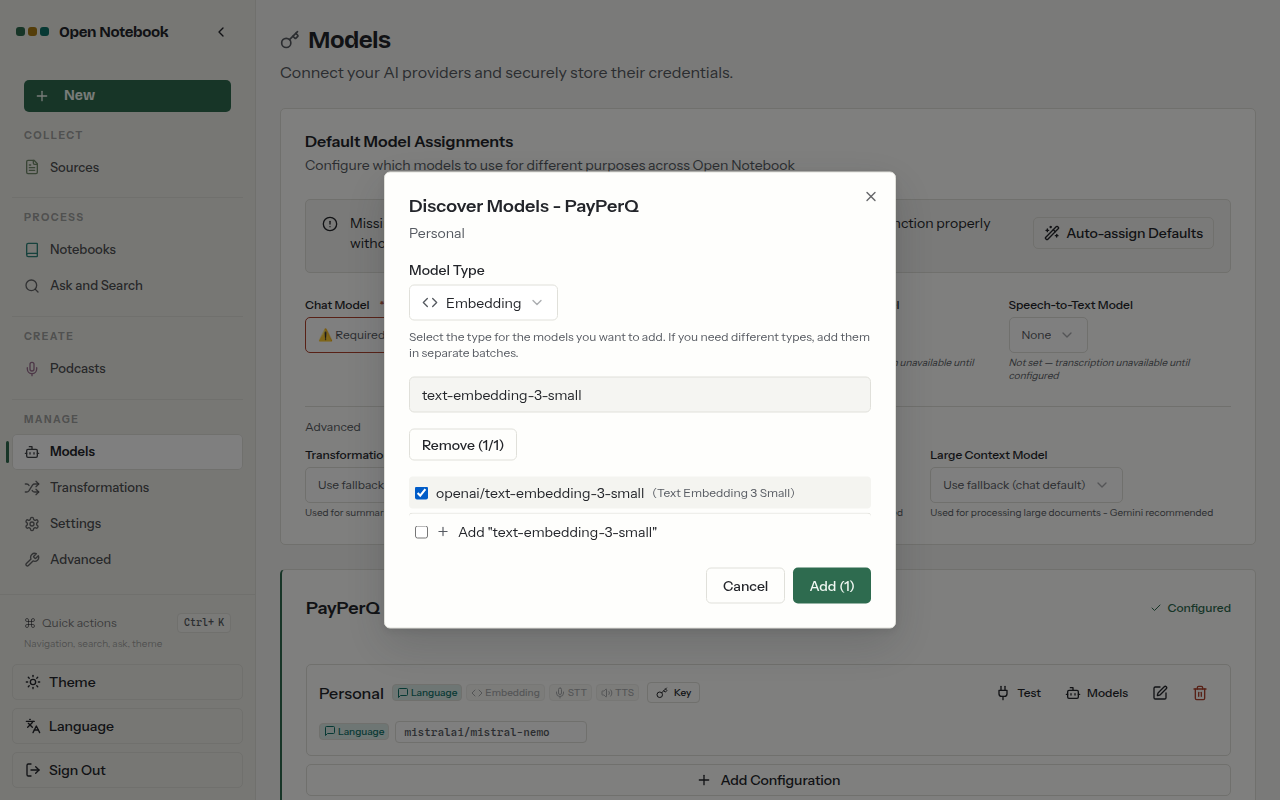
- Assign defaults. At the top of the page, click Auto-assign Defaults in the "Missing required models" notice. Chat Model now shows
mistralai/mistral-nemoand Embedding Model showsopenai/text-embedding-3-small, each taggedppq.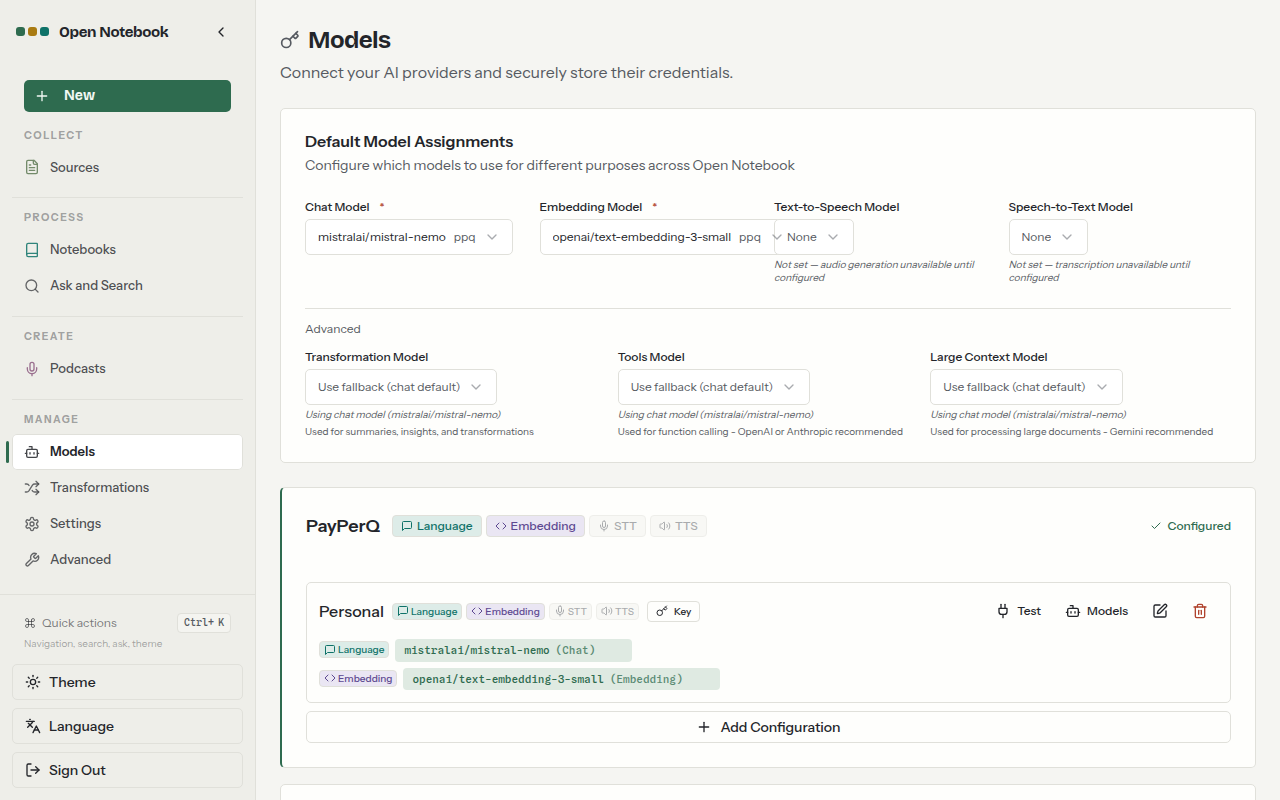
7. Check the active model
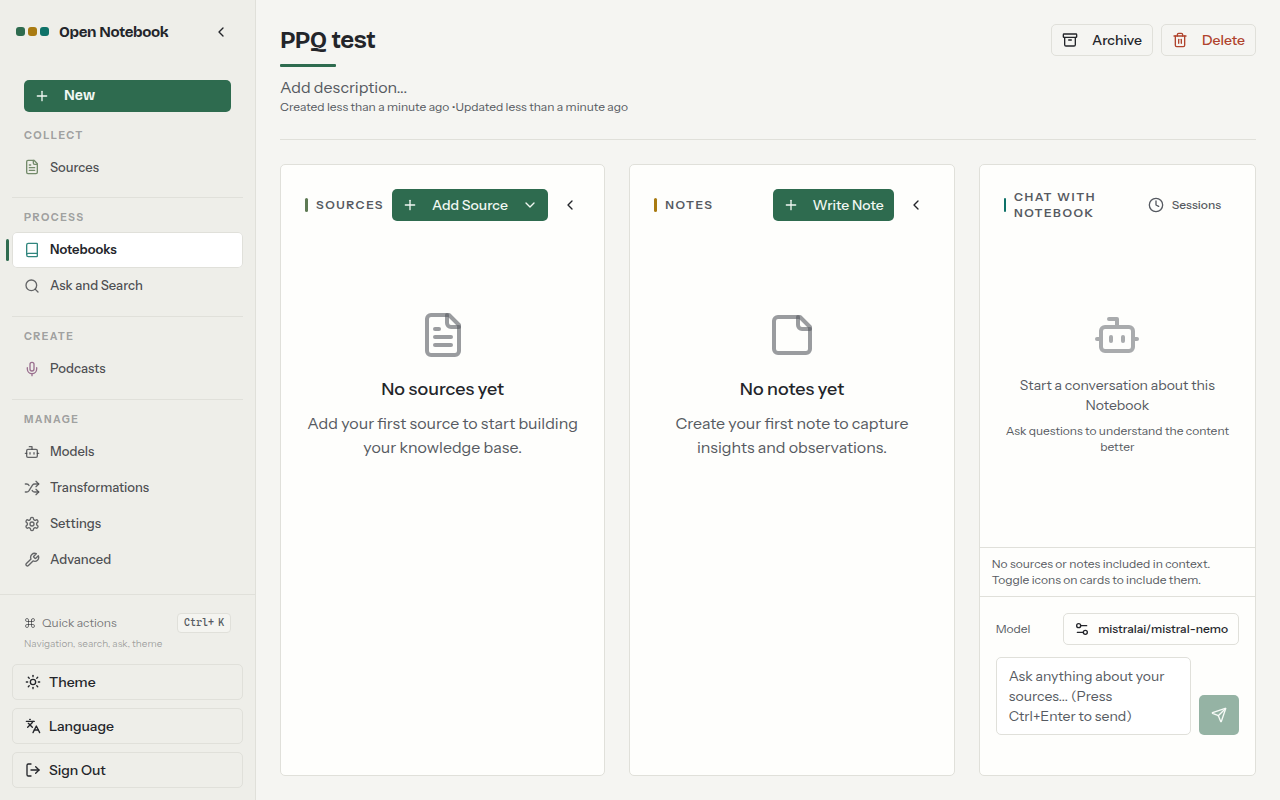
In the left sidebar click Notebooks, click New Notebook, type a name such as PPQ test and click Create New Notebook. Click the notebook to open it. In the Chat with Notebook panel at the right, the Model button at the bottom must show mistralai/mistral-nemo.
8. Send a test prompt
In the chat box at the bottom right, type the prompt below and press Ctrl+Enter to send it (the box says "Press Ctrl+Enter to send").
textReply with the word OK
The answer OK appears under your message.
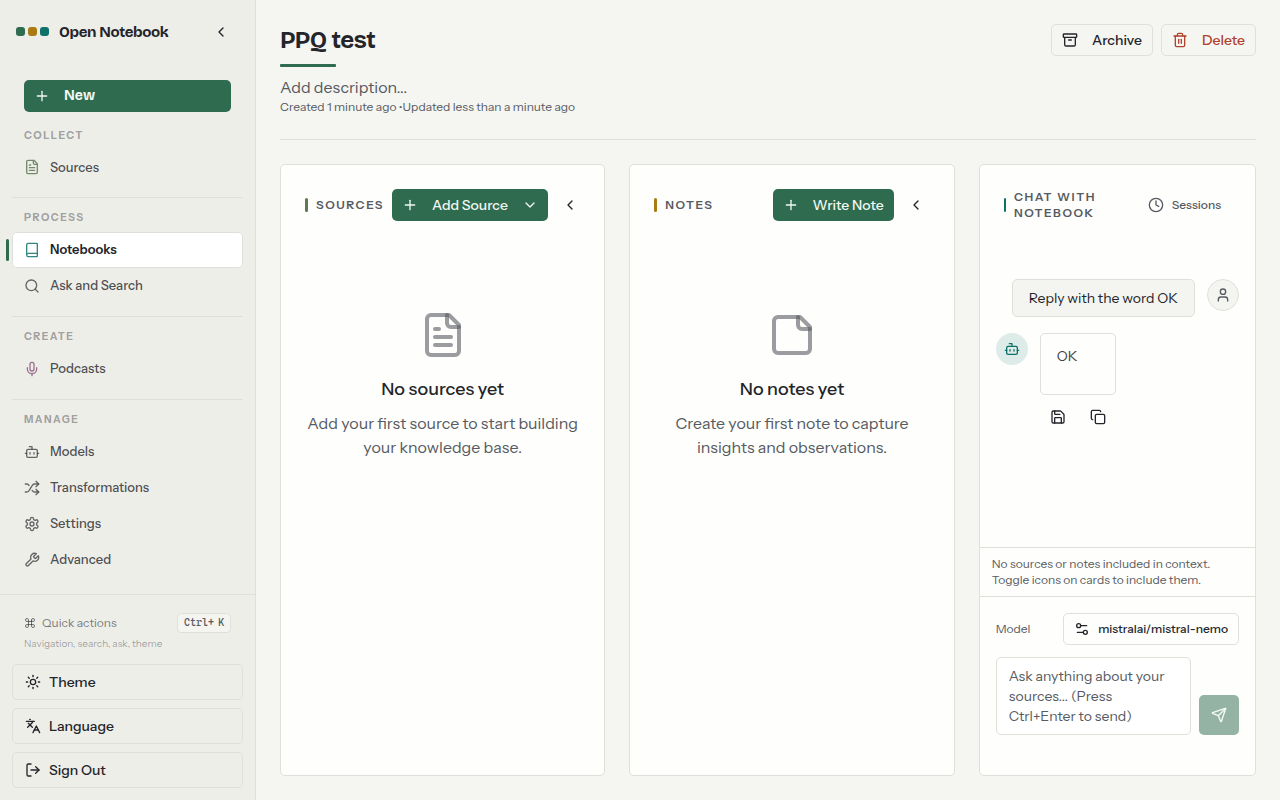
The setup is complete: Open Notebook now chats and embeds through PayPerQ. Check what each request cost at ppq.ai/account-activity. To use another model, add it from the Models dialog of your configuration and pick it in the chat's Model button or under Default Model Assignments.
Troubleshooting
The Models page says "Encryption key not configured" and will not store the key. What happened: OPEN_NOTEBOOK_ENCRYPTION_KEY is not set. Likely cause: the placeholder value was not replaced, or the file was not saved before docker compose up -d. Fix: set the value as in step 3, then run docker compose up -d again.
Test shows a red cross, or "Invalid API key". What happened: Open Notebook could not reach PayPerQ with the key. Likely cause: the key was pasted incompletely. Fix: click the pencil icon on the configuration, paste the key again from ppq.ai/api-docs, leave Base URL empty and click Test again.
Pressing Enter in the chat box does not send the prompt. What happened: the box sends on Ctrl+Enter, as its placeholder says. Fix: press Ctrl+Enter or click the send button.
The Models page asks for a Chat Model or Embedding Model ("Required - Select a model"). What happened: no default is assigned. Likely cause: the models were added but not assigned. Fix: click Auto-assign Defaults, or pick each model from its dropdown under Default Model Assignments.
Problems?
Please contact us through the customer communication chatbot in the bottom right of the PayPerQ site, in our Telegram channel or on Discord.
This guide is open source. If a step no longer works, open the guide on GitHub and use the pencil icon to propose a fix, or open an issue; changes go live after a PayPerQ maintainer reviews them.
What is PayPerQ?
PayPerQ is the private way to use AI. You get the big-name models from Anthropic, OpenAI, Google and xAI, the best open-source models, and TEE models that run inside a hardware enclave where not even the model's host can see your data. Chat, image, video and audio, all in one place, with no account and no subscription. You top up a balance with crypto or a card, from as little as 10 cents, and pay only for what you use. Most users spend about $4 a month, against $20+ for a single ChatGPT subscription.
Privacy is built in rather than bolted on. Every chat request is served inside a secure enclave that PayPerQ's servers, staff and logs cannot read into, so PayPerQ never sees your prompts or responses. Choose a TEE model and the model's host cannot read them either.
Why Use PayPerQ?
- Private by default - chats are served inside a secure enclave PayPerQ cannot read, and every chat model shows its privacy tier (Anon, ZDR or TEE)
- No account needed - no sign-up and no email; a credit id is all it takes
- Pay with crypto or card - Bitcoin, Lightning, Monero, stablecoins and more, or a credit card
- Hundreds of AI models from every major provider in one place
- Pay per use - no subscriptions; top up from 10 cents and pay only for what you use, about 1 cent per query on average
- Your history stays yours - conversations are stored on your device by default
Getting Started
- Visit ppq.ai
- Top up your balance with crypto or a card (as little as 10 cents)
- Pick a model, check its privacy tier, and start chatting
No account, no sign-up. Fund and go.