Using Open Code Review with PayPerQ
Run Open Code Review's AI code reviews on pay-per-use PayPerQ models instead of a separate provider subscription.
What is Open Code Review?
Open Code Review is an AI-powered code review CLI from Alibaba Group, released as open source under the Apache-2.0 license. It reads your Git diffs, sends the changed files to a configurable LLM through an agent with tool-use capabilities, and produces structured review comments with line-level precision.
The ocr review command reviews uncommitted changes. You bring the model endpoint; this guide points it at PayPerQ.
Step by Step Set Up
1. Prerequisites
- A PayPerQ account and API key from ppq.ai/api-docs.
- Git 2.41 or newer. The Open Code Review docs list it as a requirement.
- Node.js 18 or newer. The Open Code Review quickstart lists it as a requirement for the npm install.
- Open Code Review's README lists Windows, macOS and Linux as supported platforms.
2. Install Open Code Review
Run a command to install the ocr CLI globally with npm:
bashnpm install -g @alibaba-group/open-code-review
Then run a command to check it:
bashocr version
Expected result: one line starting with open-code-review followed by a version number, then the build time and the project URL.
Alternative: the installation docs also list Homebrew (
brew install open-code-review), and an install script (curl -fsSL https://open-codereview.ai/install.sh | sh). For Windows, the docs give a PowerShell installer:irm https://open-codereview.ai/install.ps1 | iex.
3. Add PayPerQ as a custom provider
Run the interactive setup. It saves the provider, key and model to ~/.opencodereview/config.json.
bashocr config provider
Windows:
~is your user folder, so this file is%USERPROFILE%\.opencodereview\config.json.
Answer the screens in order:
- Provider list. The screen opens on the Official tab, with a list of built-in providers. Press Tab once to move to the Custom tab.
- Custom tab. It shows one entry,
+ Add custom provider. Press Enter. - Provider name. Type payperq and press Enter.
- Protocol. A list shows
anthropic,openai,openai-responsesandanthropic-bedrock. Press Down once to highlight openai, then Enter.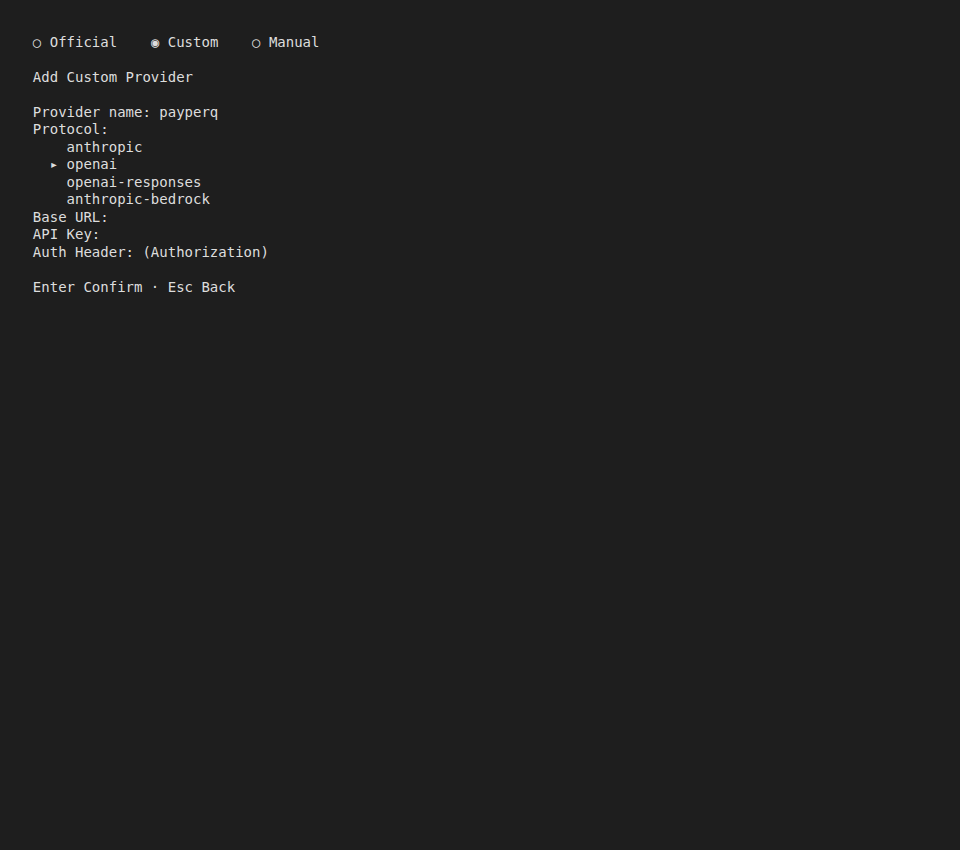
- Base URL. Type https://api.ppq.ai/v1 and press Enter.
- API Key. Paste
<your PayPerQ API key>and press Enter. The field shows asterisks.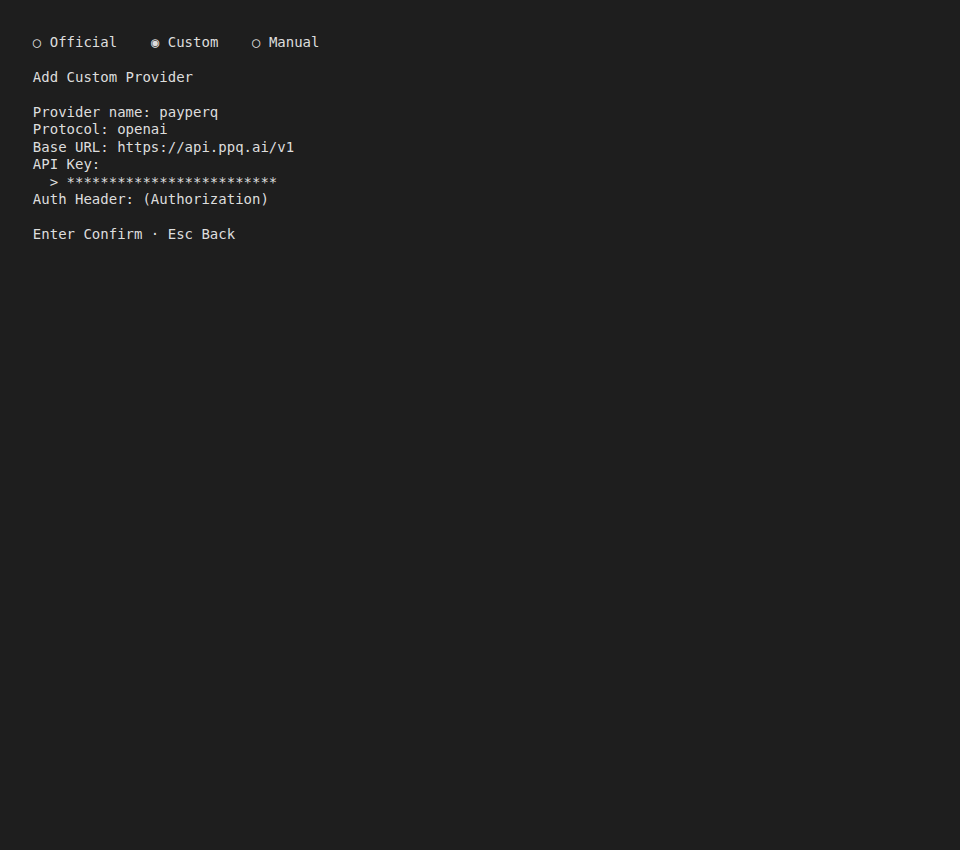
- Auth Header. Leave it empty (the default is
Authorization) and press Enter. - Select a model. The list has one entry,
Enter custom model name.... Press Enter, type qwen/qwen3.7-flash, and press Enter again. The model now appears in the list above the custom entry: press Up to highlight it, then press Enter.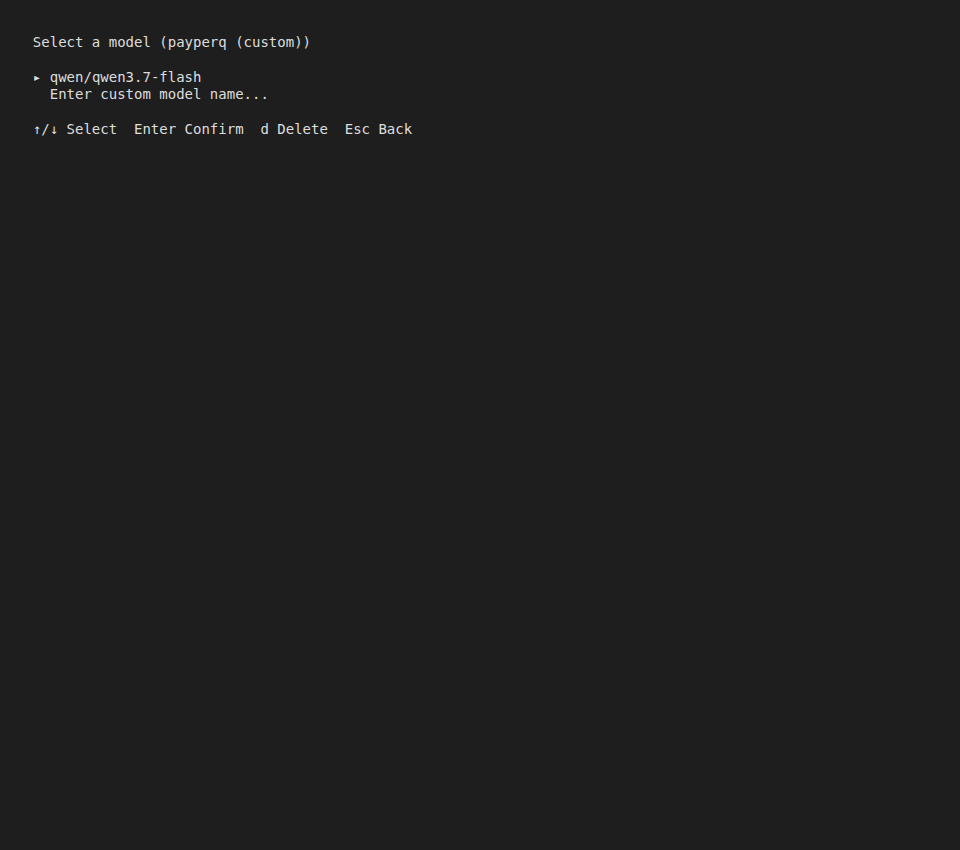
- Enter API Key (payperq). It shows a masked field and says the saved key is kept unless you type a new one. Press Enter to keep it.
Note:
qwen/qwen3.7-flashcosts $0.03165 per 1M input tokens and $0.13715 per 1M output tokens at the time of writing. See api.ppq.ai/v1/models for current prices. The model name you type is theidfield of a catalog entry.
Note: Open Code Review drives a review through tool calls, so its FAQ says the model must support native tool calling. In the PayPerQ catalog, those models list
toolsinsupported_parameters.
Expected result: the setup tests the connection by itself and prints:
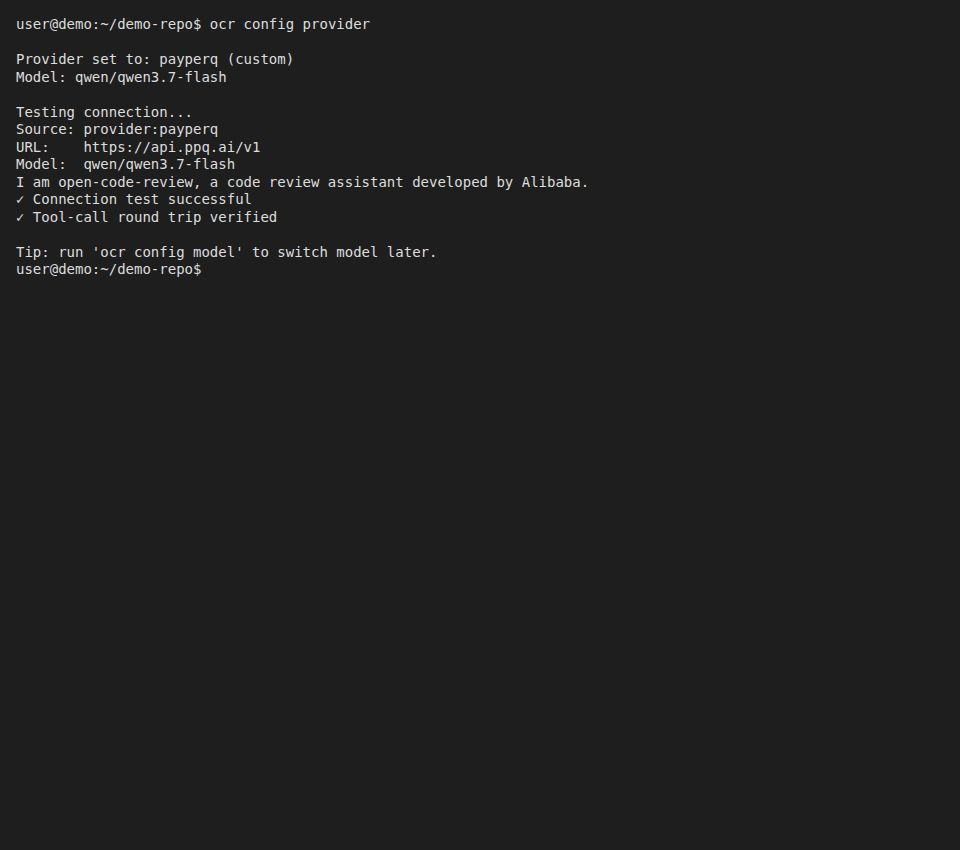
The lines to look for are Provider set to: payperq (custom), Model: qwen/qwen3.7-flash, URL: https://api.ppq.ai/v1, ✓ Connection test successful and ✓ Tool-call round trip verified.
Note: the Open Code Review docs say custom providers need a non-empty
api_keyand have no environment-variable fallback. When several key sources exist, the docs say a staticapi_keyalways wins; otherwiseapi_key_cmdruns; only if neither is set does Open Code Review fall back to the provider's environment variable.
4. Review code with a PayPerQ model
Run a command to create a small Git repository to review:
bashmkdir demo-repo && cd demo-repo && git init
Run a command to create a file and commit it:
bashprintf 'def add(a, b):\n return a + b\n' > calc.py && git add . && git commit -m init
Run a command to introduce a bug without committing it:
bashprintf 'def add(a, b):\n return a - b\n' > calc.py
Tip: any Git repository with uncommitted changes works;
ocr reviewreviews staged, unstaged and untracked changes.
Run the review:
bashocr review
Expected result: after a few seconds the review finishes with Review complete: 1 finding(s) and a comment on calc.py:2-2 that flags return a - b instead of a + b.
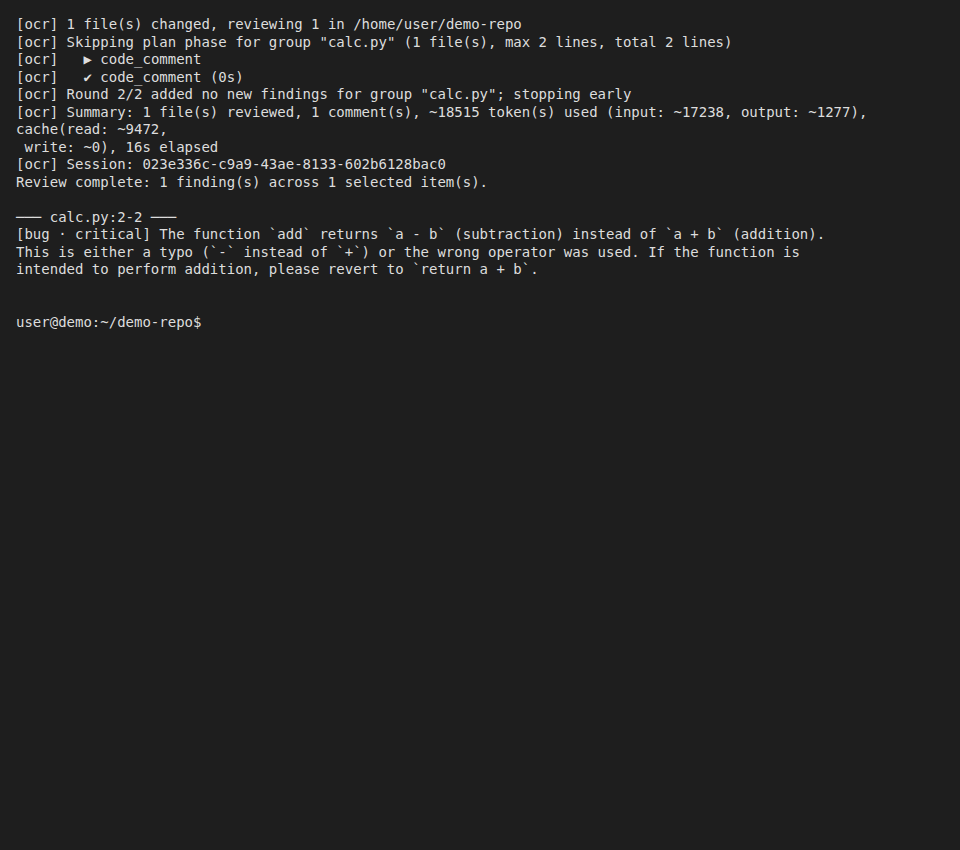
Your setup is complete. Check the cost of each review on your PayPerQ account activity page. To use another model, run ocr config model.
Troubleshooting
npm install -g fails with a permissions error (EACCES). What happened: npm could not write to its global folder as your user. Likely cause: Node.js installed from a system package, with a global folder owned by root. Fix: run the same command with sudo.
no valid LLM endpoint configured. What happened: no provider, URL, key and model are saved. Likely cause: the provider setup was never completed. Fix: run ocr config provider again (the Open Code Review FAQ describes this error).
A 401 or 403 after the connection test. What happened: the endpoint rejected the key. Likely cause: the Open Code Review quickstart says it means "the token is wrong or expired". Another possible cause is a conflicting key source: a static api_key always wins over api_key_cmd and over an environment variable. Fix: run ocr config provider, pick the payperq entry and paste the key from ppq.ai/api-docs again, and check that no api_key_cmd is set elsewhere.
No tool calls parsed or Max tool requests reached, with zero comments. What happened: the model did not make native tool calls. Likely cause: the FAQ says the model must support native tool calling. Fix: run ocr config model and choose a model whose catalog entry lists tools.
Problems?
Please contact us through the customer communication chatbot in the bottom right of the PayPerQ site, in our Telegram channel or on Discord.
This guide is open source. If a step no longer works, open the guide on GitHub and use the pencil icon to propose a fix, or open an issue; changes go live after a PayPerQ maintainer reviews them.
What is PayPerQ?
PayPerQ is the private way to use AI. You get the big-name models from Anthropic, OpenAI, Google and xAI, the best open-source models, and TEE models that run inside a hardware enclave where not even the model's host can see your data. Chat, image, video and audio, all in one place, with no account and no subscription. You top up a balance with crypto or a card, from as little as 10 cents, and pay only for what you use. Most users spend about $4 a month, against $20+ for a single ChatGPT subscription.
Privacy is built in rather than bolted on. Every chat request is served inside a secure enclave that PayPerQ's servers, staff and logs cannot read into, so PayPerQ never sees your prompts or responses. Choose a TEE model and the model's host cannot read them either.
Why Use PayPerQ?
- Private by default - chats are served inside a secure enclave PayPerQ cannot read, and every chat model shows its privacy tier (Anon, ZDR or TEE)
- No account needed - no sign-up and no email; a credit id is all it takes
- Pay with crypto or card - Bitcoin, Lightning, Monero, stablecoins and more, or a credit card
- Hundreds of AI models from every major provider in one place
- Pay per use - no subscriptions; top up from 10 cents and pay only for what you use, about 1 cent per query on average
- Your history stays yours - conversations are stored on your device by default
Getting Started
- Visit ppq.ai
- Top up your balance with crypto or a card (as little as 10 cents)
- Pick a model, check its privacy tier, and start chatting
No account, no sign-up. Fund and go.