Using Claude Desktop with PayPerQ
Learn how to point Claude Desktop at PayPerQ using the built-in Third-Party Inference Gateway, so you can pay per use with crypto and avoid a Claude subscription.
What is Claude Desktop?
Claude Desktop is Anthropic's official desktop application for Mac and Windows. It gives you the Claude chat experience in a native app — file attachments, projects, and artifacts — outside the browser.
Why Use PayPerQ with Claude Desktop?
Claude Desktop normally requires a paid Claude subscription billed to a credit card. By pointing it at PayPerQ's API, you can:
- Skip the subscription — top up with crypto and pay only for the tokens you use
- Use the same Claude Desktop UI you already like — projects, artifacts, attachments, everything
- Swap in other models available on PPQ (Claude, OpenAI, Gemini, Kimi, Deepseek, and many more) without leaving the app
- Keep spending visible through your PPQ account activity page
Step by Step Setup
1. Install the latest Claude Desktop
Download and install the latest version of Claude Desktop from claude.ai/download. Make sure you're on a recent build — the Third-Party Inference option only appears in newer releases.
2. Get your PayPerQ API key
Navigate to ppq.ai/api-docs and copy your API key. It starts with sk-.
3. Enable Developer Mode
Open Claude Desktop and go to the Help menu, then Troubleshooting, and click Enable Developer Mode.
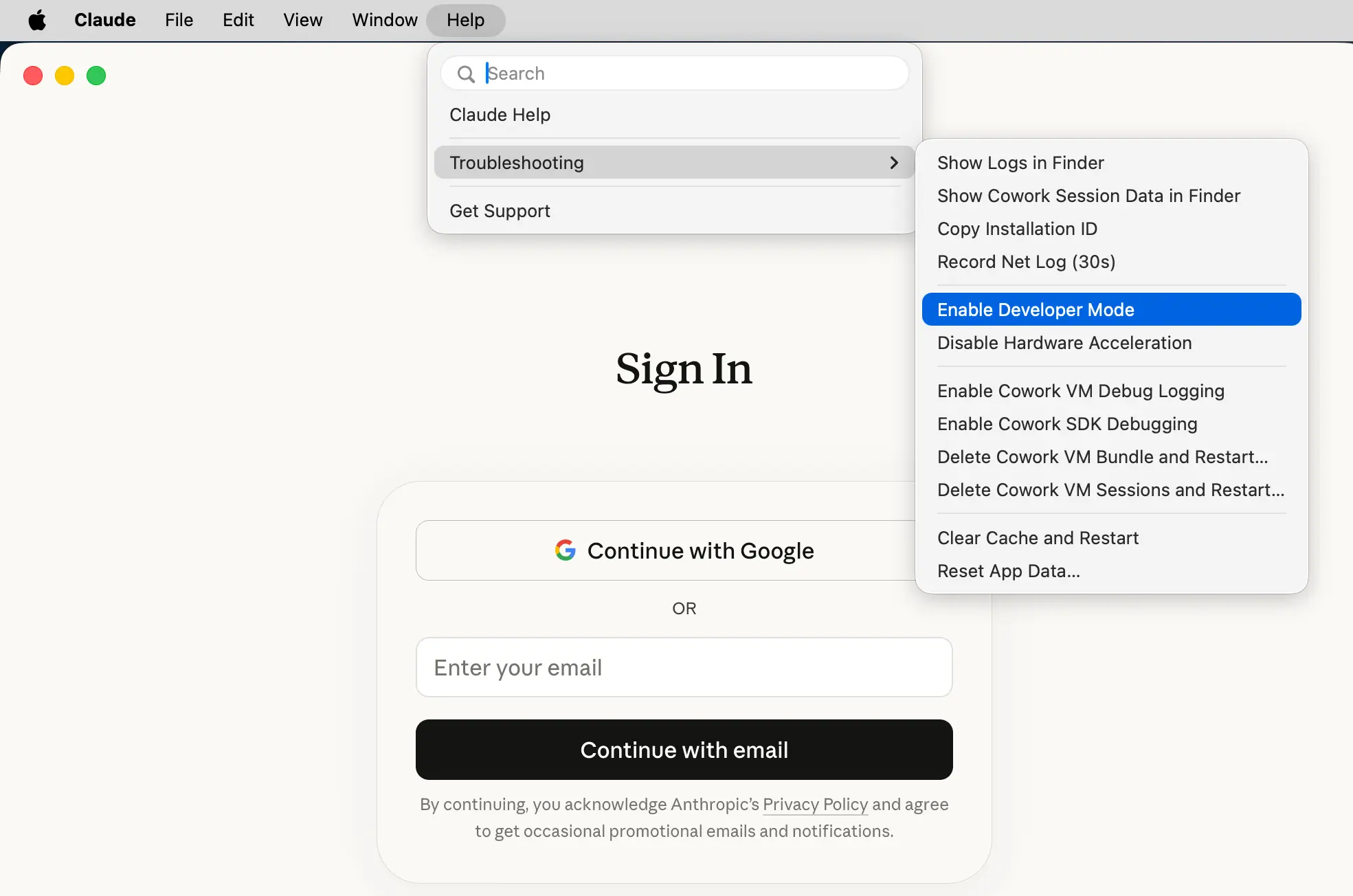
Claude Desktop will confirm that Developer Mode is on. A new Developer menu appears in the menu bar.
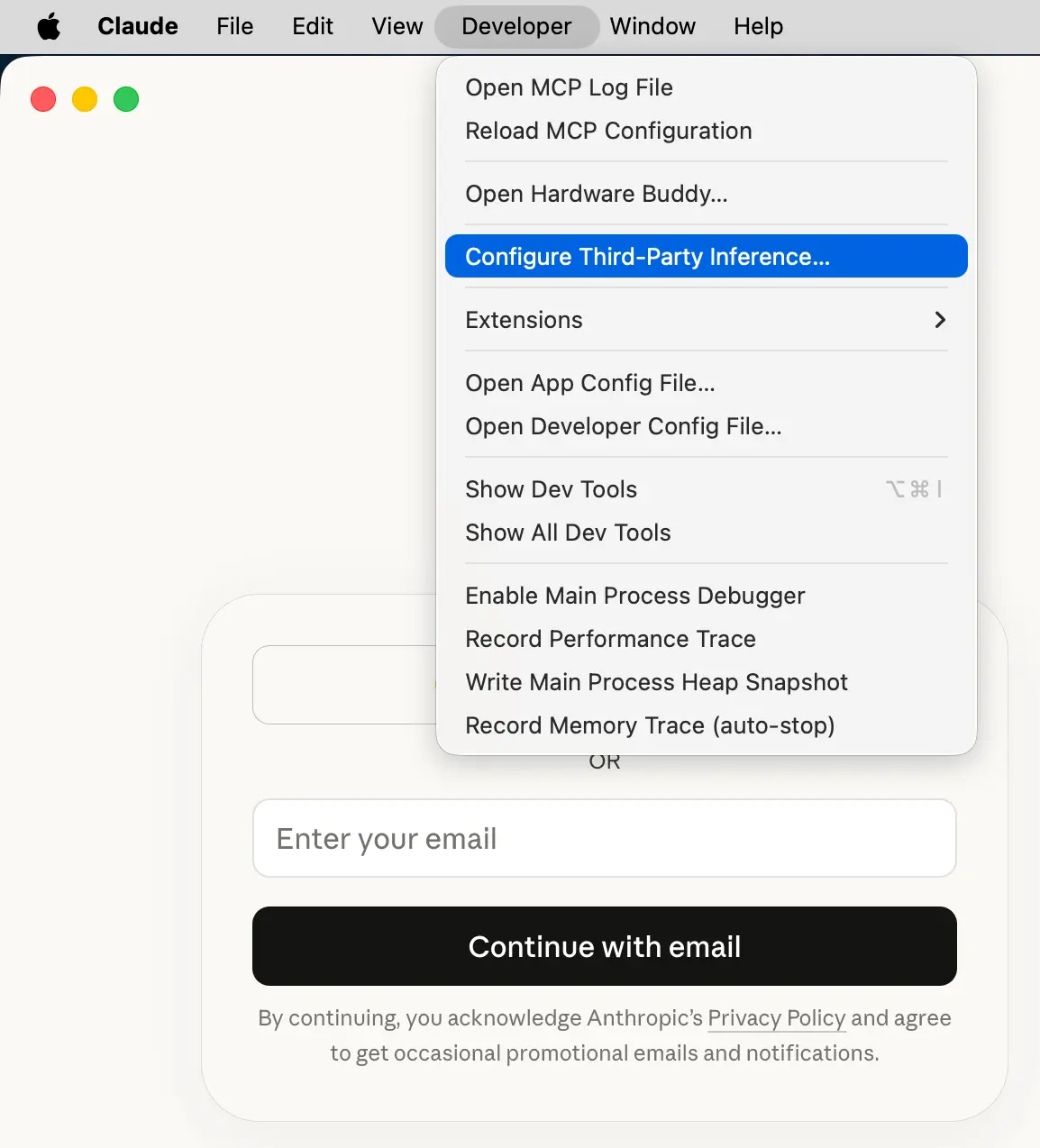
4. Open the Third-Party Inference panel
From the new Developer menu, choose Configure Third-Party Inference.
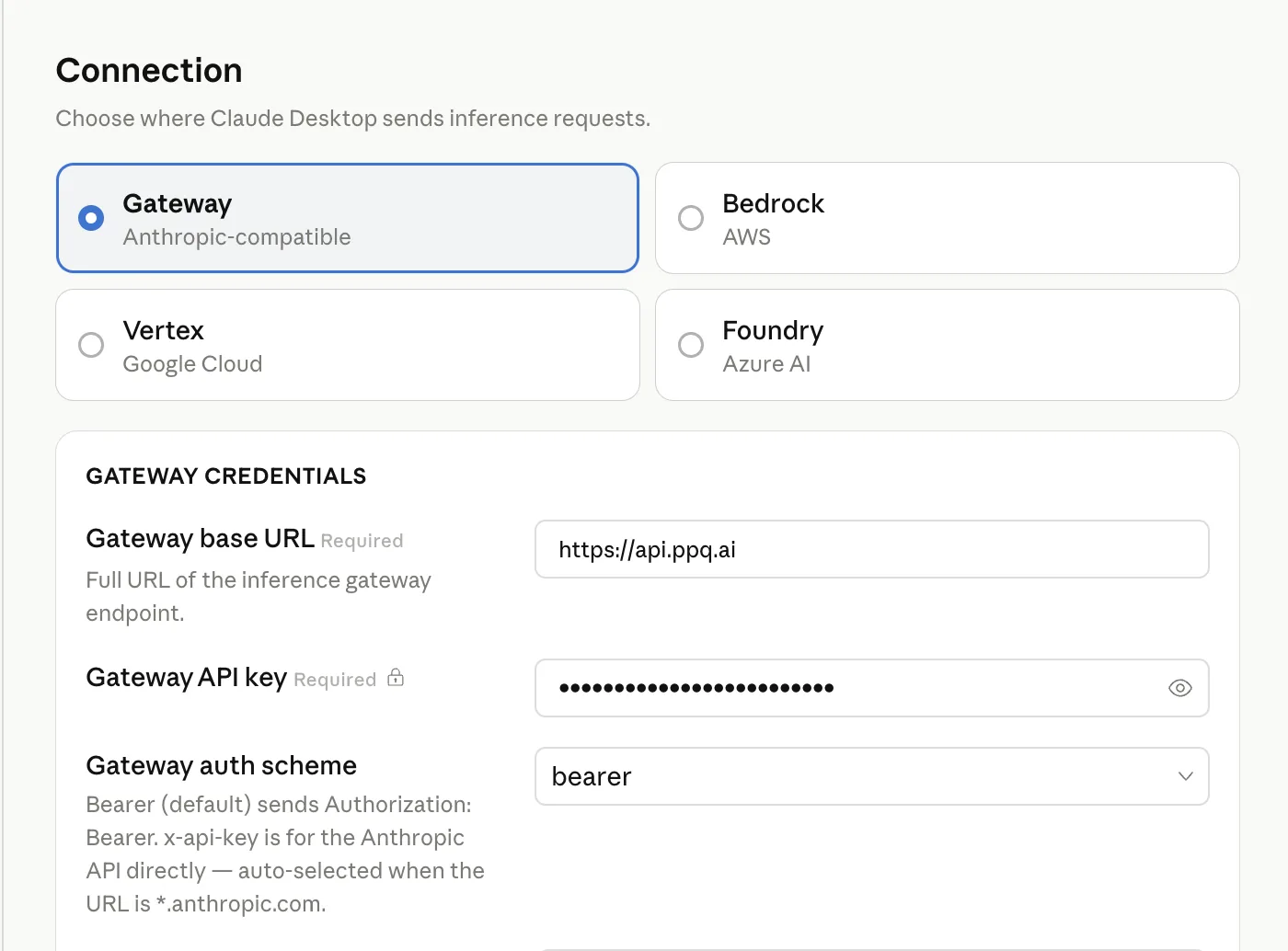
5. Enter your PayPerQ gateway credentials
In the Third-Party Inference panel, select Gateway and fill in the fields exactly as follows:
- Gateway base URL:
https://api.ppq.ai - Gateway API key: your PPQ key (starts with
sk-) - Gateway auth scheme:
bearer
Then click Apply locally.
6. Fully quit and relaunch Claude Desktop
Don't just close the window — fully quit the app (Cmd+Q on macOS, or right-click the tray icon and Exit on Windows), then reopen it. On relaunch, Claude Desktop will ask whether you want to continue with the gateway you configured. Select Continue with Gateway.
7. Pick a model and start chatting
The model picker inside Claude Desktop will now show the models available through your PPQ key. Choose any of them — Claude Sonnet 4.6, Opus 4.6, Haiku 4.5, or anything else PPQ exposes through the Anthropic-compatible endpoint — and start a conversation.
8. Verify your setup
Open a new chat and send a quick "hello" message. Then head to ppq.ai/account-activity and confirm that the request shows up in your usage history. If it does, the gateway is wired up correctly.
Claude Code via PayPerQ
If you also use Claude Code (the CLI / VS Code companion to Claude Desktop), the same principle applies: point its ANTHROPIC_BASE_URL at https://api.ppq.ai and set ANTHROPIC_AUTH_TOKEN to your PPQ key. We have a dedicated walkthrough here:
Using Claude Code with PayPerQ
Troubleshooting
- Nothing works / the Gateway option isn't there at all. You're probably on an older build. Update Claude Desktop to the latest version (claude.ai/download) — the Third-Party Inference Gateway only appears in recent releases.
- The Developer menu doesn't appear. Make sure you're on a current version of Claude Desktop and that you clicked Enable Developer Mode under Help > Troubleshooting. Restart the app after enabling it.
- "Continue with Gateway" prompt never shows up. Quit Claude Desktop completely and relaunch — closing the window isn't enough.
- Requests are failing with an auth error. Double-check that:
- The base URL is exactly
https://api.ppq.ai(no trailing slash, no/v1). - The auth scheme is
bearer. - The API key is pasted without extra whitespace and starts with
sk-.
- The base URL is exactly
- Requests fail with "insufficient credits". Top up at ppq.ai/top-up.
- Model isn't showing up. Fetch the current list directly from
https://api.ppq.ai/v1/modelsand confirm the model you expect is live.
Tips for Best Results
- Feel free to experiment with other models, but fall back to Claude if they misbehave. Claude Desktop is designed around Claude, so Anthropic models tend to be the most reliable fit — Sonnet 4.6 for everyday use, Opus 4.6 for heavier reasoning, Haiku 4.5 when you want speed. Try other PPQ models if you're curious, but if something feels off, switch back to a Claude model.
- Monitor your usage. ppq.ai/account-activity shows per-request spend so you can see exactly where your credits are going.
- Use Claude Code for coding tasks. Claude Desktop is great for chat and projects, but for in-repo coding work, pair it with Claude Code against the same PPQ key.
What is PayPerQ?
PayPerQ is a pay-per-query AI service that gives you instant access to hundreds of chat, image, video, and audio AI models in one place. Unlike traditional ChatGPT subscription that charges $20+ per month, PPQ users pay only for what they use—averaging just $4 a month.
Account registration optional. No monthly commitments. Privacy focused. Credit cards and all major cryptos accepted. Just top up with as little as 10 cents and start using premium AI immediately.
Why Use PayPerQ?
- Access hundreds of AI models from all major providers in one place
- Pay per use - no subscriptions, no wasted money on unused credits
- No registration required - start using AI in seconds
- Start small - top up with as little as 10 cents
- Privacy-first - conversational data stored locally by default
- Average cost: ~1 cent per query
Getting Started
- Visit ppq.ai
- Top up your balance (crypto or credit card, as little as 10 cents)
- Select your model and start chatting
No account creation needed—just fund and go.
Problems?
Please contact us through the customer communication chatbot in the bottom right of ppq.ai, or drop into our Telegram channel.