Request Telemetry - See How Your PayPerQ Requests Performed
Requests in your Account Activity now have a details panel - time to first token, speed, total time, who served it, and a Request ID you can send to support. Here is what each number means.
A slow answer is frustrating. A slow answer you cannot explain is worse: was it the model, the provider, a retry, or the network?
Request Telemetry helps answer that. In Account Activity, requests that show a pulse icon have a small panel with the numbers we recorded for that one request: how long it took to start answering, how fast it wrote, how long it took in total, who actually served it, and an ID you can give our support team.
This post explains every line in that panel.
How to open it
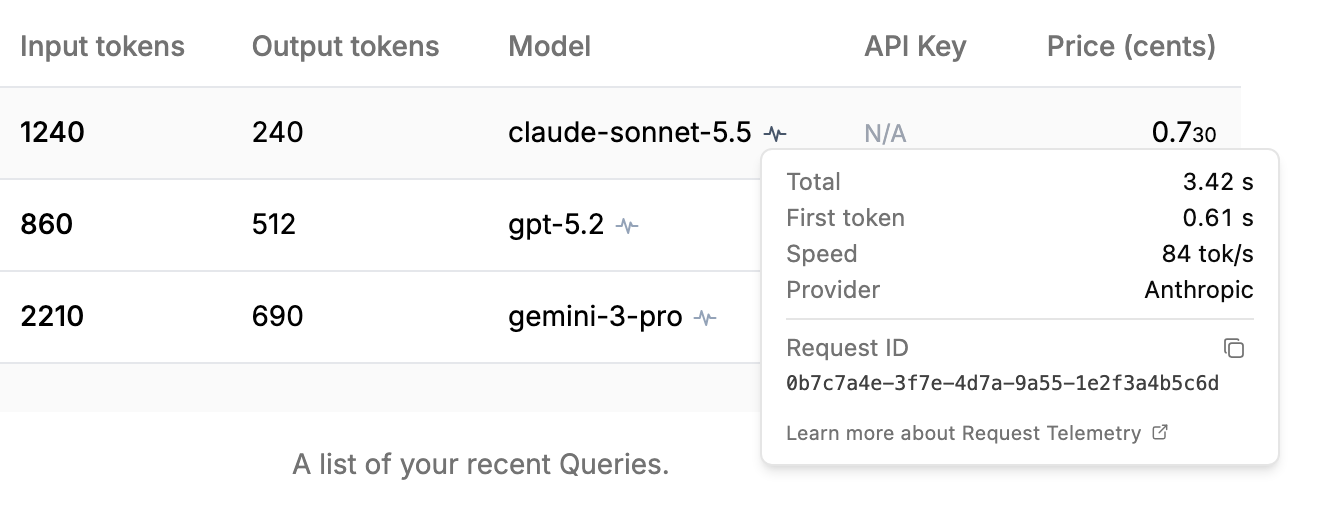
Go to Account Activity, find the request, and hover (or tap) the pulse icon in its row. On a keyboard, Tab to the icon and the panel opens; Tab again moves to the copy button and the link at the bottom of the panel, and Esc closes it.
A line appears only when we received a usable value for it. If a row is missing, that value was unknown or not recorded - we never fill the gap with a guess.
Timing
Total
How long the request took to handle, from start to finish. On the direct route, PayPerQ measures from the moment it starts handling the request until the answer ends.
On the confidential route the value is shown as ≥ 4.20 s. The confidential route starts its clock when the request reaches it, so the short trip before that is not included. The real total is at least this number.
First token
How long you waited before the answer started: the time from sending the request to the provider until the first token of the answer came back. This is the number that decides whether a response feels fast.
First byte
Shown instead of First token on some confidential-route requests. It is the time until the first piece of the response arrived, which can come slightly before the first actual token of text.
Speed
How fast the model wrote once it had started: output tokens per second, counted from the first token to the last. Time spent waiting for the first token is not included, so a slow start does not drag the speed down. This is the same window independent benchmarks such as Artificial Analysis use for their "output speed".
Speed comes in two forms:
- 41 tok/s - measured. The token count comes from the model provider itself.
- ≈ 41 tok/s - estimated. Some providers do not tell us how many tokens they produced, so the confidential route counts the output it delivered to you instead. That is a different measurement, not a less precise copy of the first one: it counts what reached you, and it can read lower than the provider's own figure (for example, when a model's hidden reasoning is not part of what was delivered). Estimated speeds are never mixed into published speed statistics.
If a request finished but the provider never reported how many tokens it produced, the panel says Provider did not report token count and there is no speed line for it.
Who served it
Provider
The company whose servers actually ran the model.
Some models are reached through a routing service that picks one of several hosting companies for each request. Those requests show both, separated by an arrow: routing provider → serving provider. The left side is where PayPerQ sent the request; the right side is the company that ran it. Two requests to the same model can show different serving providers, and that is often the reason one was faster than the other.
What happened along the way
Cache
Appears when prompt caching was involved. "Hit" means part of your prompt was read from the provider's cache, which is faster and cheaper; "tokens written" means part of it was stored so the next request can reuse it.
Reasoning tokens
How many tokens a reasoning model spent thinking before it answered. This is often the explanation for a long total on a short answer.
Attempts
Shown only when it took more than one try to get an answer from the provider. On the confidential route it reads ≥ 2: that route reports the attempts it can confirm, so the real number may be higher.
Finished
Appears only when the answer did not end normally, and says why: Reached the output limit means the model ran out of room and the answer was cut short; Stopped by the provider's content filter means the provider ended it. When the model simply finished its answer, there is no Finished line.
Routes
Confidential route
The default path for chat. PayPerQ routes your request inside a hardware-isolated, attested environment, so PayPerQ's ordinary servers do not see its contents. The model provider still receives what it needs to run the model.
Direct route
Used when a request is not eligible for the confidential route, or when the confidential route fails. If the confidential route fails, PayPerQ may retry on the direct route. When that happens, the panel shows both steps as a short timeline: the confidential attempt that failed, and the direct attempt.
In the timeline, failed means that step did not complete; a note such as HTTP 503 is the status code reported for the failed step. The direct step shows ok when it completed and failed when it did not.
Your total
Shown in that timeline when both durations are known. It adds the confidential attempt to the direct one, so it is approximately the time you actually waited. The first step is marked * because it is measured by your browser, not by our servers.
Request ID
Request ID
A unique ID for this one request. Use the copy button and include it when you contact support - it gives us a precise reference to the request and its recorded timings.
What is PayPerQ?
PayPerQ is a pay-per-query AI service that gives you instant access to hundreds of chat, image, video, and audio AI models in one place. Unlike traditional ChatGPT subscription that charges $20+ per month, PPQ users pay only for what they use—averaging just $4 a month.
Account registration optional. No monthly commitments. Privacy focused. Credit cards and all major cryptos accepted. Just top up with as little as 10 cents and start using premium AI immediately.
Why Use PayPerQ?
- Access hundreds of AI models from all major providers in one place
- Pay per use - no subscriptions, no wasted money on unused credits
- No registration required - start using AI in seconds
- Start small - top up with as little as 10 cents
- Privacy-first - conversational data stored locally by default
- Average cost: ~1 cent per query
Getting Started
- Visit ppq.ai
- Top up your balance (crypto or credit card, as little as 10 cents)
- Select your model and start chatting
No account creation needed—just fund and go.